
Entra ID Auth for Claude MCP Servers with Datawiza Agent Gateway
Overview
This tutorial shows how to add Microsoft Entra ID (formerly Azure AD) authentication to an existing MCP server using Datawiza Agent Gateway — without modifying the server itself.
Datawiza Agent Gateway sits in front of your MCP server, handles the Microsoft Entra ID login flow, validates the user, enforces access policy, and forwards only authenticated MCP traffic to the backend. Your MCP server stays focused on its tools and never needs to implement enterprise OAuth.
Architecture
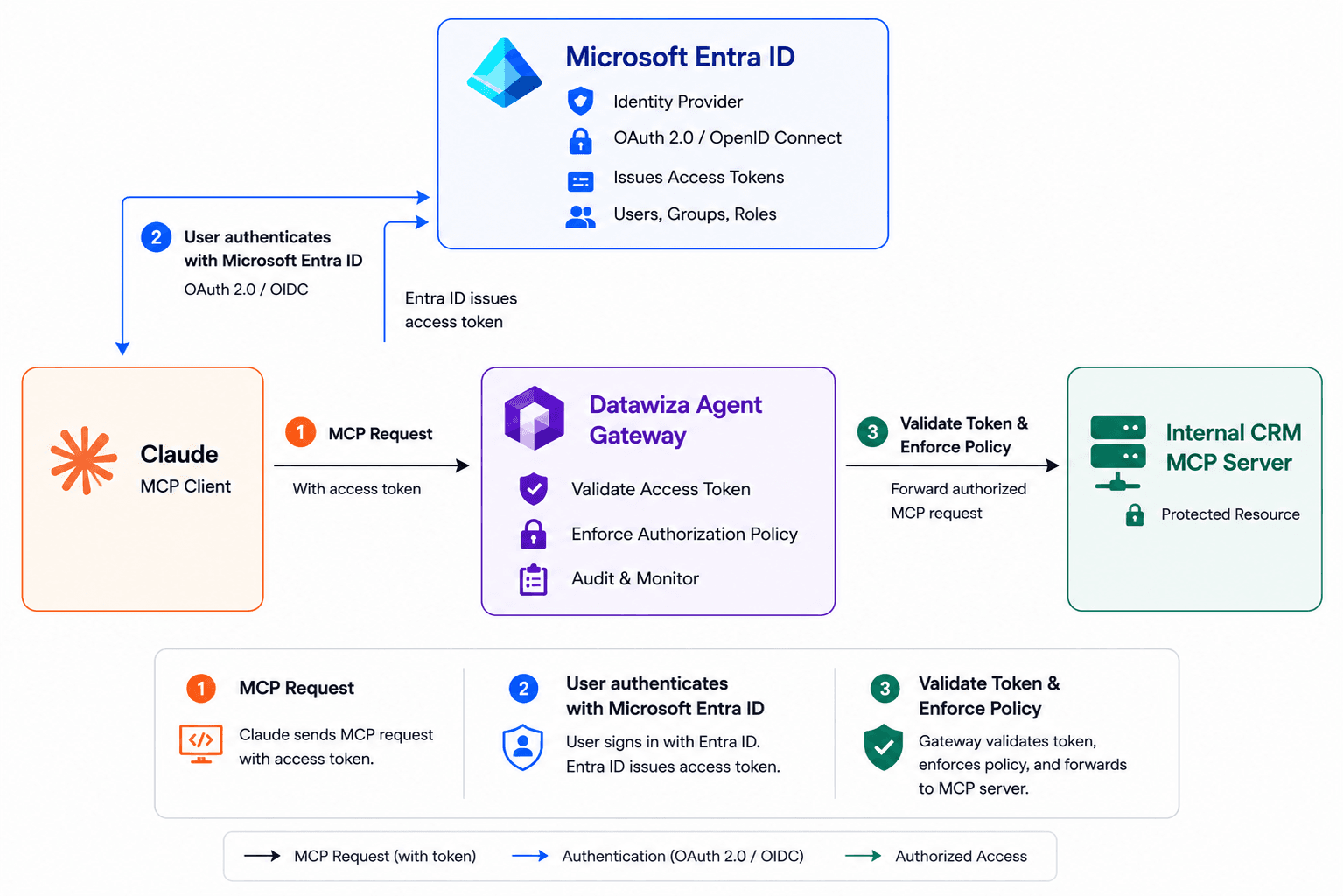
MCP over HTTP supports authorization at the transport layer. Protected MCP servers can require OAuth-style bearer tokens before granting access to tools. Since authorization is optional in the MCP spec, many internal servers skip it entirely — which is exactly where a gateway pattern adds value.
What You Will Build
By the end of this tutorial you will have a Datawiza-protected public endpoint sitting in front of your existing internal MCP server:
https://crm-mcp.company.com/mcp     ← protected endpoint Claude connects to
http://internal-crm-mcp:3000/mcp    ← your existing MCP server (stays internal)
Claude connects only to the protected endpoint. The internal MCP server is unreachable from outside your network.
The examples throughout this tutorial use a sample internal CRM server as the backend. This is illustrative — you will substitute your own MCP server. The sample server exposes three tools:
| Tool | Description |
|---|---|
get_customer_profile | Retrieve a customer's profile by ID |
list_customer_orders | List recent orders for a customer |
create_support_ticket | Open a support ticket on behalf of a customer |
Why This Pattern Matters
Many MCP servers are easy to build but do not include enterprise-grade authentication. This is risky when tools expose CRM records, orders, tickets, finance data, or internal APIs.
With Datawiza Agent Gateway, responsibilities stay separate:
- MCP server developers build business tools.
- Identity teams manage authentication and access policy.
- Claude users authenticate with Microsoft Entra ID before any tool is available.
Prerequisites
- A Microsoft Entra ID tenant
- Permission to create Entra app registrations (this tutorial registers two: a resource app and a client app)
- A Datawiza Agent Gateway Console (DAGC) account
- A Linux host reachable from the internet on port 443 to run the gateway container
- Docker and Docker Compose installed on the gateway host (the setup script in Step 2.5 can install these for you)
- A public hostname for the protected MCP endpoint
- An existing MCP server accessible on your internal network
- Claude Code or Claude.ai with support for remote MCP servers
Step 1: Register Apps in Microsoft Entra ID
MCP authorization needs two separate app registrations:
- A resource app that represents the protected MCP server itself — it exposes the API and the scope Claude requests.
- A client app that represents Claude — it's what a user actually signs into, and it holds the redirect URIs and requests the resource app's scope on the user's behalf.
Keeping them separate is standard OAuth practice: the resource app is never involved in a browser redirect, and the client app never defines API scopes.
1.1 Register the Resource App
In the Azure portal, go to Microsoft Entra ID > App registrations.
Click New registration and fill in:
Field Value Name Datawiza CRM MCP GatewaySupported account types Single tenant Redirect URI Leave blank — this app never signs in a user directly 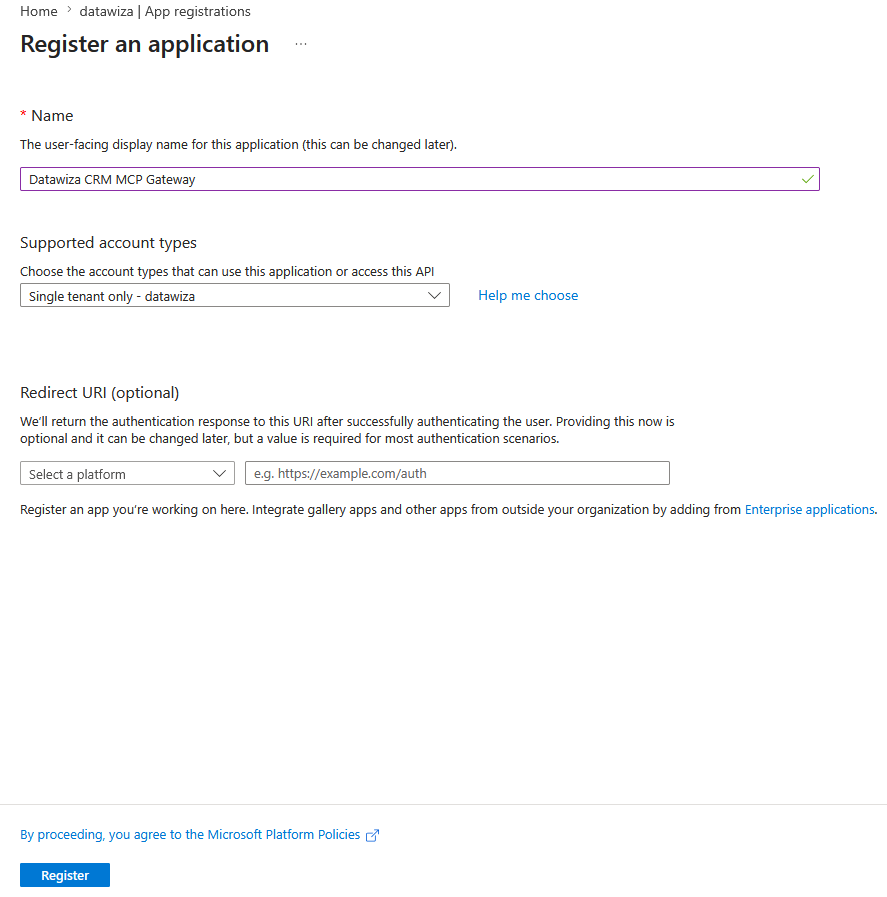
Configure the Application ID URI to match the protected MCP endpoint. The client requests the MCP server's URL as the
resource, and Entra ID rejects the request withAADSTS9010010if thatresourcedoesn't match thescopeit's paired with — and a scope is only ever valid for the resource identified by its Application ID URI. So the Application ID URI cannot stay as the defaultapi://<client-id>; it must equal your protected endpoint:- Go to Expose an API.
- Next to Application ID URI, click Add, clear the default value, and enter your protected MCP endpoint instead, e.g.
https://crm-mcp.company.com/mcp. - Click Save.
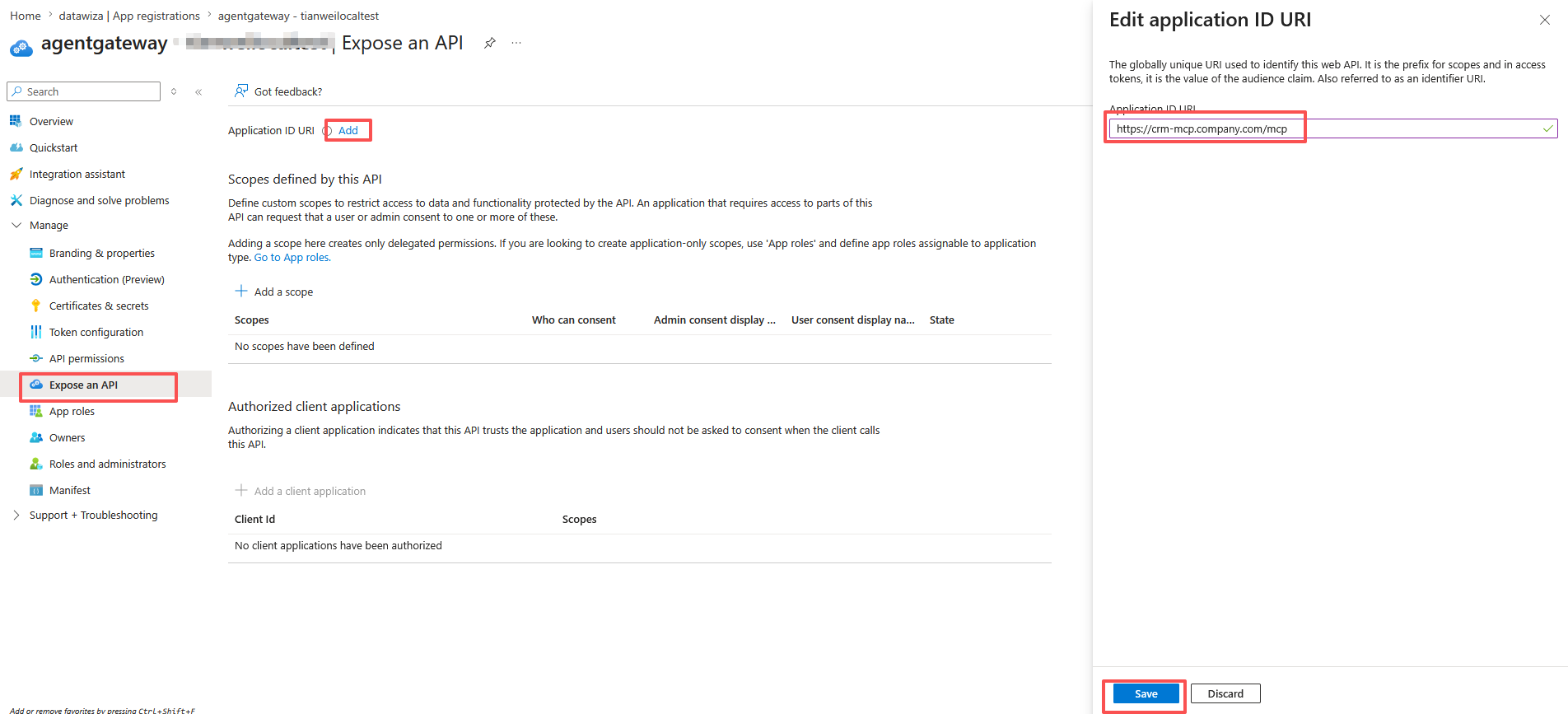
Verified custom domain required
A custom
https://Application ID URI must be under a domain verified for your Entra tenant (Entra ID > Custom domain names). Ifcrm-mcp.company.comisn't verified yet, add and verify it first — Entra rejects unverified domains.Add a delegated scope so Claude can request access on behalf of the signed-in user. A custom Application ID URI has no scopes by default, and the authorization code flow needs one to issue a token with the right audience:
Still on Expose an API, click Add a scope.
Fill in:
Field Value Scope name accessWho can consent Admins and users Admin consent display name Access CRM MCP GatewayAdmin consent description Allows Claude to access the CRM MCP Gateway on behalf of the signed-in user.State Enabled Click Add scope.
This creates the scope
https://crm-mcp.company.com/mcp/access.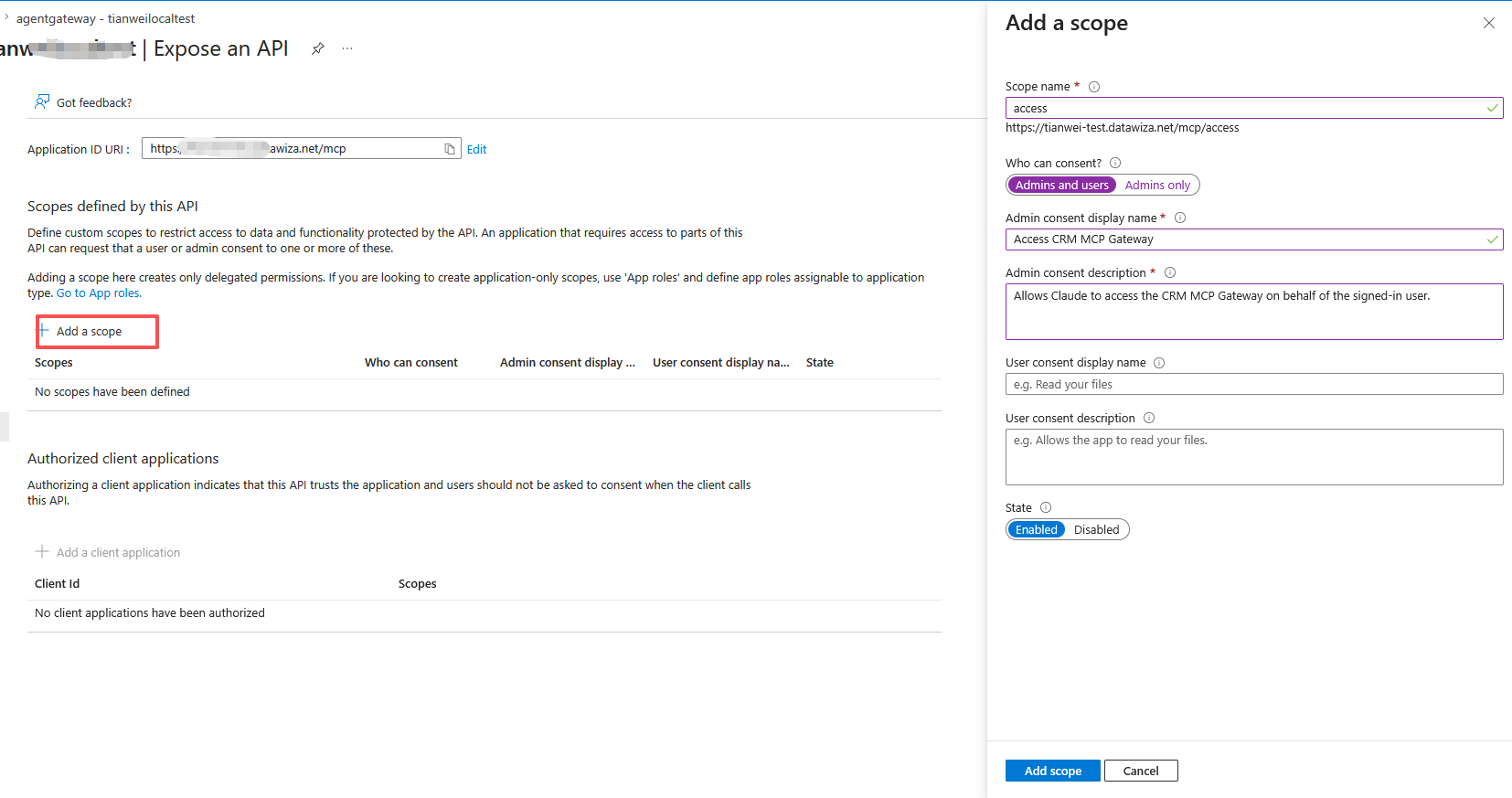
1.2 Register the Client App
This is the app Claude actually signs users into.
Click New registration again and fill in:
Field Value Name Claude CRM MCP ClientSupported account types Single tenant Redirect URI — Platform Mobile and desktop applications Redirect URI — URI https://claude.ai/api/mcp/auth_callbackClaude Code uses a different callback URL than Claude.ai — a
localhostaddress, since the OAuth flow completes on the machine running the CLI. If you also want to support Claude Code, add a second redirect URI under the same platform:- Go to Authentication, and under the Mobile and desktop applications platform you just configured, click Add URI.
- Add
http://localhost:8080/callback.
You can pick any available port; just use the same port when adding the server in Step 3.
After the app is created, copy these values — you will need them in Steps 2 and 3:
Value Where to find it Tenant ID Overview page Client ID Overview page 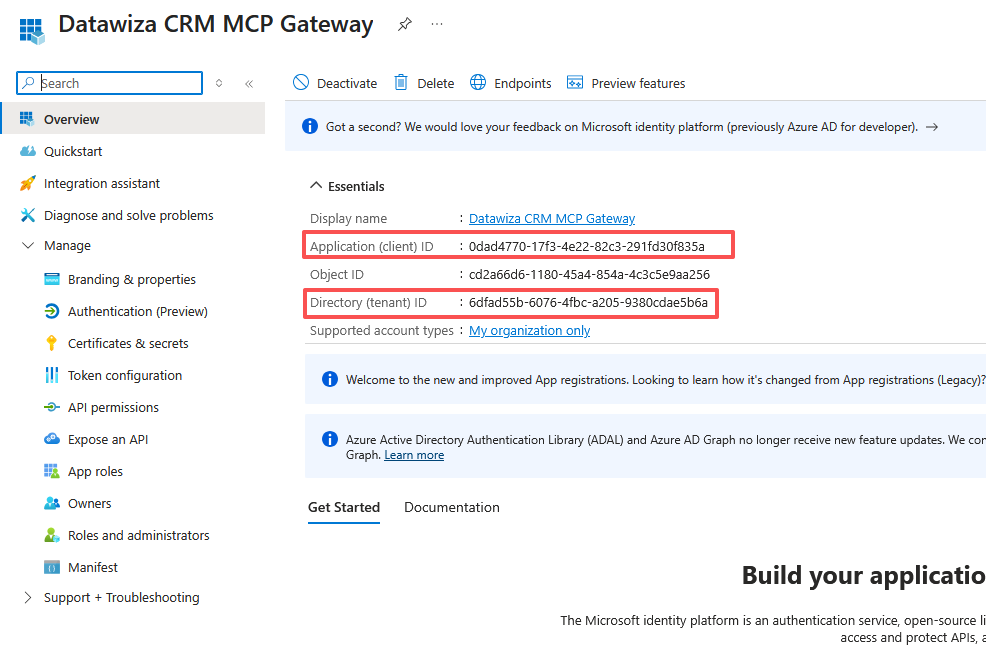
Grant this client app permission to request the resource app's scope:
- Go to API permissions > Add a permission > My APIs.
- Select the resource app (
Datawiza CRM MCP Gateway) from Step 1.1. - Choose Delegated permissions, check
access, then click Add permissions. - Click Grant admin consent for
<tenant>so users aren't individually prompted to consent, if your organization's policy allows it.
Step 2: Configure Datawiza Agent Gateway
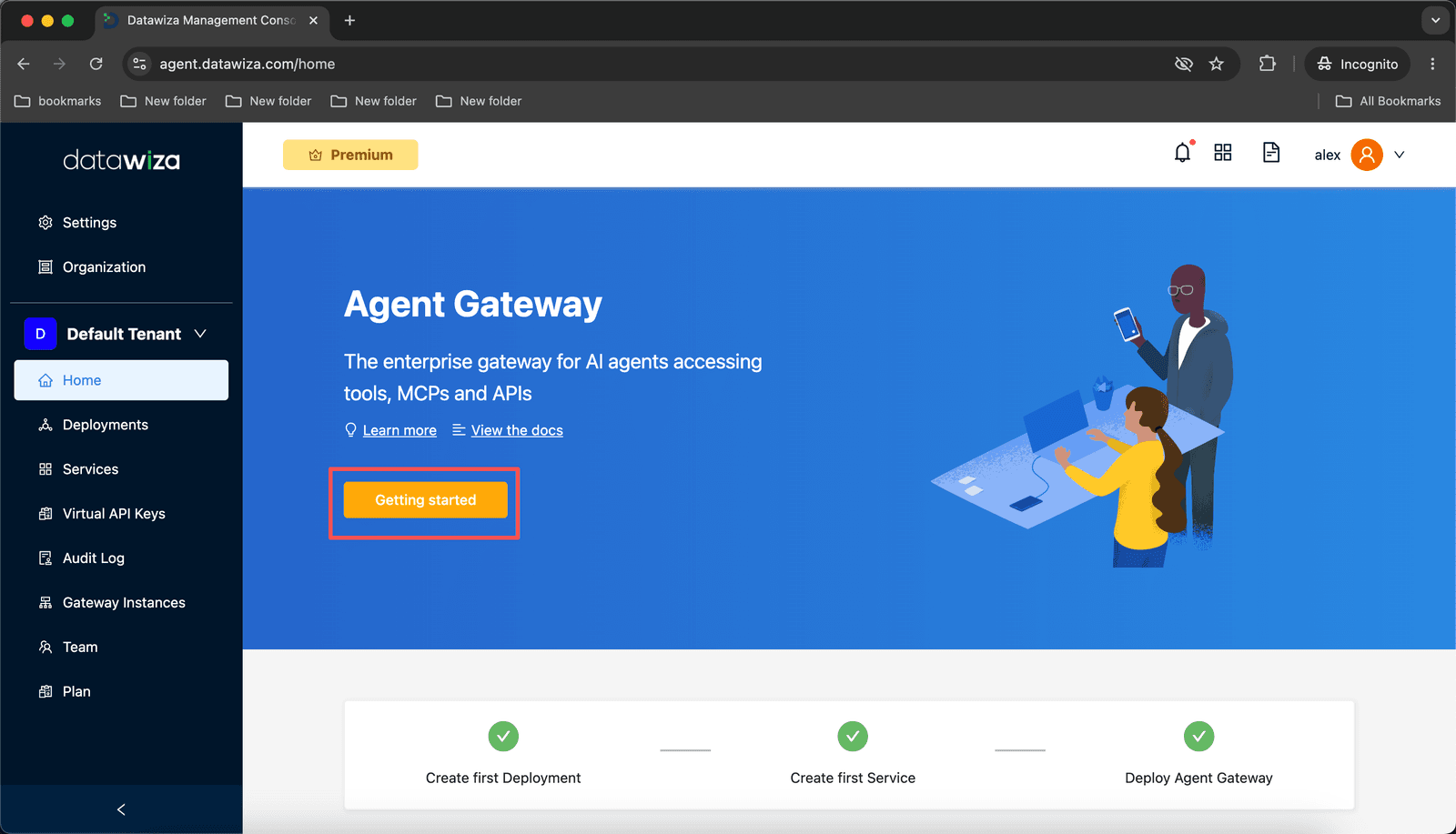
2.1 Sign in and click Getting Started
Log into Datawiza Agent Gateway Console (DAGC) and click the Getting Started button on the home page.
2.2 Name your Deployment
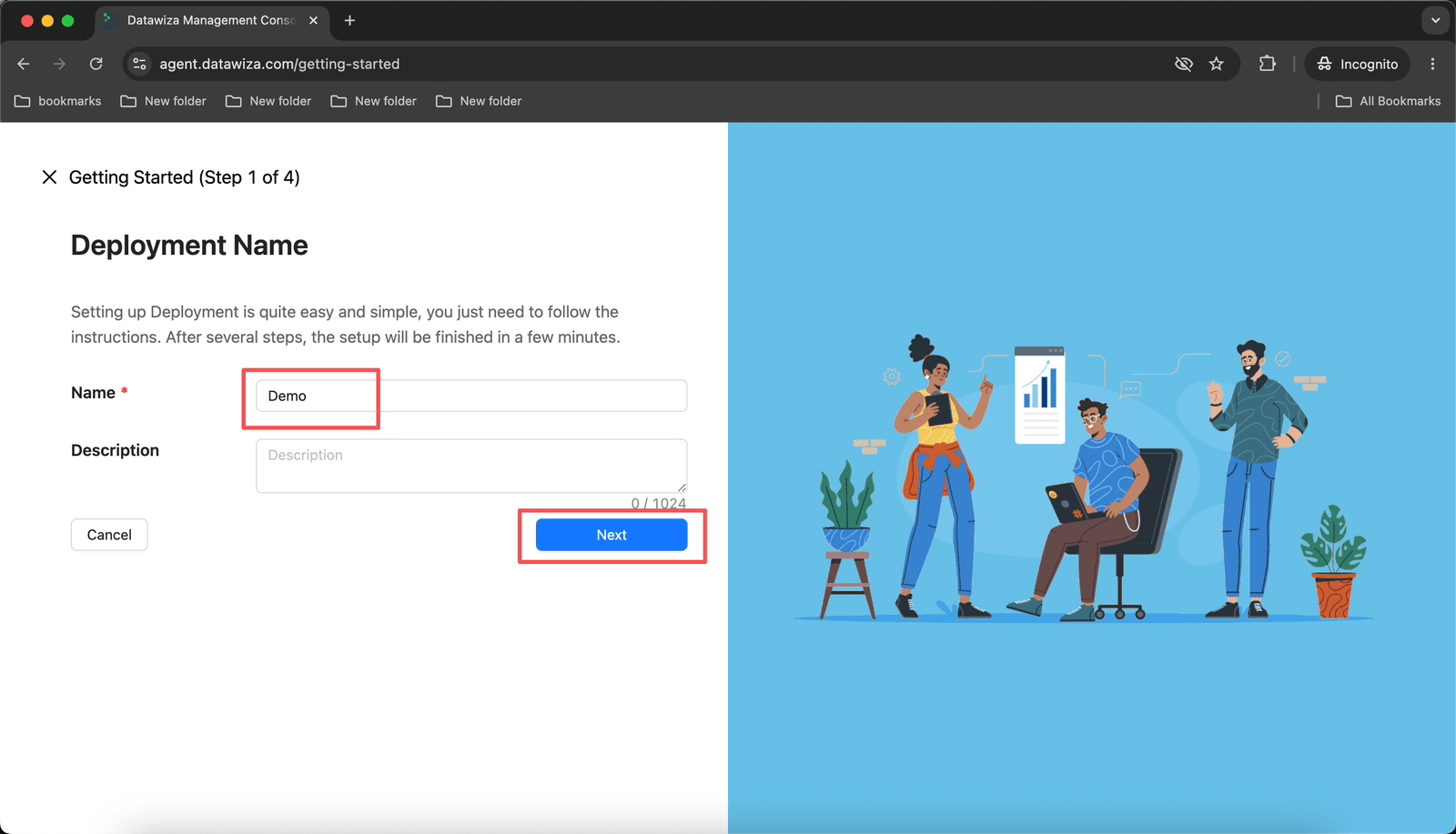
The Getting Started wizard opens at Step 1 of 4 — Deployment Name.
- Enter a
Namefor the deployment (e.g.,CRM MCP Gateway). - Click Next.
2.3 Add a Service
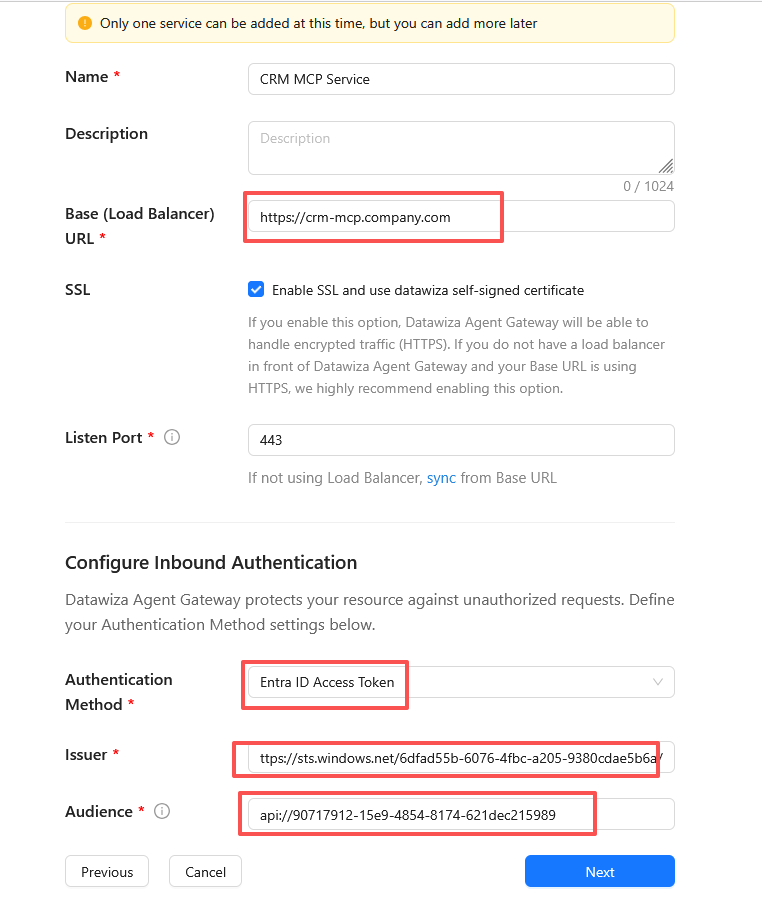
Step 2 of 4 — Service defines the public-facing MCP endpoint that Claude connects to.
| Field | Value |
|---|---|
| Name | CRM MCP Service |
| Base (Load Balancer) URL | Your public gateway URL, e.g. https://crm-mcp.company.com |
| SSL | Enable — check Enable SSL and use datawiza self-signed certificate |
| Listen Port | 443 |
| Authentication Method | Entra ID Access Token |
| Issuer | https://sts.windows.net/<tenant-id>/ |
| Audience | https://crm-mcp.company.com/mcp (the resource app's Application ID URI from Step 1.1) |
| Authorization Server | https://login.microsoftonline.com/<tenant-id>/v2.0 (optional — fill it in only when it differs from the Issuer, as it does here) |
Click Next.
Why the Issuer isn't a v2.0 URL
The resource app registered in Step 1.1 defaults to issuing v1.0 access tokens — its manifest's requestedAccessTokenVersion is null unless you explicitly set it to 2. v1.0 tokens carry the issuer https://sts.windows.net/<tenant-id>/, not the v2.0-style https://login.microsoftonline.com/<tenant-id>/v2.0. Authorization Server is unrelated to the iss claim check — it's the v2.0 metadata endpoint DAGC uses to fetch Entra ID's signing keys and validate the token's signature.
Claude rejects self-signed certificates
The wizard only offers the Datawiza self-signed certificate, and Claude rejects it. After deploying in Step 2.5, replace it with a trusted CA certificate — see Step 2.6.
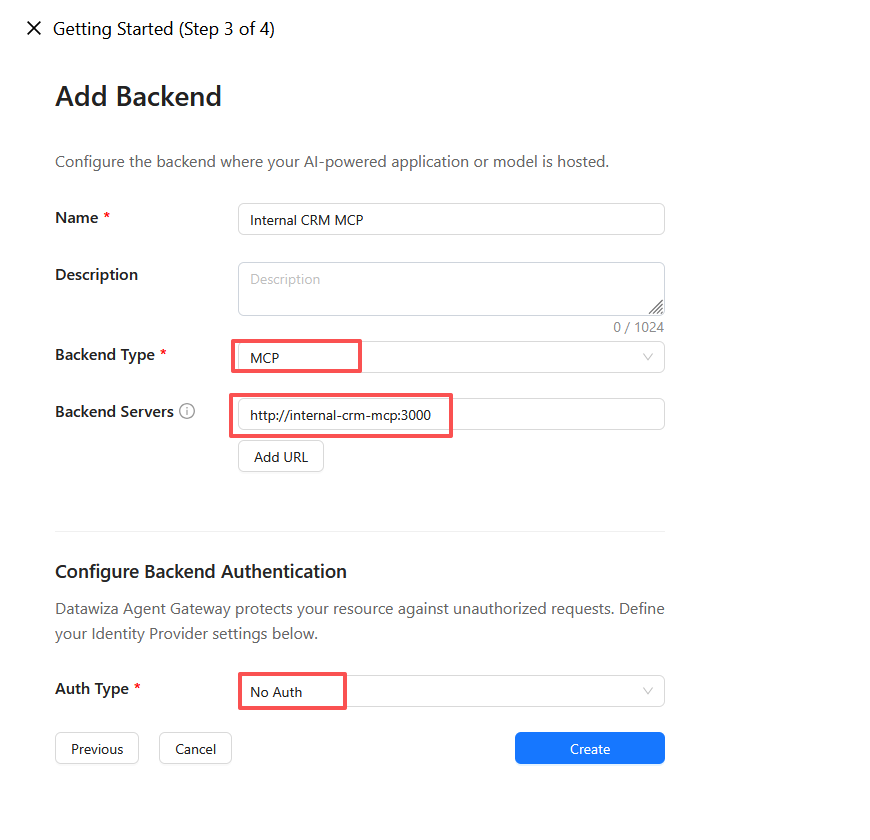
2.4 Add a Backend
Step 3 of 4 — Backend points the gateway at your existing internal MCP server.
| Field | Value |
|---|---|
| Name | Internal CRM MCP |
| Type | MCP |
| Backend Servers | http://internal-crm-mcp:3000 |
| Auth type | No Auth |
Click Create.
2.5 Deploy the Gateway
Step 4 of 4 — Deploy shows your provisioning credentials and the startup commands.
Note the Provisioning Key and Provisioning Secret shown at the top.
Run the two commands on your gateway host:
# Install Docker and pull the Datawiza Agent Gateway image
curl https://datawiza.s3.us-west-2.amazonaws.com/datawiza-dag-env-prep.sh | sh

# Start Datawiza Agent Gateway
curl -s https://datawiza.s3.us-west-2.amazonaws.com/datawiza-dag-docker-compose-prep.sh \
  | bash -s -- -k <PROVISIONING_KEY> -s <PROVISIONING_SECRET> -p 443 \
  && sudo docker compose up -d
Click Done.
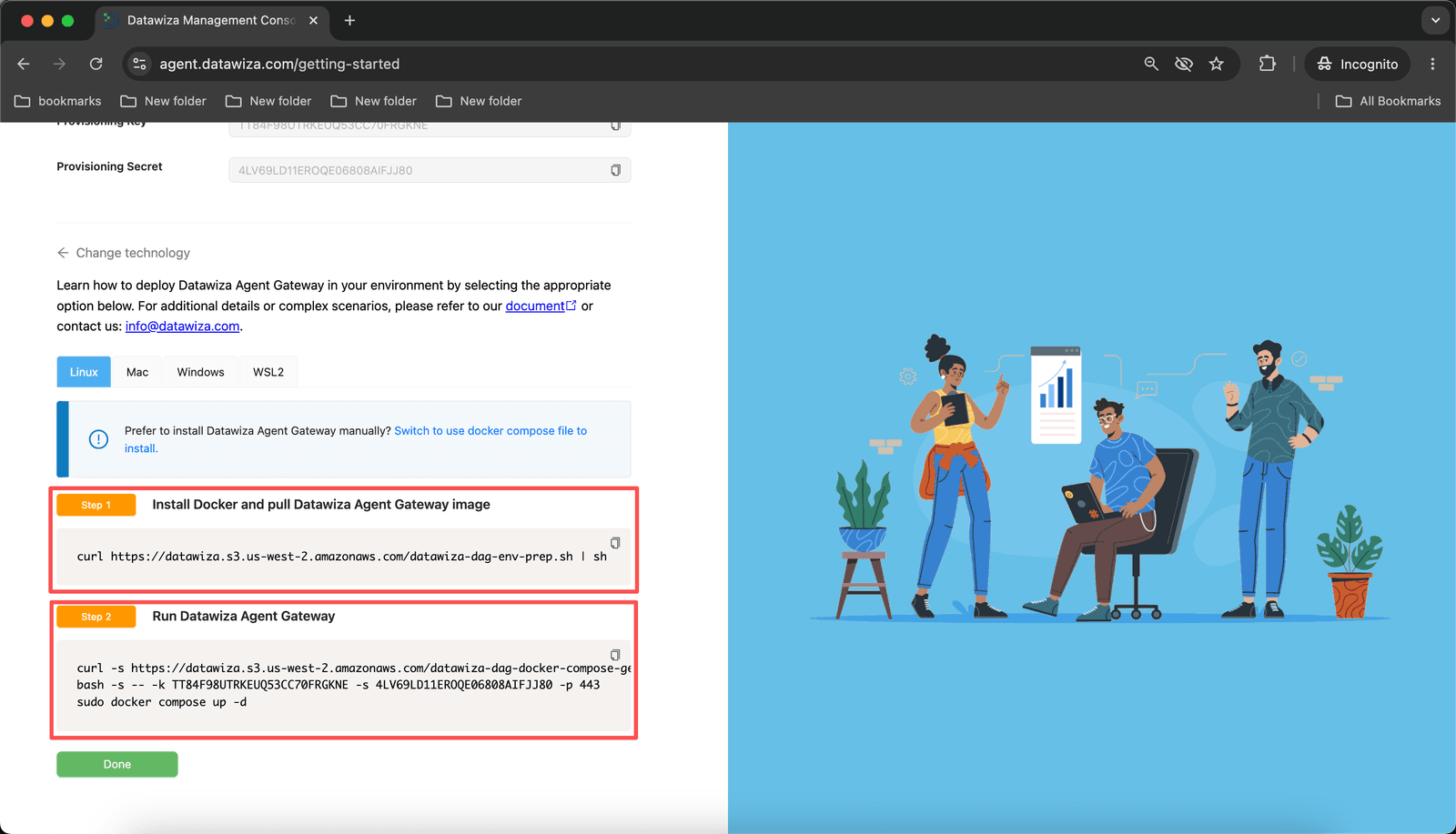
The gateway pulls its full configuration from DAGC automatically.
2.6 Replace the Self-Signed Certificate
The service is currently using the Datawiza self-signed certificate from Step 2.3. Before connecting Claude, replace it with a certificate from a trusted CA by following SSL Certificates in Datawiza Agent Gateway: go to Services in DAGC, open this service's Advanced tab, click Edit, then Update Certificate to upload your PEM-format certificate and private key.
Step 3: Add the Protected MCP Endpoint to Claude
Claude Code
Claude Code completes the OAuth flow locally, so it redirects to http://localhost:<port>/callback instead of the claude.ai callback used by Claude.ai. By default it picks a random available port, which will not match the redirect URI you registered on the client app in Step 1.2 — pin the port with --callback-port so it matches.
Entra ID also does not support OAuth dynamic client registration, so Claude Code needs the client app's Client ID you copied in Step 1.2 up front via --client-id. No client secret is needed — the app is a public client using authorization code + PKCE, so omit --client-secret:
claude mcp add --transport http \
  --client-id <CLIENT_ID> --callback-port 8080 \
  internal-crm https://crm-mcp.company.com/mcp
This registers the server with the fixed callback port and client ID. Editing the MCP configuration file directly does not let you set these, so use the claude mcp add command above rather than adding the entry by hand.
Claude.ai
Organization admins can add the protected endpoint from Settings > Connectors:
Go to Settings > Connectors and click Add connector.
Enter the protected server URL (e.g.,
https://crm-mcp.company.com/mcp).Entra ID doesn't support OAuth dynamic client registration, so expand Advanced settings and enter the client app's Client ID from Step 1.2. Leave Client Secret blank — the app is a public client using authorization code + PKCE.
Click Save.
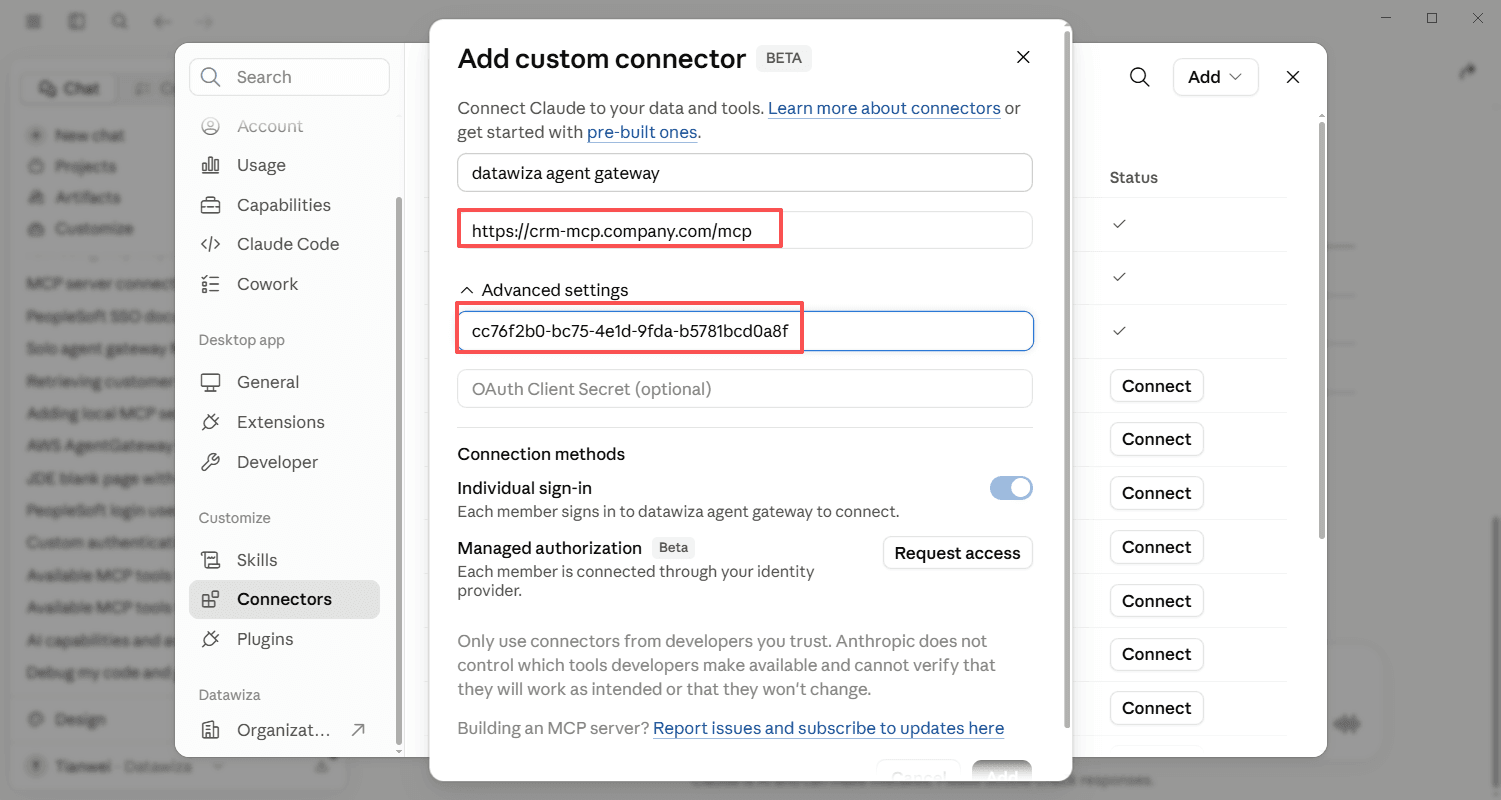
Users will be prompted to complete the Entra ID login when they first use the server.
Step 4: Verify Unauthenticated Access Is Blocked
Before testing with Claude, confirm the gateway is rejecting unauthenticated requests:
curl -ik https://crm-mcp.company.com/mcp
Expected response:
HTTP/1.1 401 Unauthorized
This confirms that Datawiza is intercepting traffic and no unauthenticated request can reach the backend MCP server.
Step 5: Sign In with Microsoft Entra ID
When Claude first connects to the protected endpoint, it detects that authentication is required and initiates the Entra ID sign-in flow. Claude handles the OAuth redirect; Datawiza validates the resulting access token on every request.
Claude displays a browser prompt asking you to authenticate.
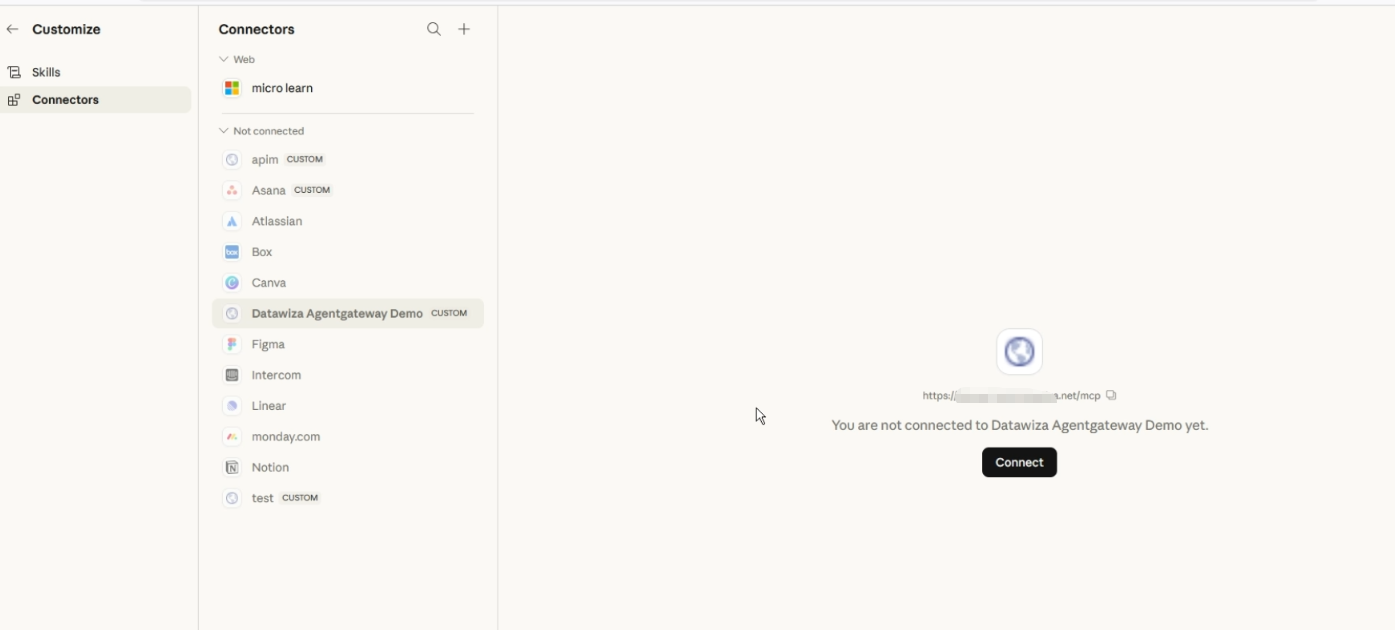
Your browser opens the Microsoft Entra ID login page. Sign in with your enterprise account.
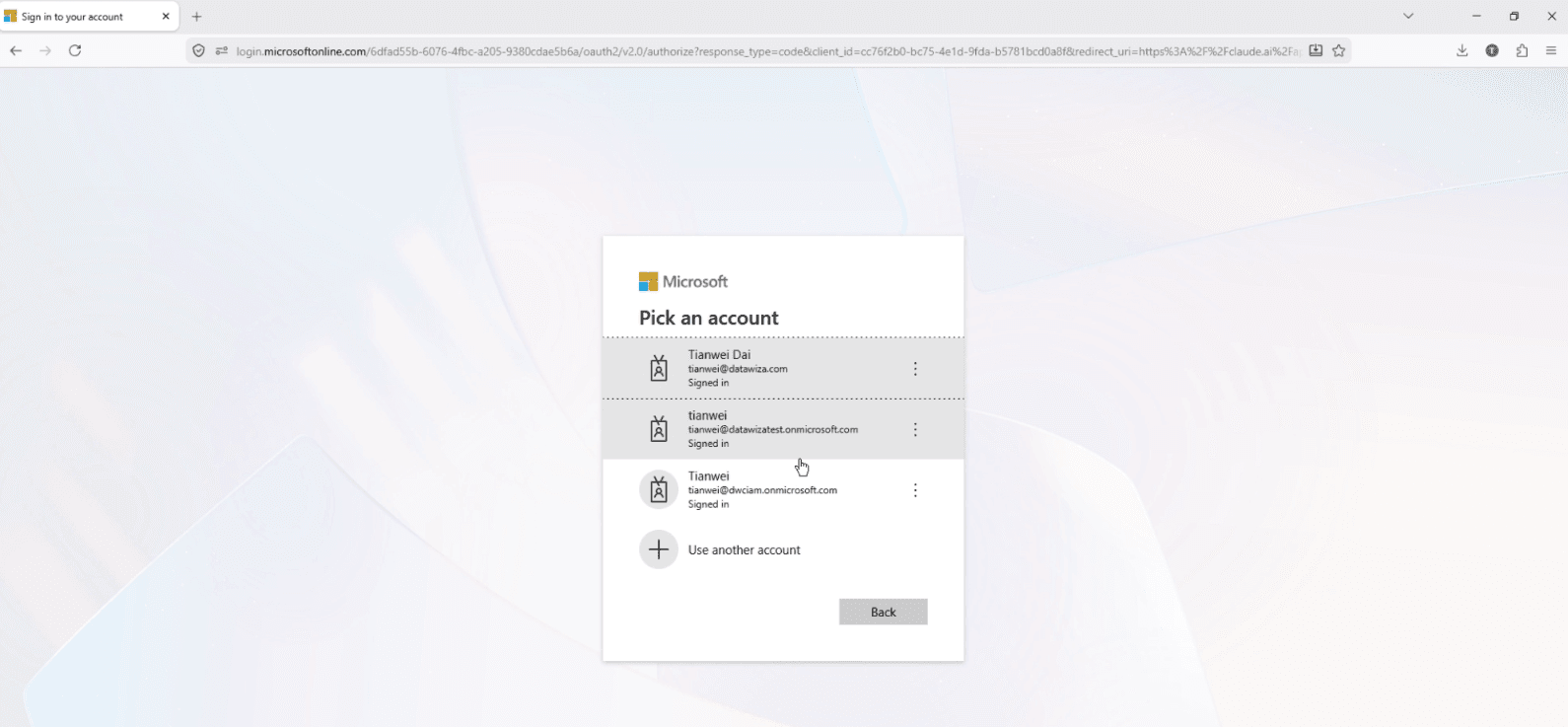
After a successful sign-in, Entra ID redirects back to Claude. Claude stores the access token and attaches it as a bearer token to each MCP request. Datawiza validates the token — checking the issuer and the MCP endpoint audience — before forwarding the request to the backend.
Claude confirms the MCP server is connected and tools are available.
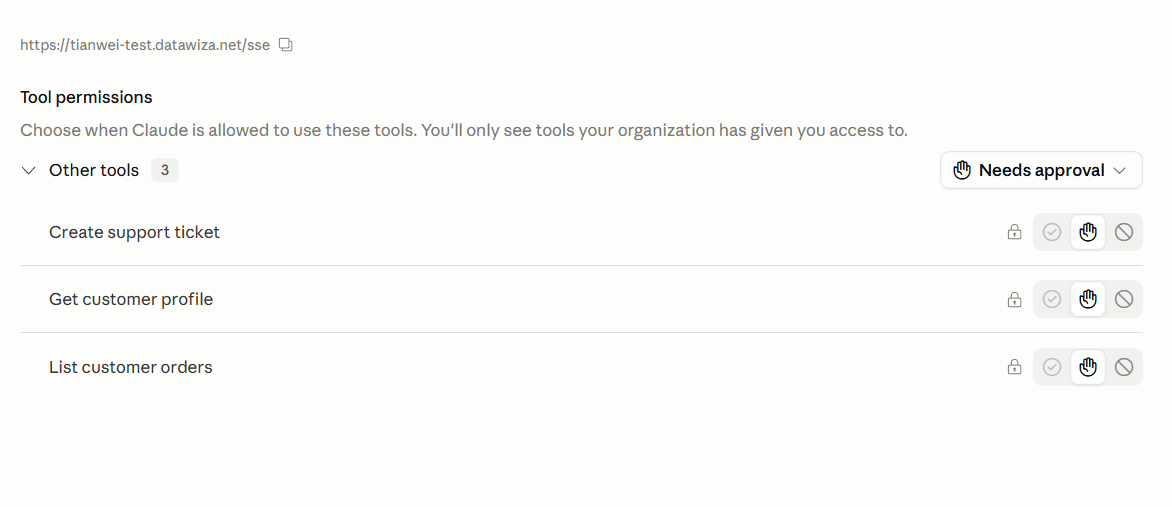
Once signed in, Claude can call MCP tools for the duration of the session. An expired or missing token returns 401 Unauthorized and triggers a new login prompt.
Step 6: Call MCP Tools from Claude
With the MCP server connected, test each tool to confirm end-to-end authentication is working.
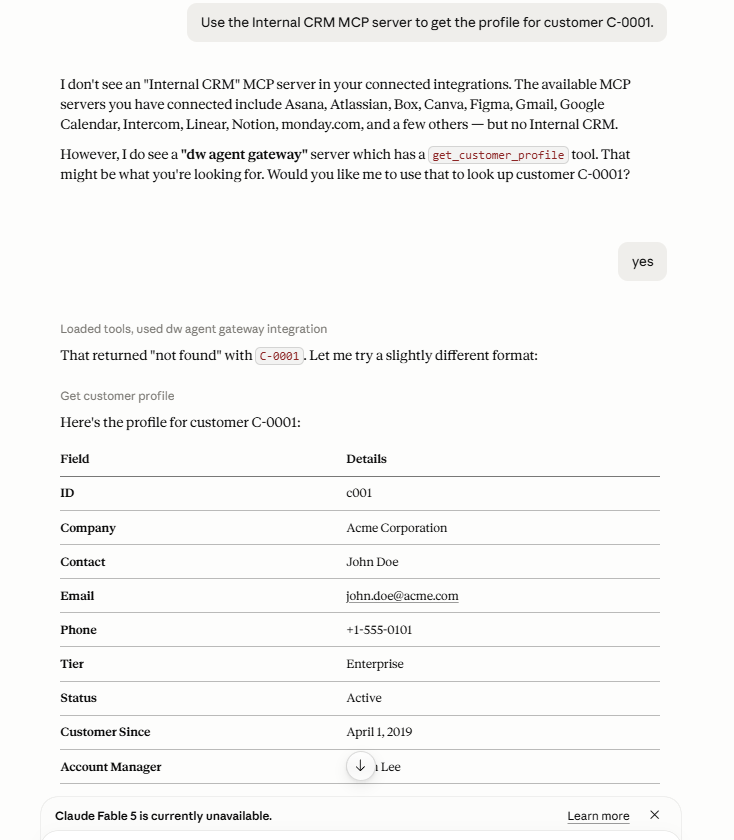
Get a customer profile
In Claude, type:
Use the Internal CRM MCP server to get the profile for customer c001.
Claude calls get_customer_profile and shows the result:
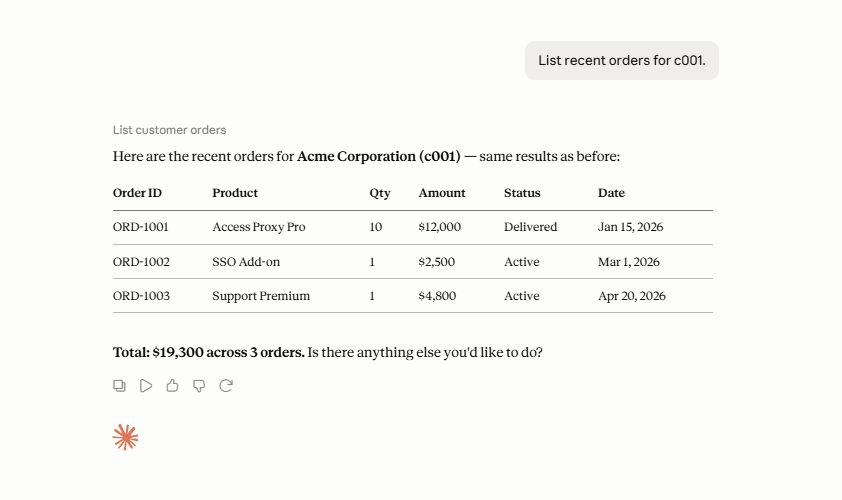
List customer orders
In Claude, type:
List recent orders for c001.
Claude calls list_customer_orders and displays the order history:
Create a support ticket
In Claude, type:
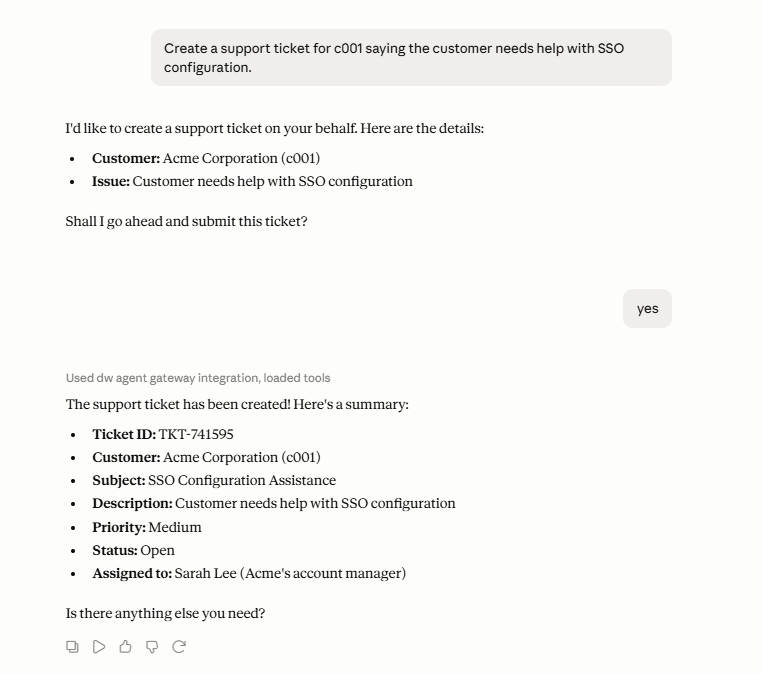
Create a support ticket for c001 saying the customer needs help with SSO configuration.
Claude calls create_support_ticket and confirms the ticket was created:
Step 7: Verify Datawiza Logs and Audit Records
In DAGC, open the logs for your deployment and confirm the following events appear:
- User login event with the authenticated user's email
- Microsoft Entra ID authentication success
- Request allowed or denied based on policy
- Request forwarded to the backend MCP server
- MCP tool call recorded with user context
This confirms that Datawiza is acting as the authentication, identity, and policy enforcement layer for all Claude-to-MCP traffic.
Summary
Your MCP server stays simple — it exposes tools for Claude without implementing enterprise OAuth. Datawiza Agent Gateway becomes the front door: it handles Microsoft Entra ID login, validates tokens, enforces access policy, and forwards only authenticated traffic to the backend.
This separation of concerns means MCP server developers can focus on building useful tools, while identity and access control remain owned by the teams responsible for them. The same pattern applies to any internal MCP server — CRM, HR, finance, ticketing, or internal APIs — without changing a line of server code.
Claude users get a seamless experience: they authenticate once with their enterprise Entra ID credentials, and all MCP tools become available for the session. Unauthenticated or unauthorized requests never reach the backend.
Related Resources
- Datawiza Agent Gateway Introduction
- SSL Certificates in Datawiza Agent Gateway
- Entra ID Auth for ChatGPT MCP Servers with Datawiza Agent Gateway
- Anthropic API Proxy for Claude with Datawiza Agent Gateway
- Microsoft Entra ID — Register an application
- Microsoft Entra ID — Configure app to expose a web API
- Anthropic — Remote MCP servers