
LLM API Rate Limiting with Datawiza Agent Gateway
Datawiza Agent Gateway enforces rate limits at the service level. Each service carries its own rate limit policies, and each policy targets one of two dimensions — the authenticated user or the virtual API key. When a limit is exceeded, the gateway returns 429 Too Many Requests immediately, without forwarding the request to the upstream LLM.
No client-side changes are required. Rate limits apply to all clients connecting through the gateway — whether they are talking to Anthropic, OpenAI, or Gemini — as long as they use a virtual API key.
Policy Dimensions
| Level | What is tracked | Typical use case |
|---|---|---|
| User | All requests made by the same user, across all their virtual keys, on this service | Enforce per-seat fairness |
| Virtual API Key | Requests made by one specific virtual key on this service | Limit a single app or integration |
Both dimensions are evaluated on every request. A request is rejected if either limit is exceeded.
Rate limit buckets are always scoped to a service. A user who exceeds their quota on one service is not affected on any other service.
Limit Types and Windows
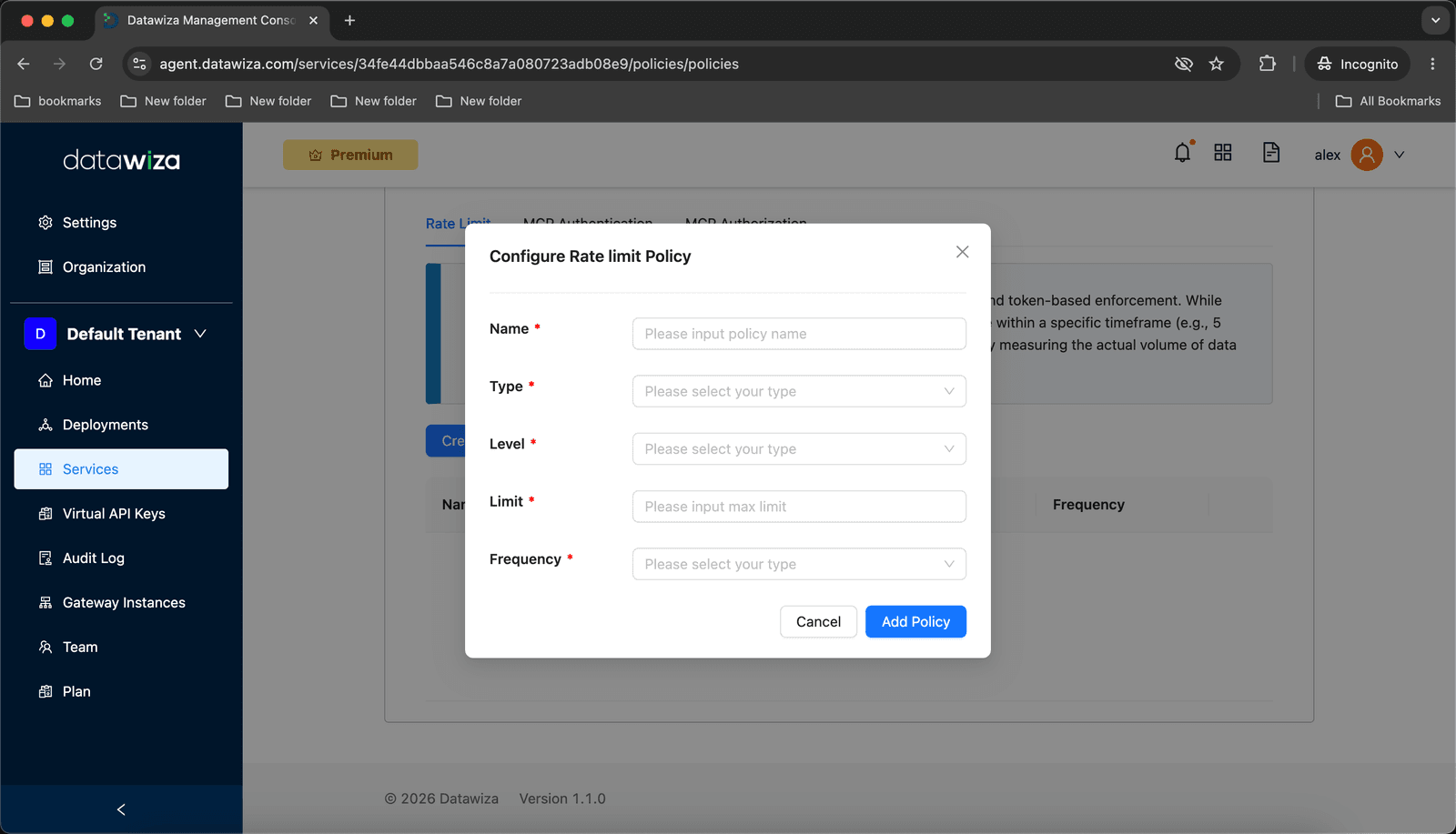
Each policy rule is defined by the following fields:
| Field | Options | Description |
|---|---|---|
| Name | string | A label for this policy rule (e.g. user-rpm) |
| Type | Requests | Tokens | What to count — HTTP requests, or LLM tokens (input + output) |
| Level | User | Virtual API Key | Which dimension to track |
| Limit | integer | Max allowed in the window. 0 = hard block — all matching requests are rejected immediately. |
| Frequency | Per Minute | Per Day | Quota window — 60 seconds or 24 hours |
Token check timing
Requests limits are checked and committed before the request is forwarded to the upstream LLM. Tokens limits are deducted after the response is received, once the actual input + output token count is known. Token deduction only occurs on responses that include token usage data — upstream errors that return no usage payload do not affect the token bucket.
Configure Rate Limits in DAGC
Rate limit policies are configured on the Service, not on individual virtual keys.
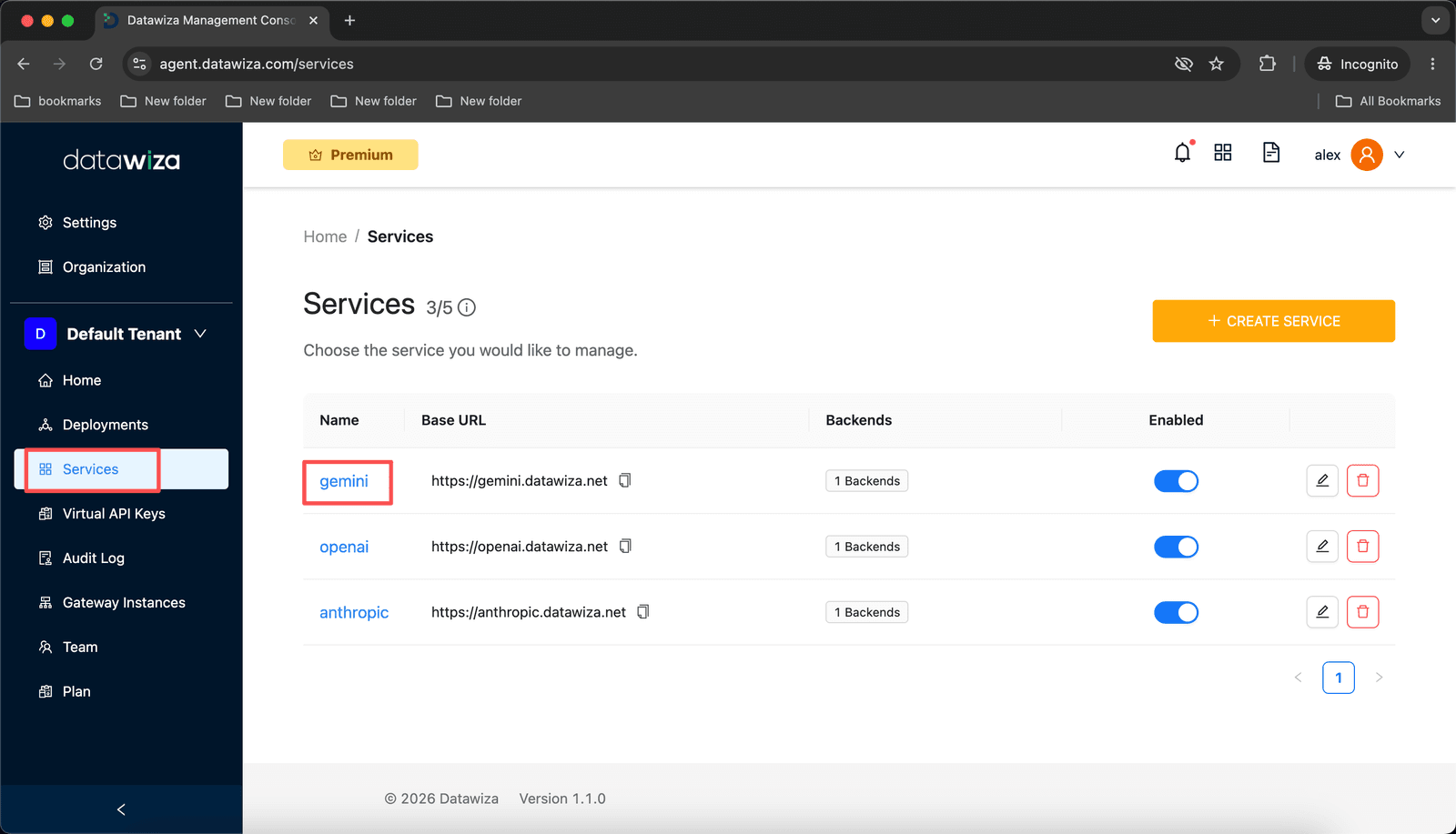
In the Datawiza Agent Gateway Console (DAGC), go to Services in the left sidebar and click the service you want to configure.
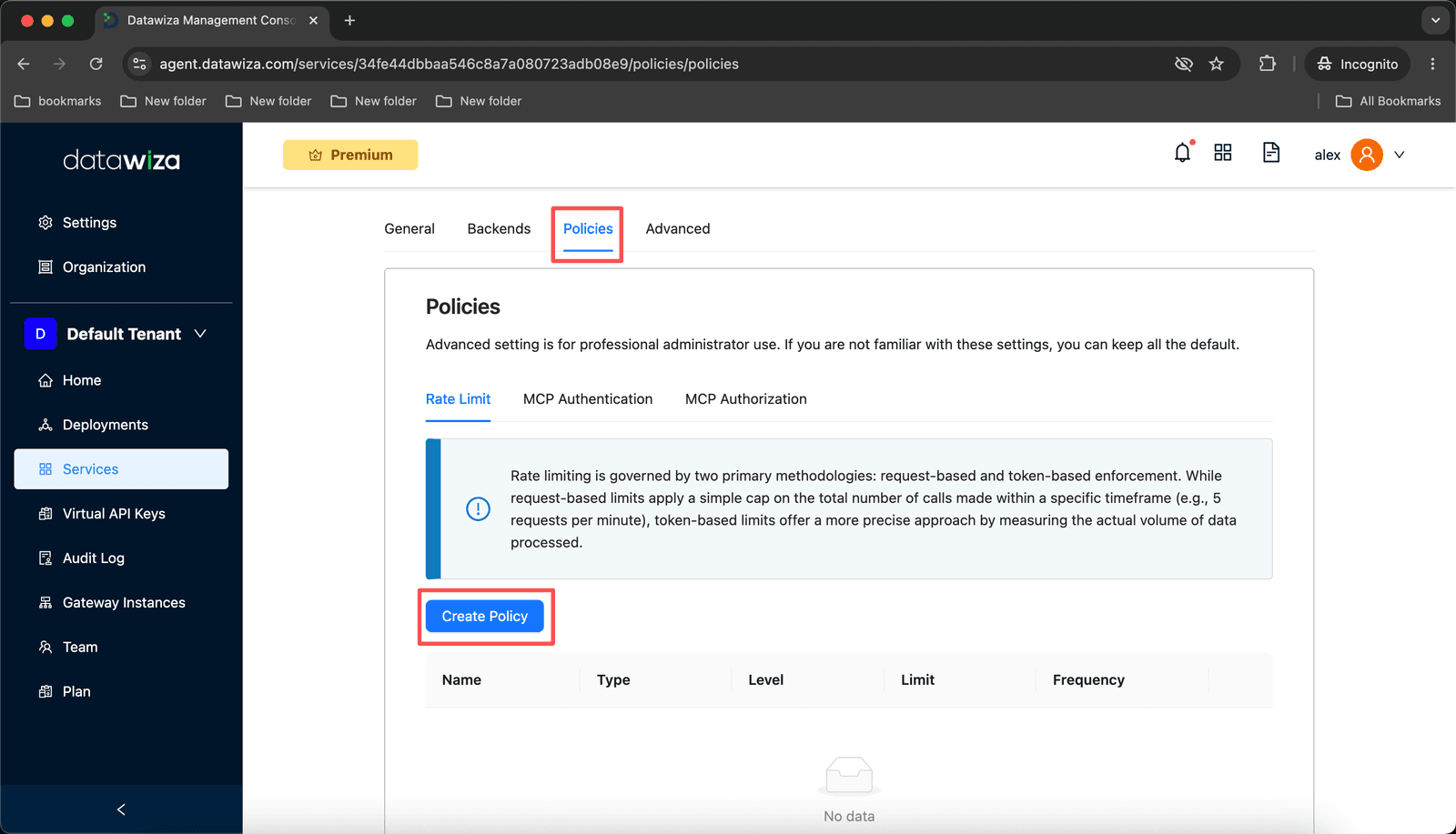
Open the Policies tab, then select the Rate Limit sub-tab. Click Create Policy.
The Configure Rate Limit Policy dialog opens. Fill in the fields and click Add Policy.
Repeat to add more rules. The values below are illustrative — set limits that match your upstream provider's actual quota for your account tier:
Name Type Level Limit Frequency key-rpmRequestsVirtual API Key20Per Minutekey-rpdRequestsVirtual API Key1000Per Dayuser-rpmRequestsUser60Per Minuteuser-rpdRequestsUser5000Per Daykey-tpmTokensVirtual API Key10000Per Minutekey-tpdTokensVirtual API Key200000Per Dayuser-tpmTokensUser40000Per Minuteuser-tpdTokensUser1000000Per Day
Note
Changes take effect after the gateway applies the updated configuration — typically within a few seconds, no restart required.
How Limits Are Applied
Request arrives
   │
   ├── 1. Authenticate virtual key → 401 on failure (no rate-limit state touched)
   │
   ├── 2. Check all active rules (non-destructive peek)
   │         └── 429 + Retry-After if any rule is exceeded
   │
   ├── 3. Commit Requests counters (consume 1 unit per counter)
   │         └── 429 if a concurrent request consumed the last slot
   │
   ├── 4. Forward to upstream LLM
   │
   └── 5. Deduct Tokens counters with actual token count (input + output)
When a limit is exceeded, the response includes a Retry-After header set to the number of seconds (delta-seconds) to wait before retrying.
Window Refill
Windows use a rolling refill: the quota resets 60 seconds (or 24 hours) after the bucket was first written, not at a fixed clock boundary. A 1-minute bucket exhausted at 10:35:42 refills at 10:36:42 — not at 10:36:00.
Windows refill in full at the boundary, not gradually. The entire quota is restored in one step.