
Secure an Agent with Microsoft Entra Agent ID and Datawiza Agent Gateway
Overview
This tutorial shows how to give an autonomous Sales Agent its own identity in Microsoft Entra Agent ID and connect it to an internal MCP server through Datawiza Agent Gateway.
Most MCP authentication setups assume a human in the loop: a person signs into a client like Claude, the client requests a token on that person's behalf, and the MCP gateway validates the resulting delegated token. This tutorial covers a different case: an agent that runs on its own — polling a CRM queue, reacting to events, working through a backlog — with no user present to sign in. (For the human-in-the-loop case, see Entra ID Auth for Claude MCP Servers with Datawiza Gateway.)
When to use this pattern vs. delegated OAuth
Use Entra ID user-delegated OAuth when a human is in the loop and the MCP server should act as that specific person. Use Microsoft Entra Agent ID with an agent identity when the agent itself is the accountable actor — for example, a background Sales Agent that runs on a schedule or reacts to CRM events without a human present.
Preview feature
Microsoft Entra Agent ID is currently in preview. Field names, admin center screens, and required roles may change before general availability.
Architecture
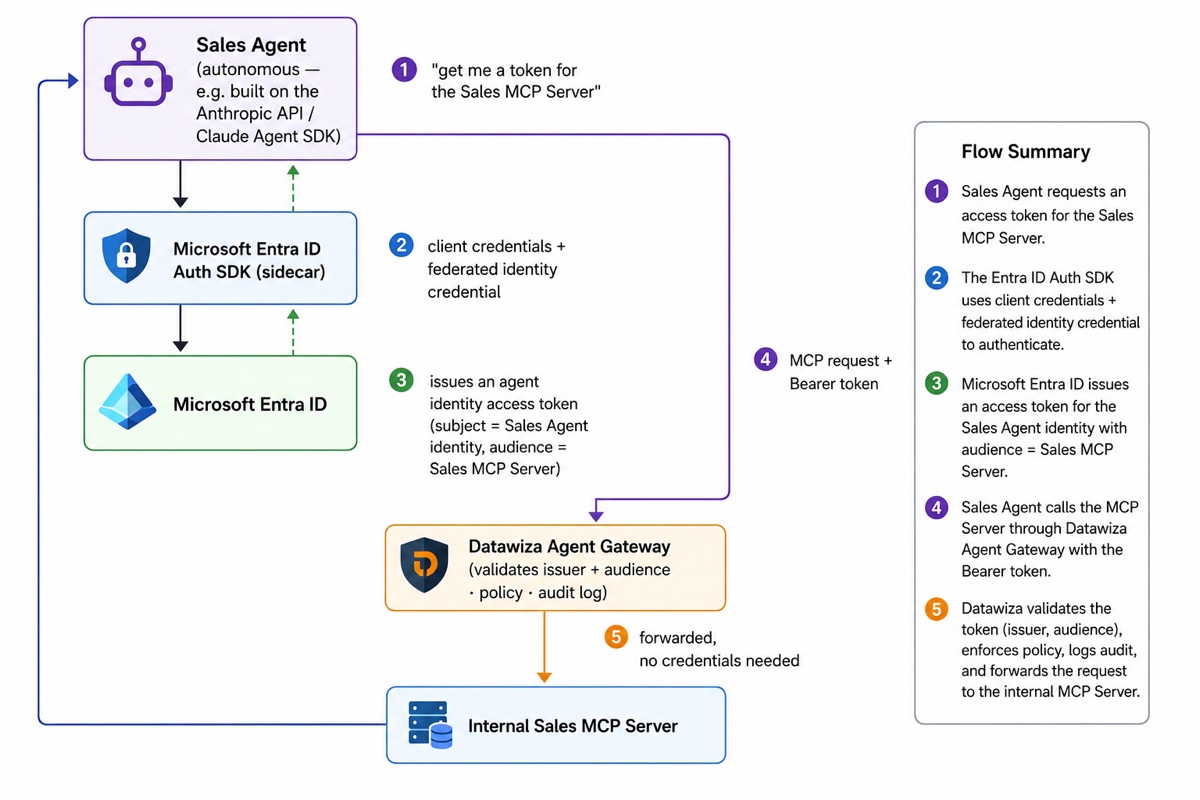
No human ever opens a browser in this flow. The Sales Agent authenticates as itself — a first-class, governable identity in your Entra tenant — every time it calls a tool.
What You Will Build
By the end of this tutorial you will have a Datawiza-protected endpoint in front of an internal Sales/CRM MCP server, and a Sales Agent identity authorized to call it autonomously:
https://sales-mcp.company.com/mcp     ← protected endpoint the agent calls
http://internal-sales-mcp:3000/mcp    ← your existing internal MCP server (stays internal)
The examples use a sample internal Sales MCP server as the backend. This is illustrative — substitute your own. The sample server exposes three tools:
| Tool | Description |
|---|---|
get_lead_profile | Retrieve a lead's profile and engagement history by ID |
list_open_opportunities | List open opportunities assigned to a sales rep or region |
create_follow_up_task | Schedule a follow-up task on a lead or opportunity |
Why This Pattern Matters
Autonomous agents are harder to secure than interactive ones: there is no login prompt to anchor trust to, and it's tempting to fall back on a long-lived API key or a shared service account. Both create the same problems — the credential outlives the agent, nobody knows which agent used it, and revoking access means hunting down every place the secret was copied.
Microsoft Entra Agent ID replaces that with a governed, credential-free identity for the agent itself:
- The Sales Agent never holds a client secret or certificate. Credentials live on the agent identity blueprint, and the agent only ever sees short-lived Bearer tokens.
- Every Sales Agent instance (NA, EMEA, APAC — however you deploy them) is created from the same blueprint, so a Microsoft Entra admin can apply one Conditional Access policy, one access review, or one kill switch to all of them at once.
- Datawiza Agent Gateway validates the resulting token exactly like any other Entra ID-issued Bearer token — no MCP server code changes, no bespoke agent auth logic.
Prerequisites
- A Microsoft Entra tenant with Microsoft Entra Agent ID enabled (preview)
- Agent ID Developer or Agent ID Administrator role to create the agent identity blueprint and agent identity
- Cloud Application Administrator or Application Administrator role to register the resource app
- A Datawiza Agent Gateway Console (DAGC) account
- A Linux host reachable from the internet on port 443 to run the gateway container
- Docker and Docker Compose on the gateway host, and wherever you run the token service or sidecar from Step 4
- A public hostname for the protected MCP endpoint, backed by a domain verified in your Entra tenant
- An existing MCP server accessible on your internal network
- An autonomous agent process to authenticate — the examples assume one built on the Anthropic API or Claude Agent SDK, but the pattern applies to any non-interactive agent
Step 1: Register the Sales MCP Server as a Resource App
Before an agent identity can request a token for the Sales MCP server, Microsoft Entra ID needs an app registration representing that server — a "resource app" whose job is to define what's being protected. Its Application ID URI becomes the audience Datawiza validates against in Step 3.3.
In the Azure portal, go to Microsoft Entra ID > App registrations > New registration.
Field Value Name Sales MCP ServerSupported account types Single tenant Redirect URI Leave blank 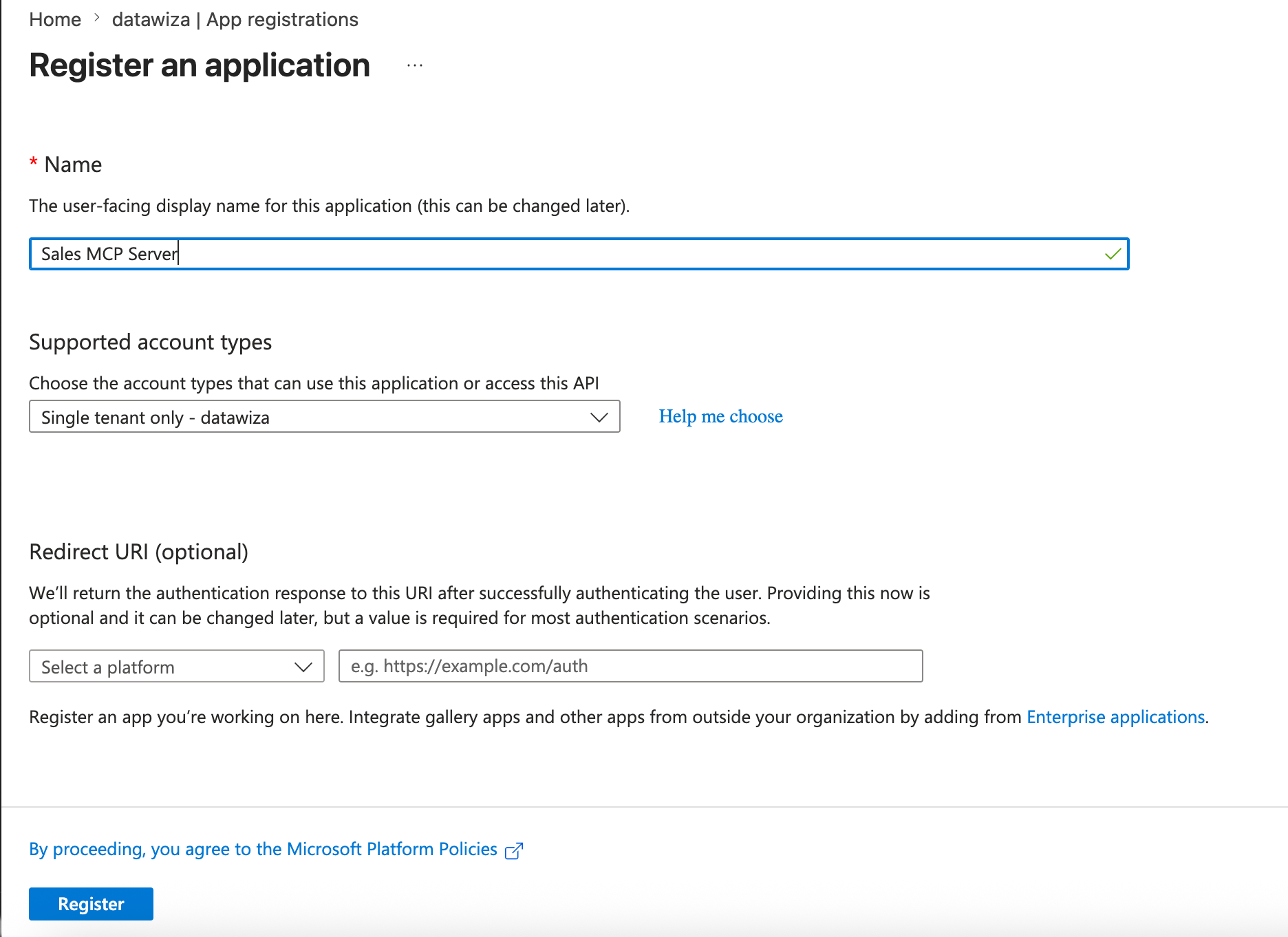
Set the Application ID URI to your protected endpoint:
- Go to Expose an API > Application ID URI > Add.
- Clear the default value and enter
https://sales-mcp.company.com/mcp. - Click Save.
Verified custom domain required
A custom
https://Application ID URI must be under a domain verified for your tenant (Entra ID > Custom domain names). Verifysales-mcp.company.comfirst if you haven't already.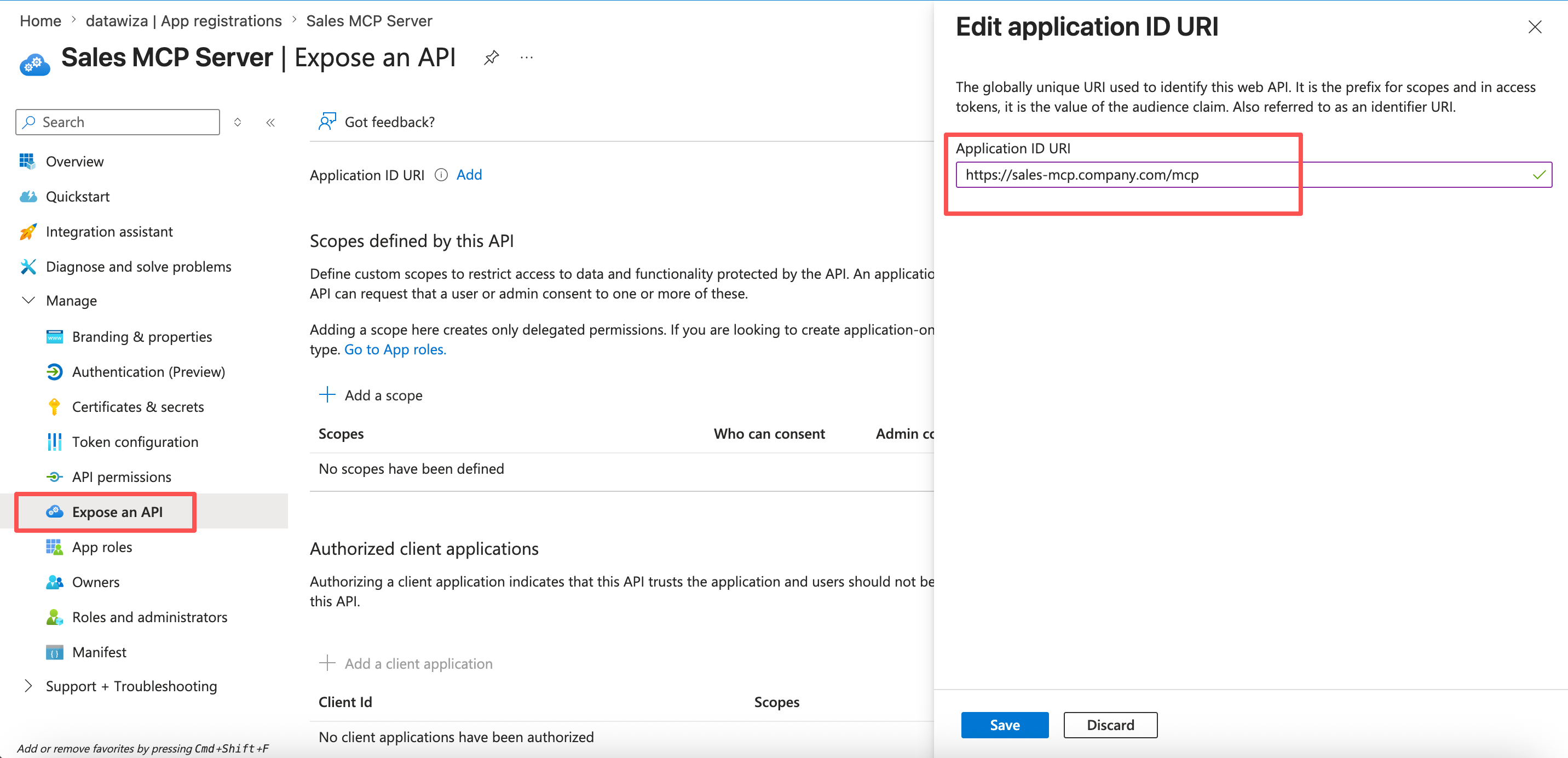
Record the resource app's Application ID URI — you'll need it in Step 3.3.
Step 2: Create the Sales Agent Identity in Microsoft Entra Agent ID
2.1 Create the agent identity blueprint
The blueprint is the reusable template — every regional Sales Agent you deploy will be created from it and inherit the same governance.
- Sign in to the Microsoft Entra admin center and go to Entra ID > Agents > Agent blueprints.
- Select New agent blueprint (Preview).
- On Basics, enter
Sales Assistant Agentas the blueprint name and select Next. - On Owners & Sponsors, set yourself (or the responsible team) as sponsor — the person or group accountable for every agent created from this blueprint — and optionally an owner who can make technical changes to it.
- Review and select Create.
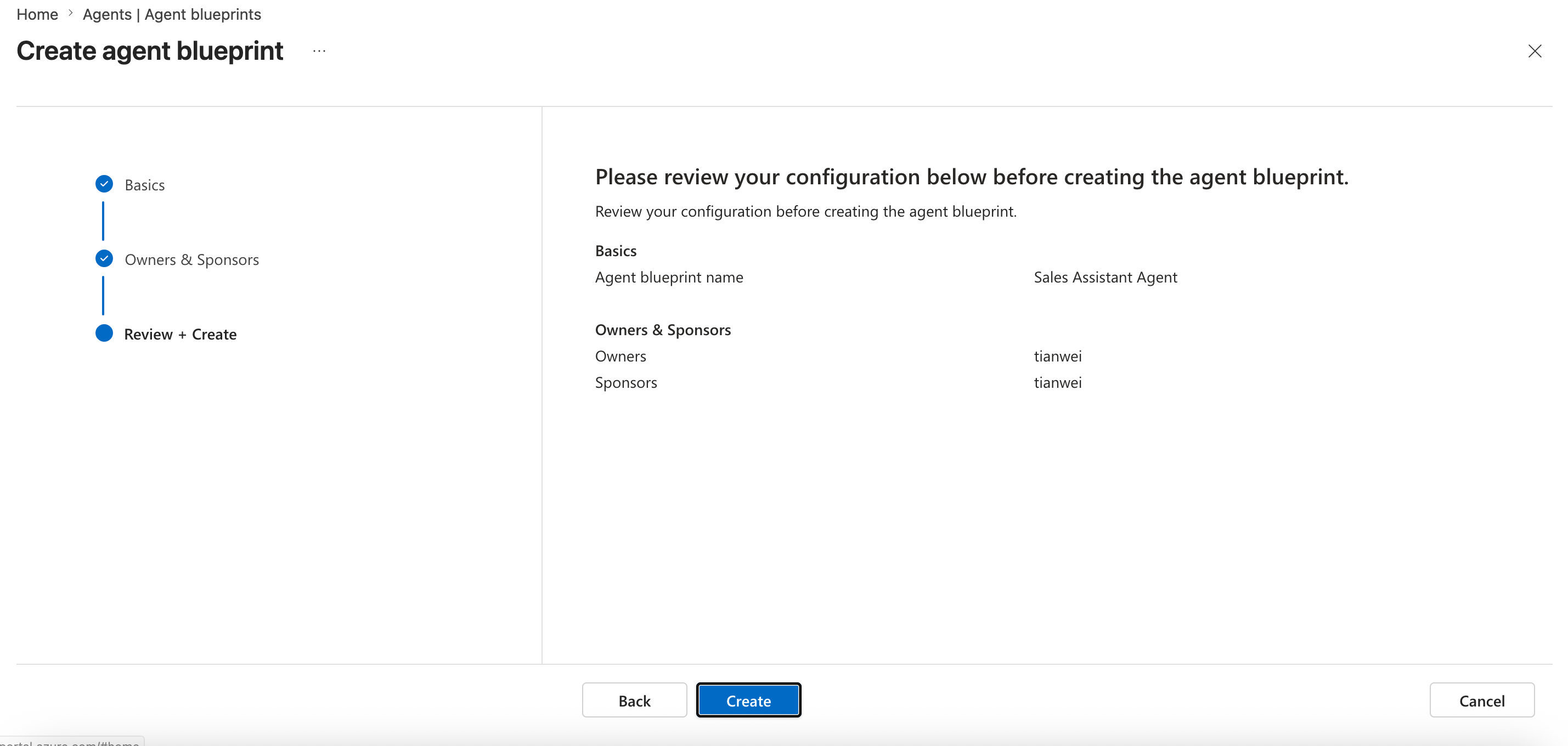
The wizard creates the blueprint, its service principal, and a default agent identity automatically — it shares the blueprint's display name (Sales Assistant Agent) but has its own object ID. You'll use that default identity in Step 2.3 rather than create one from scratch. Record the blueprint's Application (client) ID — you'll need it to configure whichever token-acquisition option you choose in Step 4.
2.2 Create a credential for the blueprint
Agent identities never hold credentials themselves — the blueprint holds them and acquires tokens on the agent identity's behalf. Create that credential from the blueprint's management page in the admin center: select Credentials under Developer settings.
Local development only
The steps below create a client secret. Client secrets are fine for testing, but never use one for a production agent identity blueprint — use a federated credential (managed identity) instead, as described after this box.
- Select the Client secrets tab > New client secret.
- Enter a Description, e.g.
sales-agent-dev. - Choose an Expires period (or set custom Start/End dates).
- Select Add.
- Copy the secret Value immediately — it isn't shown again once you leave the page.
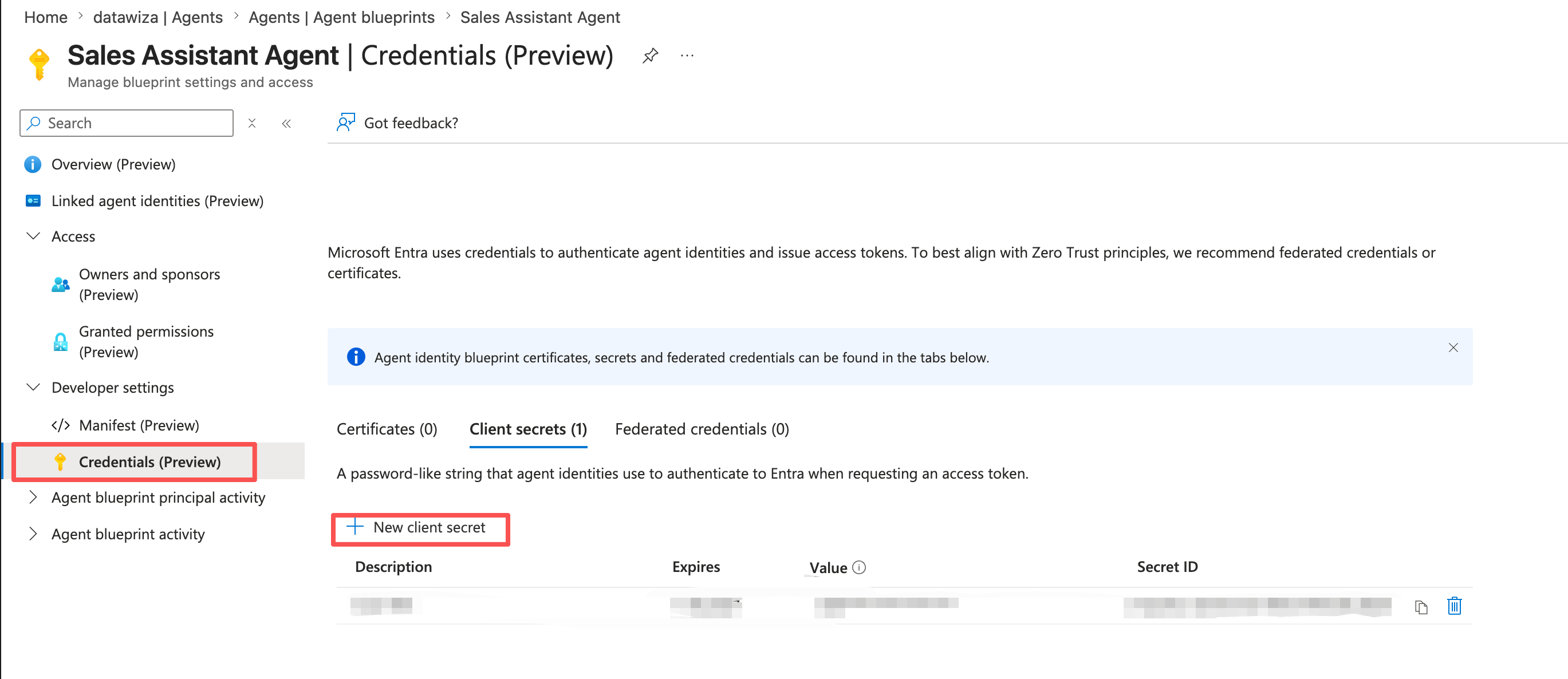
Hold on to this value — whichever option you choose in Step 4, it's what lets that token service authenticate as the blueprint.
For production, use a federated credential instead: select the Federated credentials tab > Add credential, choose the Managed Identity scenario, and select the managed identity your token service will run as. There's no secret value to record in this case — it authenticates as that managed identity directly.
(A Certificates tab is also available if you prefer certificate-based authentication.)
2.3 Use the default agent identity
Go to Entra ID > Agents > Agent identities. You'll see one already there, named Sales Assistant Agent after the blueprint — this is the default identity the blueprint wizard created in Step 2.1.
Open it and record its object ID, shown on the Overview page. For an agent identity, the object ID and the app ID are always the same value — this is what you'll pass as AgentIdentity in Step 6.
If you later deploy more than one instance (NA, EMEA, APAC), give each one a distinct name so they're identifiable in logs and audits: rename this default identity for your first instance, then create the rest from Agent identities > New agent identity (Preview), selecting the Sales Assistant Agent blueprint each time.
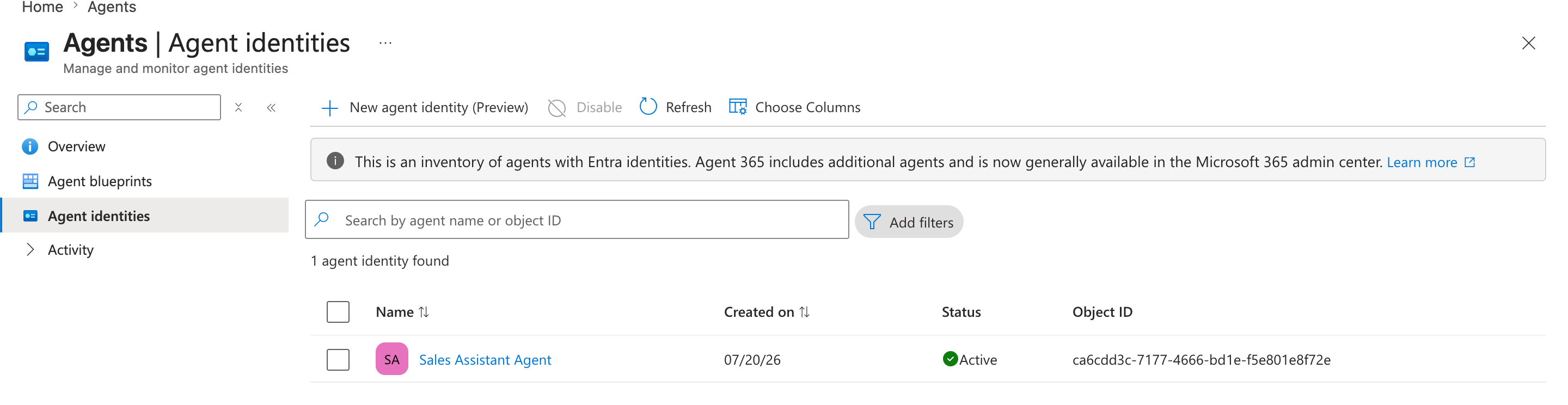
Every instance gets its own identity and object ID, but they all show up as Sales Assistant Agent in the admin center for policy and governance purposes. Record each instance's object ID separately — Step 6's example uses whichever one the running agent authenticates as.
Step 3: Configure Datawiza Agent Gateway
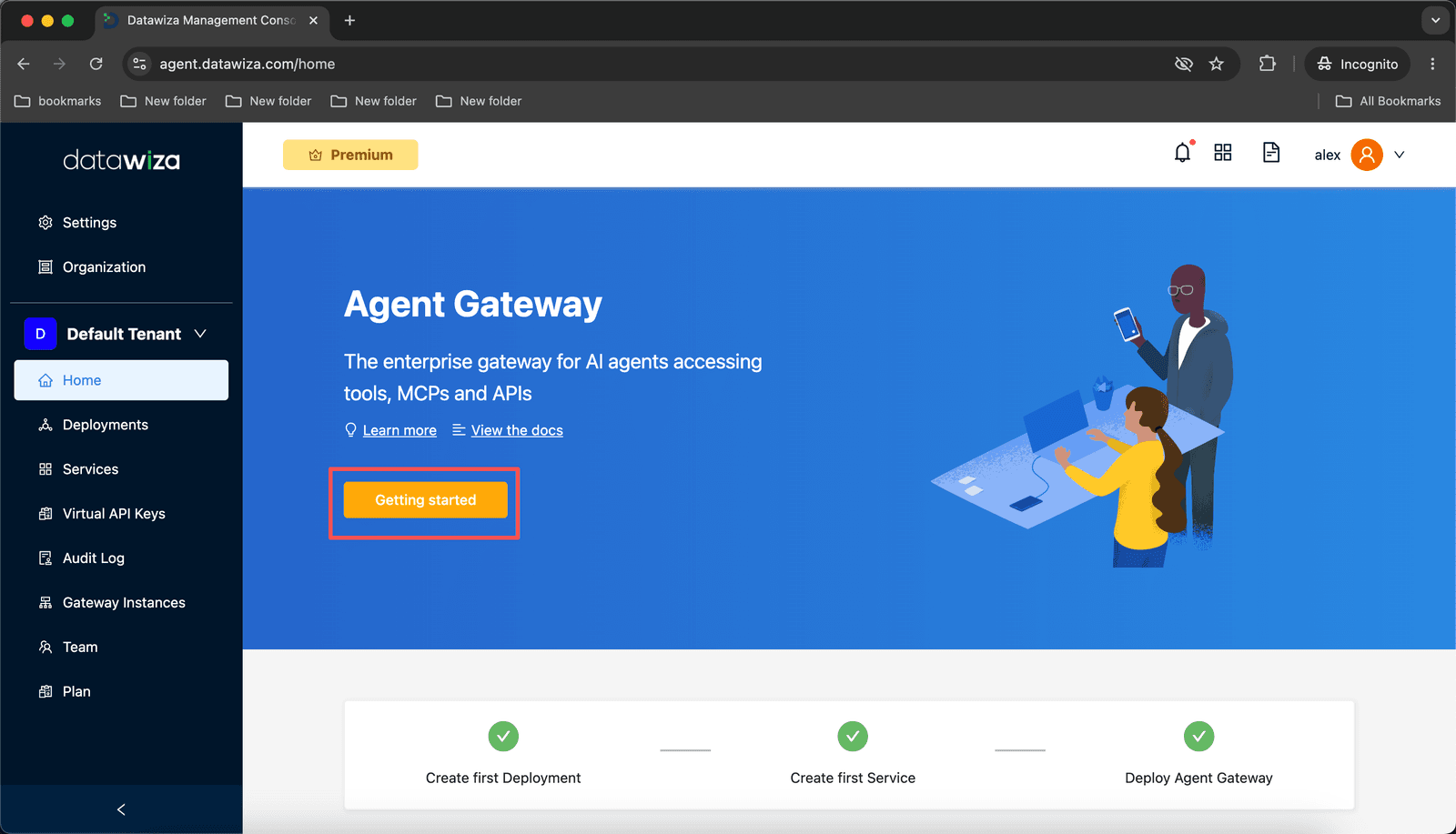
3.1 Sign in and click Getting Started
Log into DAGC and click the Getting Started button on the home page.
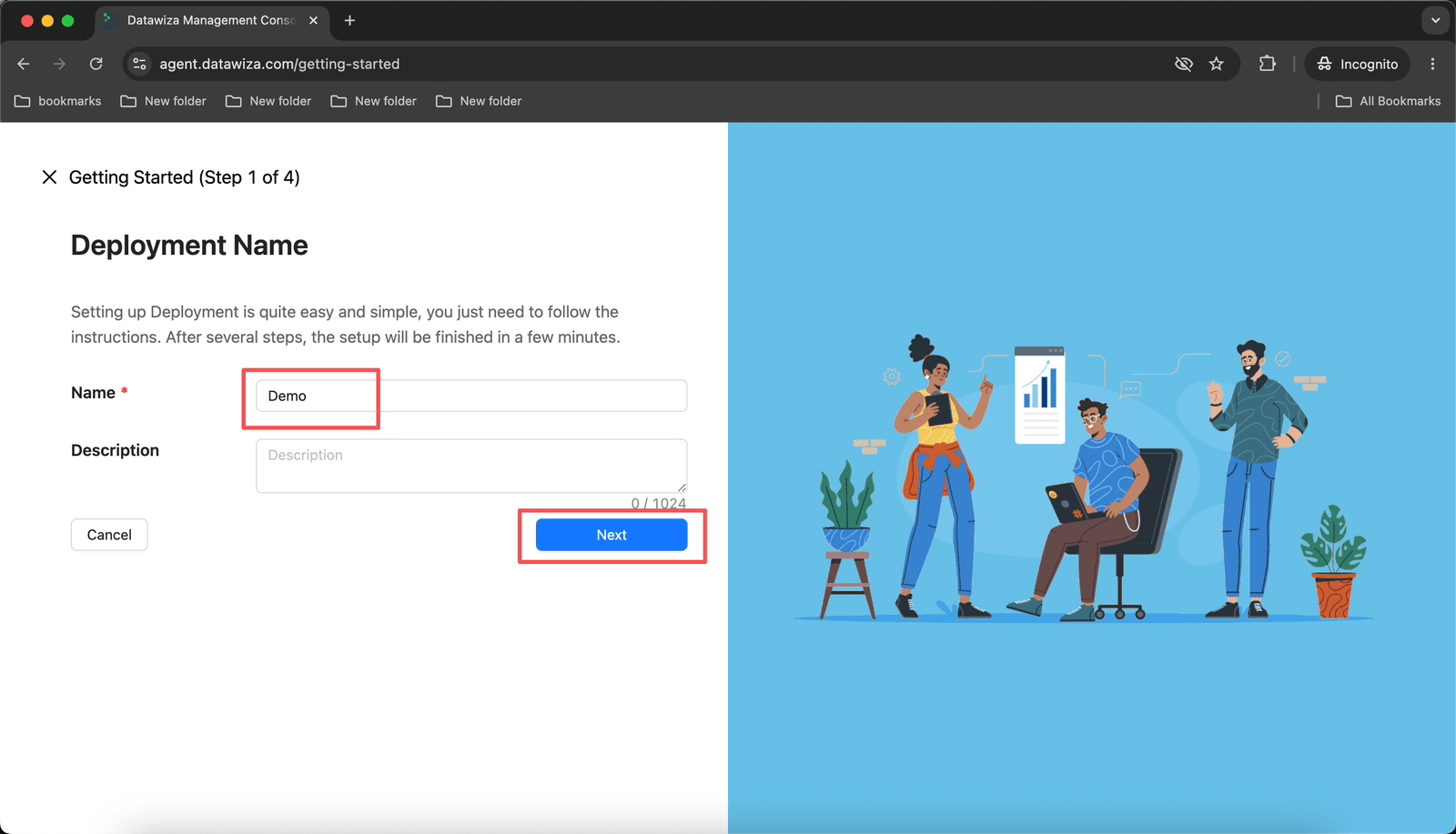
3.2 Name your Deployment
- Enter a
Namefor the deployment (e.g.,Sales MCP Gateway). - Click Next.
3.3 Add a Service
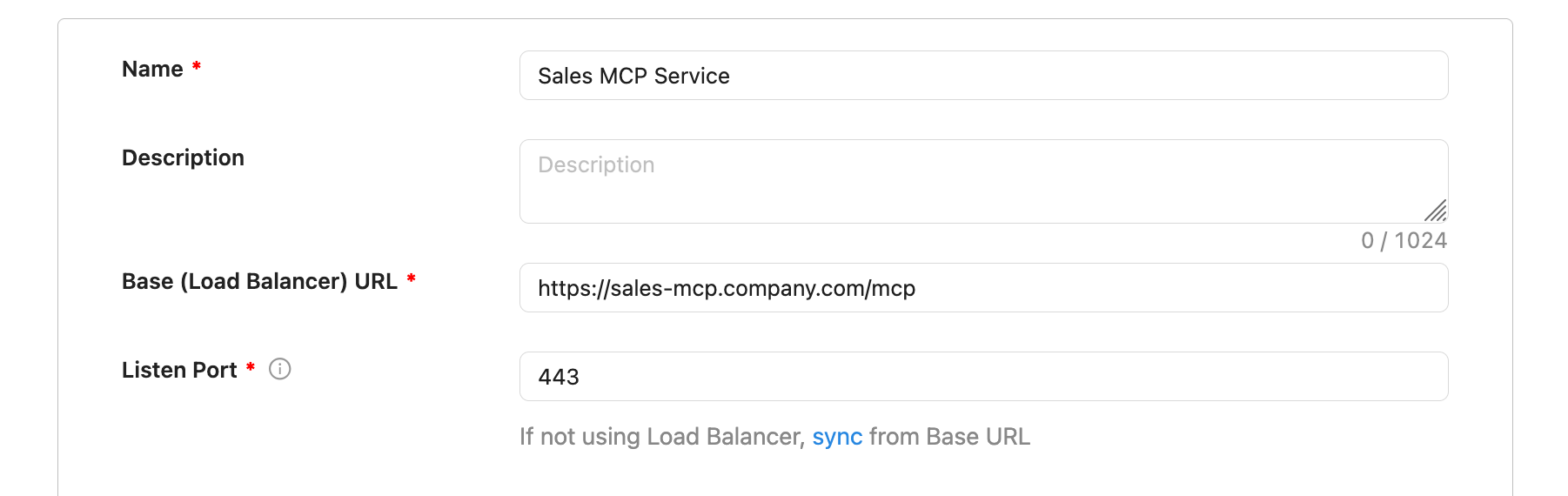
Step 2 of 4 — Service defines the public-facing MCP endpoint the Sales Agent connects to.
| Field | Value |
|---|---|
| Name | Sales MCP Service |
| Base (Load Balancer) URL | Your public gateway URL, e.g. https://sales-mcp.company.com |
| SSL | Enable — check Enable SSL and use datawiza self-signed certificate |
| Listen Port | 443 |
| Authentication Method | Entra ID Access Token |
| Issuer | https://sts.windows.net/<tenant-id>/ |
| Audience | https://sales-mcp.company.com/mcp (the resource app's Application ID URI from Step 1) |
| Authorization Server | https://login.microsoftonline.com/<tenant-id>/v2.0 |
Click Next.
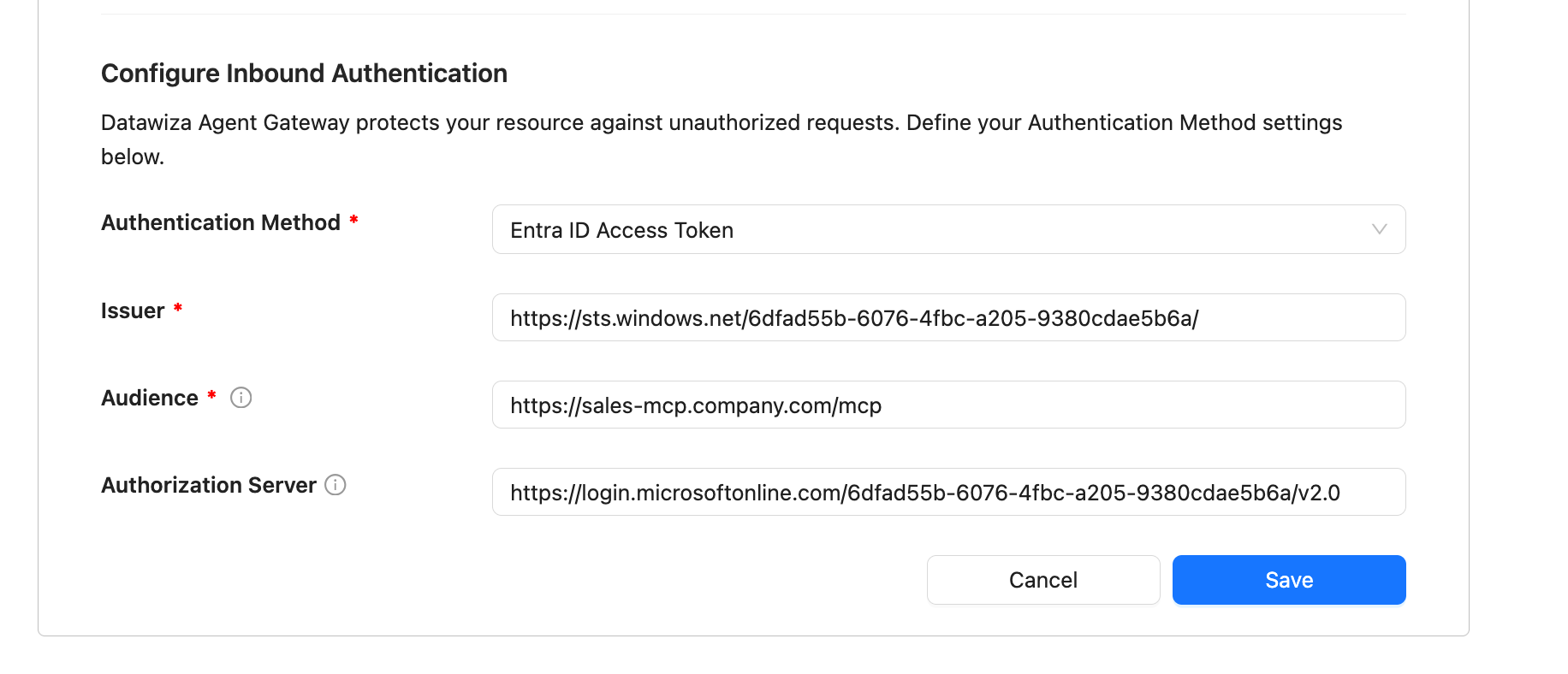
Datawiza validates the token the same way whether it carries a delegated (user) grant or an application-only (agent identity) grant — both are standard OAuth 2.0 Bearer JWTs with iss and aud claims. What differs is who the token represents: for this deployment, the subject is the Sales Assistant Agent agent identity, not a human user.
3.4 Add a Backend
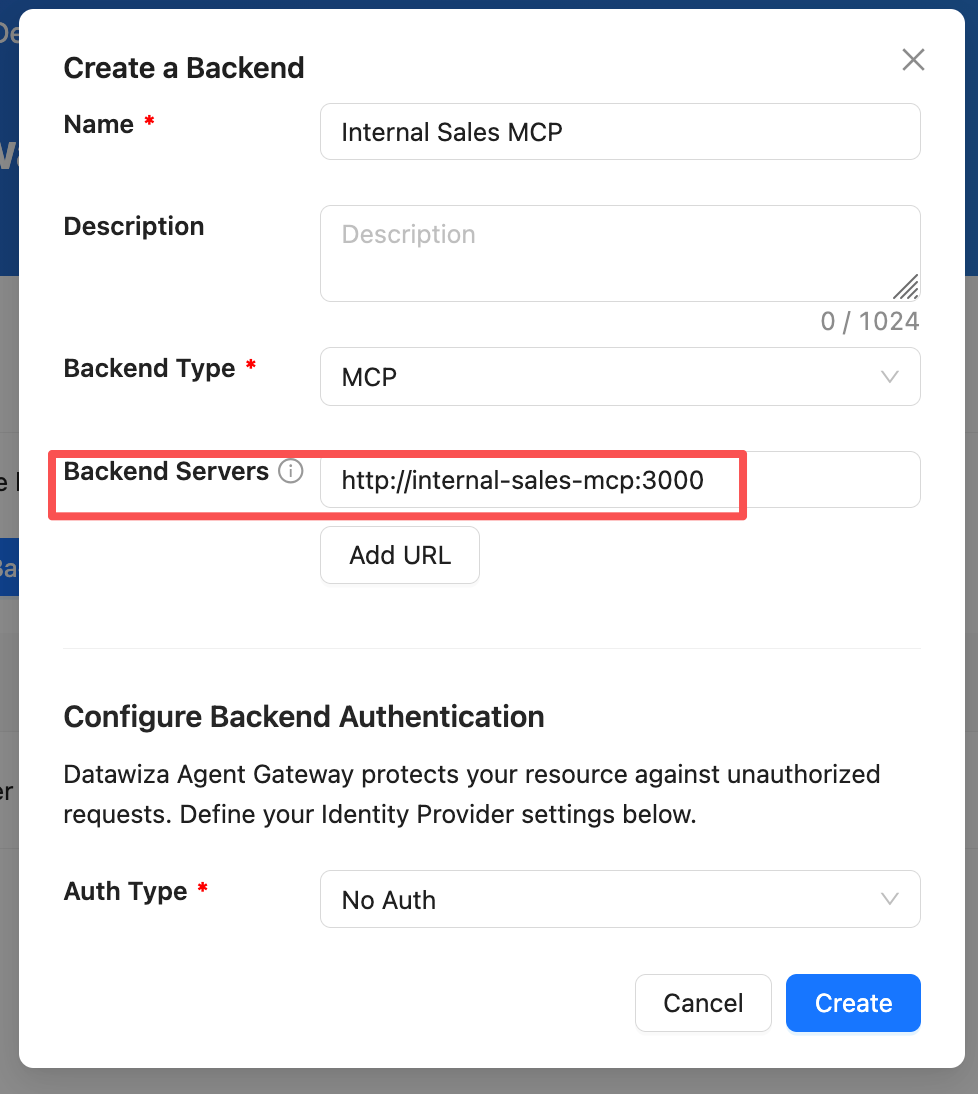
Step 3 of 4 — Backend points the gateway at your existing internal MCP server.
| Field | Value |
|---|---|
| Name | Internal Sales MCP |
| Type | MCP |
| Backend Servers | http://internal-sales-mcp:3000 |
| Auth type | No Auth |
Click Create.
3.5 Deploy the Gateway
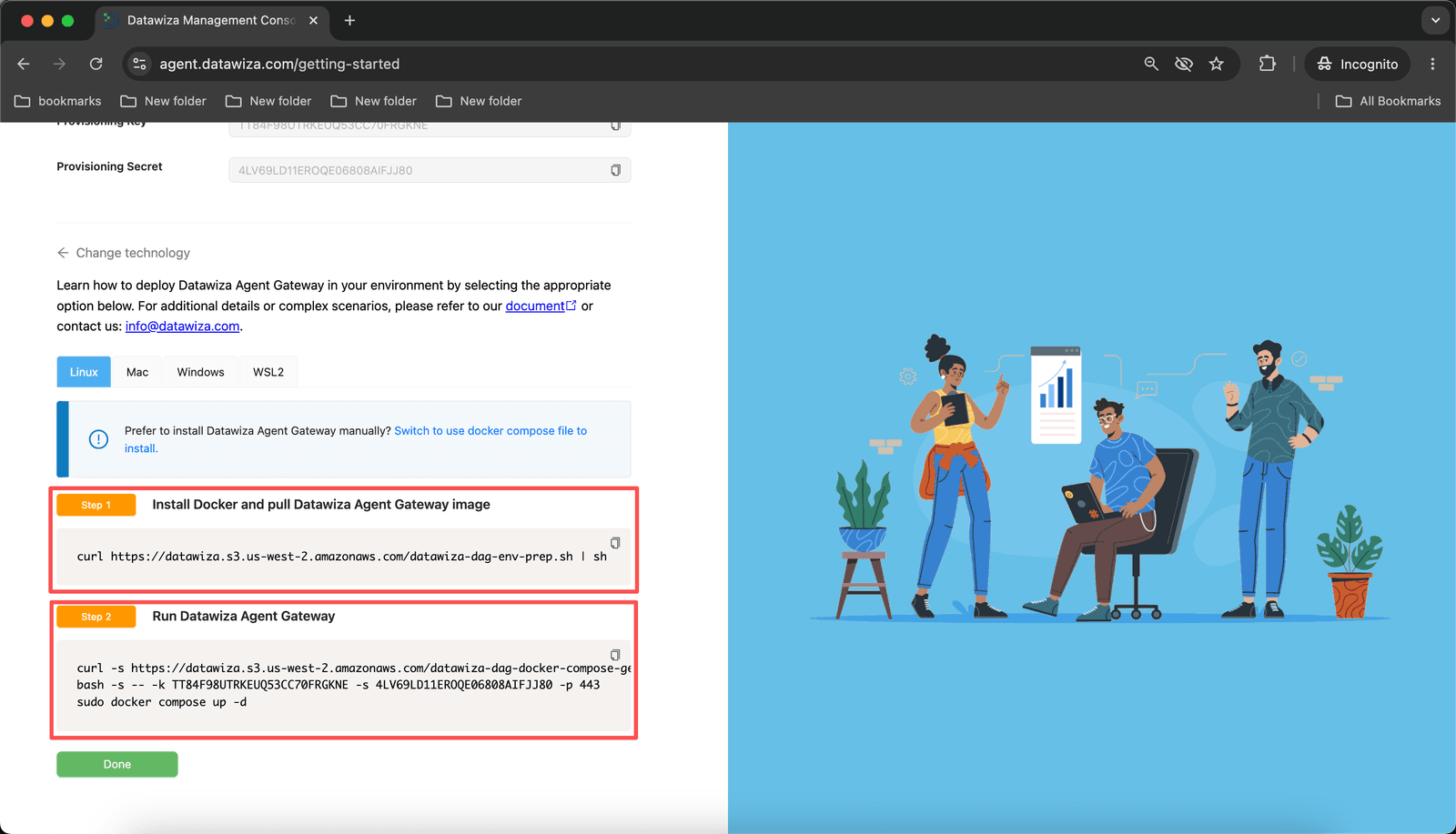
Note the Provisioning Key and Provisioning Secret shown at the top.
Run the two commands on your gateway host:
# Install Docker and pull the Datawiza Agent Gateway image
curl https://datawiza.s3.us-west-2.amazonaws.com/datawiza-dag-env-prep.sh | sh

# Start Datawiza Agent Gateway
curl -s https://datawiza.s3.us-west-2.amazonaws.com/datawiza-dag-docker-compose-prep.sh \
  | bash -s -- -k <PROVISIONING_KEY> -s <PROVISIONING_SECRET> -p 443 \
  && sudo docker compose up -d
Click Done.
Step 4: Get the Sales Agent Its Own Token
Don't implement the client-credentials-plus-federated-credential exchange by hand — Microsoft warns this is complex and error-prone. There are two practical ways to get a token for the agent identity:
- Write a small internal service that performs the exchange (blueprint credential → agent identity token) and hands the Sales Agent a short-lived Bearer token on request.
- Run Microsoft's own Entra ID Auth SDK (sidecar) (
mcr.microsoft.com/entra-sdk/auth-sidecar) as a companion container next to the Sales Agent, e.g. namedentra-agent-auth— it exposes a local endpoint the agent calls to get anAuthorizationheader.
Either way, the Sales Agent itself never sees a client secret or federated credential — only the resulting Bearer token:
Authorization: Bearer eyJ0eXAiOiJKV1Qi...
It attaches this header directly to its calls to the gateway in Step 6.
Step 5: Verify Unauthenticated Access Is Blocked
Before wiring up the Sales Agent, confirm the gateway rejects unauthenticated requests:
curl -ik https://sales-mcp.company.com/mcp
Expected response:
HTTP/1.1 401 Unauthorized
Step 6: Call the Internal MCP Server from the Sales Agent
With the header from Step 4, the Sales Agent attaches it directly to every MCP request — there's no interactive login step, since the agent is the one authenticating, not a user. For example, if you went with the sidecar option, which returns the header as JSON, using the object ID you recorded in Step 2.3:
AUTH_HEADER=$(curl -s "http://entra-agent-auth:5000/AuthorizationHeaderUnauthenticated/sales-mcp?AgentIdentity=<agent-identity-object-id>" | jq -r '.authorizationHeader')

curl -ik https://sales-mcp.company.com/mcp \
     --header "Authorization: $AUTH_HEADER" \
     --header "content-type: application/json" \
     --data '{
         "jsonrpc": "2.0",
         "id": 1,
         "method": "tools/call",
         "params": {
             "name": "list_open_opportunities",
             "arguments": {"region": "NA"}
         }
     }'
Datawiza validates the token's issuer and audience, confirms the Sales Assistant Agent agent identity is authorized, and forwards the request to internal-sales-mcp:3000. A working agent loop follows the same pattern for each tool the Sales Agent needs:
list_open_opportunities— find opportunities due for follow-up.get_lead_profile— pull context on the lead before reaching out.create_follow_up_task— schedule the next action.
If the Sales Agent reasons over these results with Claude, each tool result becomes part of the conversation the agent uses to decide its next MCP call — the gateway and Entra Agent ID sit entirely below that reasoning loop and are invisible to it.
Step 7: Verify Datawiza Logs and Audit Records
In DAGC, open the logs for your deployment and confirm the following events appear:
- Microsoft Entra ID authentication success for the
Sales Assistant Agentagent identity - Request allowed based on policy
- Request forwarded to
internal-sales-mcp:3000 - MCP tool call recorded with the agent identity's object ID and blueprint
This confirms Datawiza is enforcing identity and policy for the Sales Agent's traffic, with every action traceable to a specific agent identity instead of a shared credential.
Governing the Sales Agent at Scale
Because every regional instance is created from the same Sales Assistant Agent blueprint, your Microsoft Entra administrator can manage them as a group instead of one-by-one:
- Apply a Conditional Access policy to all
Sales Assistant Agentidentities at once. - Run a periodic access review requiring the sponsor to reattest that each instance is still needed.
- Disable or delete the blueprint to immediately shut down every Sales Agent instance derived from it — for example if the agent is retired or a security incident requires an emergency stop.
None of this requires touching the Sales Agent's code or the internal MCP server — it's enforced entirely at the identity layer, the same way user access is governed today.
Summary
The Sales Agent authenticates as a first-class identity in your Microsoft Entra tenant — no shared API key, no service account, no credential embedded in its code. Microsoft Entra Agent ID issues it short-lived tokens through a blueprint that a Microsoft Entra admin can govern like any other identity, and Datawiza Agent Gateway validates those tokens exactly as it would a human's, so the internal Sales MCP server needs no changes at all.
The result: an autonomous agent that can run unattended, whose every action is attributable to a specific identity, and whose access can be revoked or constrained centrally the moment it's no longer needed.