
Anthropic API Proxy for Claude with Datawiza Agent Gateway
This tutorial shows how to place Datawiza Agent Gateway between your Claude clients and the Anthropic API. Once in place, all requests from Claude Desktop or Claude Code pass through the gateway, which:
- Proxies requests to
https://api.anthropic.com— clients never need the real Anthropic API key. - Enforces rate limits — per key or per user.
- Manages API keys — generate and revoke virtual keys from the Datawiza Agent Gateway Console (DAGC).
Claude Desktop / Claude Code
             │  virtual API key + Gateway URL
             ▼
  Datawiza Agent Gateway
  (rate limiting · key management · audit log)
             │  real Anthropic API key (injected by gateway)
             ▼
     https://api.anthropic.com
Prerequisites
- A Datawiza Agent Gateway Console (DAGC) account
- Your Anthropic API key
- Claude Desktop, Claude Code, or any application using the Anthropic SDK
Part I: Configure the Gateway in DAGC
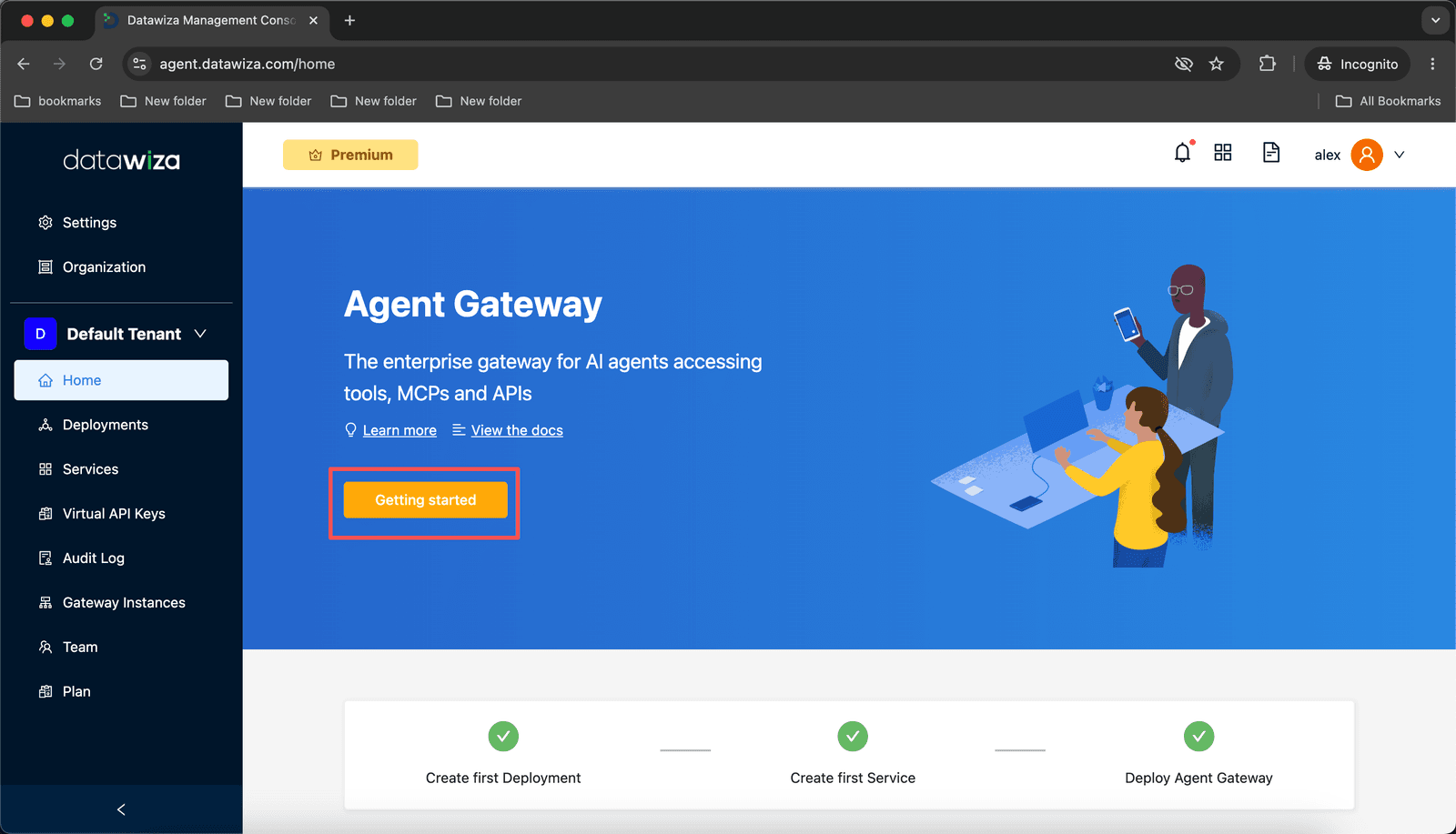
Step 1: Sign in and click Getting Started
Log into DAGC and click the Getting Started button on the home page.
Step 2: Name your Deployment
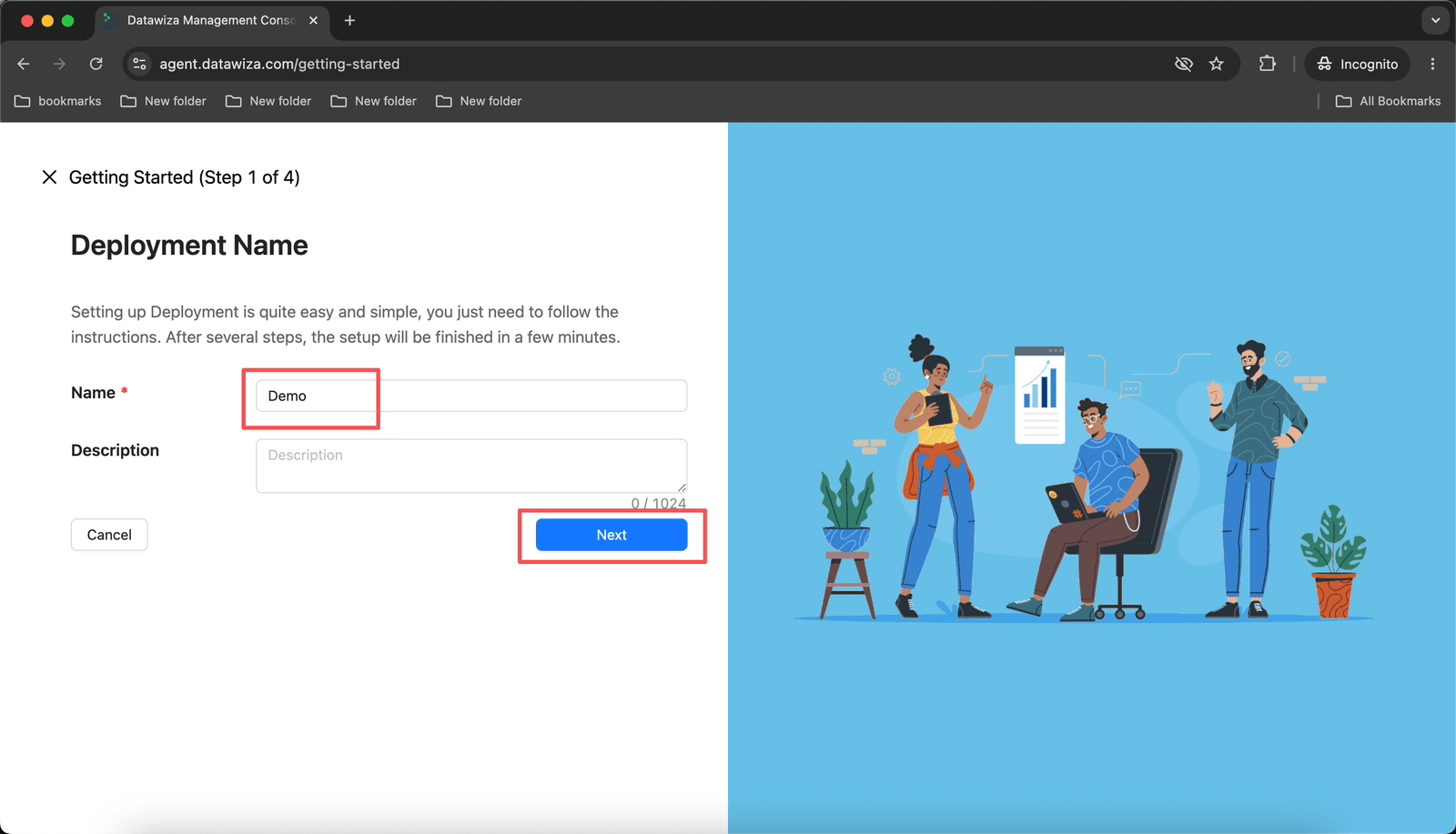
The Getting Started wizard opens at Step 1 of 4 — Deployment Name.
- Enter a
Namefor the deployment (e.g.,Demo). - Click Next.
Step 3: Add a Service
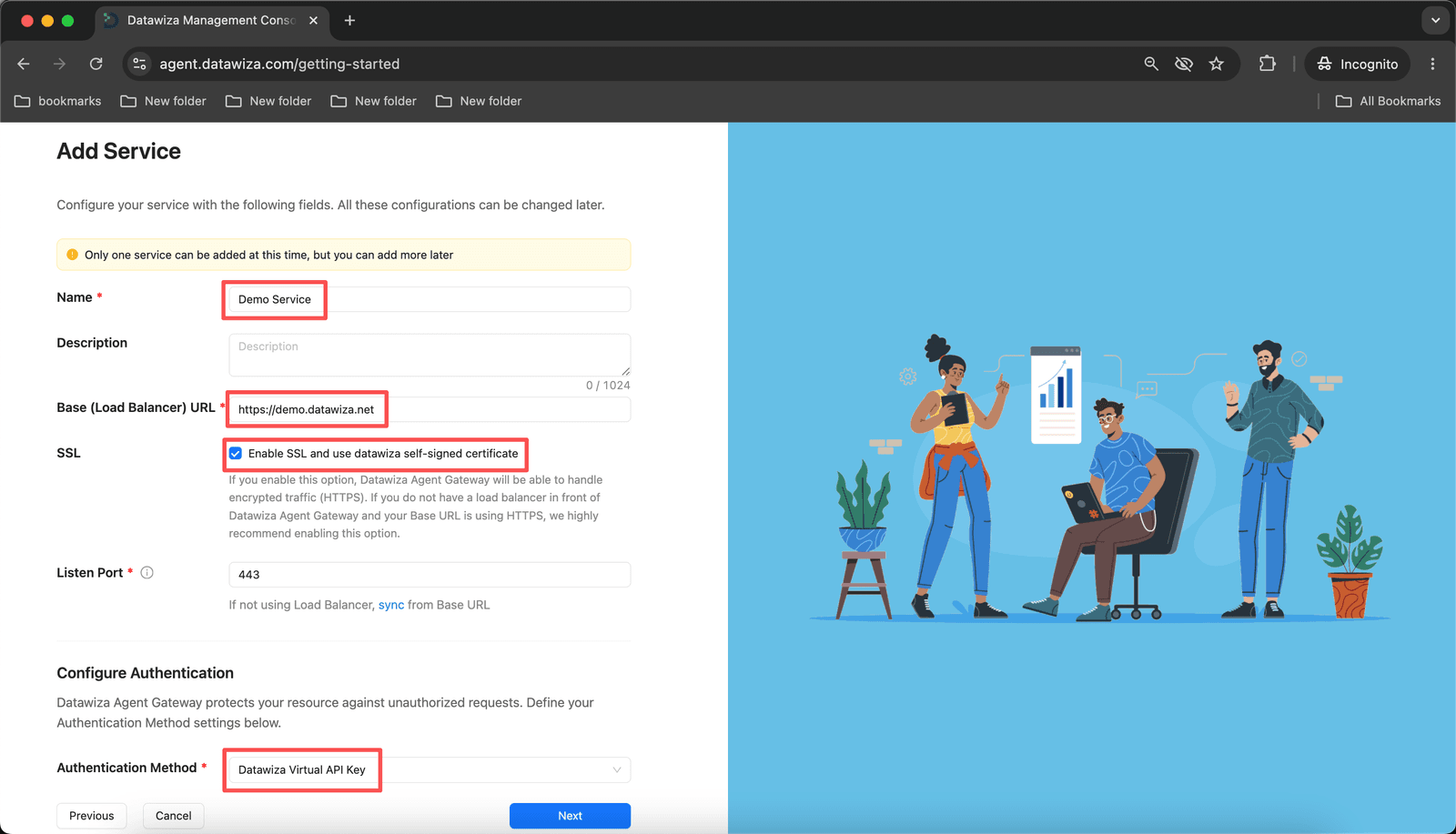
Step 2 of 4 — Service defines the public-facing endpoint your Claude clients connect to. All Claude traffic is authenticated here using a virtual API key before it reaches the Anthropic backend.
| Field | Value |
|---|---|
| Name | Demo Service |
| Base (Load Balancer) URL | Your public gateway URL, e.g. https://<your-gateway-host> |
| SSL | Enable — check Enable SSL and use datawiza self-signed certificate |
| Listen Port | 443 |
| Authentication Method | Datawiza Virtual API Key |
Click Next.
Self-signed certificate
Enabling the Datawiza self-signed certificate is the fastest way to get started, but browsers and tools may reject it. For production, replace it with a certificate from a trusted CA.
Step 4: Add a Backend
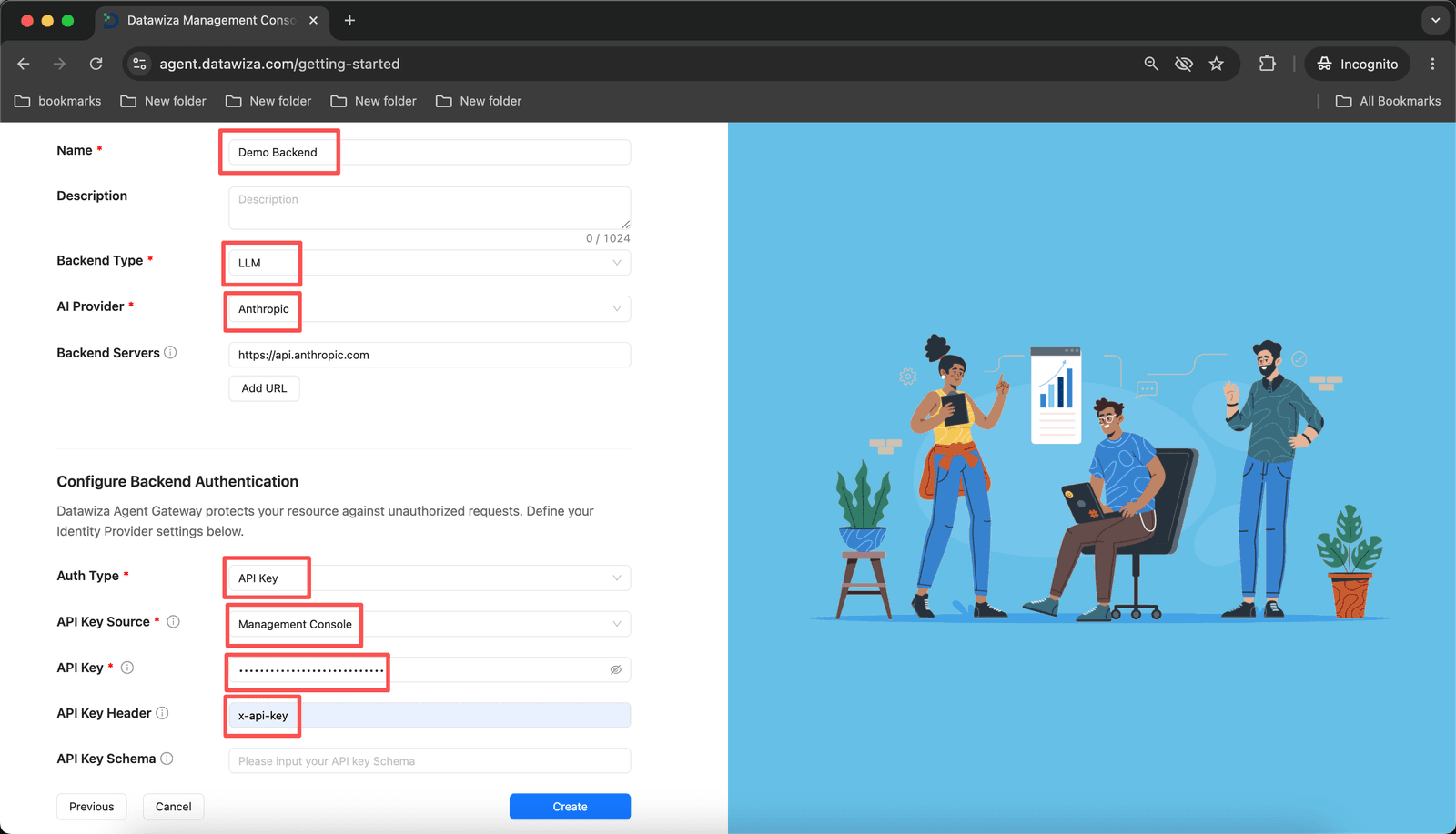
Step 3 of 4 — Backend is where you configure the upstream Anthropic API and how the gateway authenticates to it. Set Backend Type to LLM, AI Provider to Anthropic, and Auth Type to API Key. The Backend Servers field is auto-filled with https://api.anthropic.com.
For API Key Source, choose the option that fits your security requirements:
Option A: Management Console (simpler setup)
The Anthropic API key is stored in DAGC and pushed to the gateway at startup.
| Field | Value |
|---|---|
| Name | Demo Backend |
| Backend Type | LLM |
| AI Provider | Anthropic |
| Backend Servers | https://api.anthropic.com (auto-filled) |
| Auth Type | API Key |
| API Key Source | Management Console |
| API Key | Paste your Anthropic API key |
| API Key Header | x-api-key |
Option B: Environment Variable (recommended for higher security)
The Anthropic API key is never sent to or stored in DAGC. Instead, you set it as an environment variable in your docker-compose.yml on the gateway host. The key stays entirely within your own infrastructure.
| Field | Value |
|---|---|
| Name | Demo Backend |
| Backend Type | LLM |
| AI Provider | Anthropic |
| Backend Servers | https://api.anthropic.com (auto-filled) |
| Auth Type | API Key |
| API Key Source | Environment Variable |
| API Key Environment Var | Paste the env var name, e.g. ANTHROPIC_API_KEY |
| API Key Header | x-api-key |
Then add the key to your docker-compose.yml on the gateway host:
services:
  datawiza-agent-gateway:
    image: datawiza/agent-gateway:latest
    ports:
      - "443:443"
    environment:
      - PROVISIONING_KEY=<your-provisioning-key>
      - PROVISIONING_SECRET=<your-provisioning-secret>
      - GATEWAY_BACKEND_KEYS={"ANTHROPIC_API_KEY":"sk-ant-xxxxxxxx"}
To rotate the Anthropic API key, update
GATEWAY_BACKEND_KEYSin thedocker-compose.ymlon your host and restart the container. No changes in DAGC are needed.
Click Create.
Step 5: Deploy the Gateway
Step 4 of 4 — Deploy shows your provisioning credentials and the commands to start the gateway on your host.
Note the Provisioning Key and Provisioning Secret shown at the top.
Run the two commands shown on screen:
# Step 1 — Install Docker and pull Datawiza Agent Gateway image
curl https://datawiza.s3.us-west-2.amazonaws.com/datawiza-dag-env-prep.sh | sh

# Step 2 — Run Datawiza Agent Gateway
curl -s https://datawiza.s3.us-west-2.amazonaws.com/datawiza-dag-docker-compose-prep.sh \
  | bash -s -- -k <PROVISIONING_KEY> -s <PROVISIONING_SECRET> -p 443 \
  && sudo docker compose up -d
Click Done.
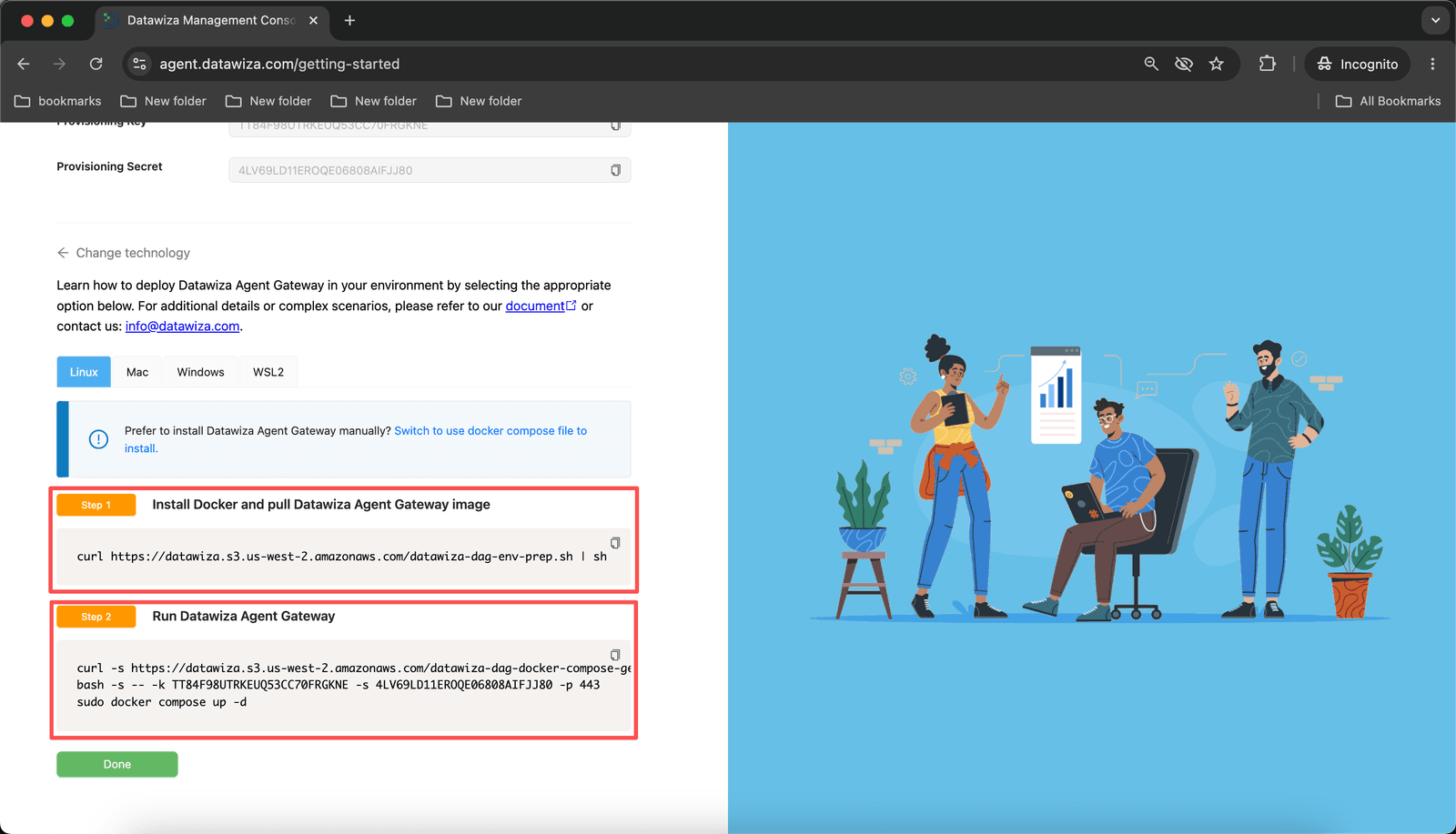
The gateway pulls its full configuration from DAGC automatically. No config file editing is required.
Part II: Generate a Virtual API Key
Virtual keys are what you hand out to users and applications. The gateway maps them to the real Anthropic API key internally — your real key stays in the vault and is never shared with clients.
In DAGC, go to My User Portal in the top right.
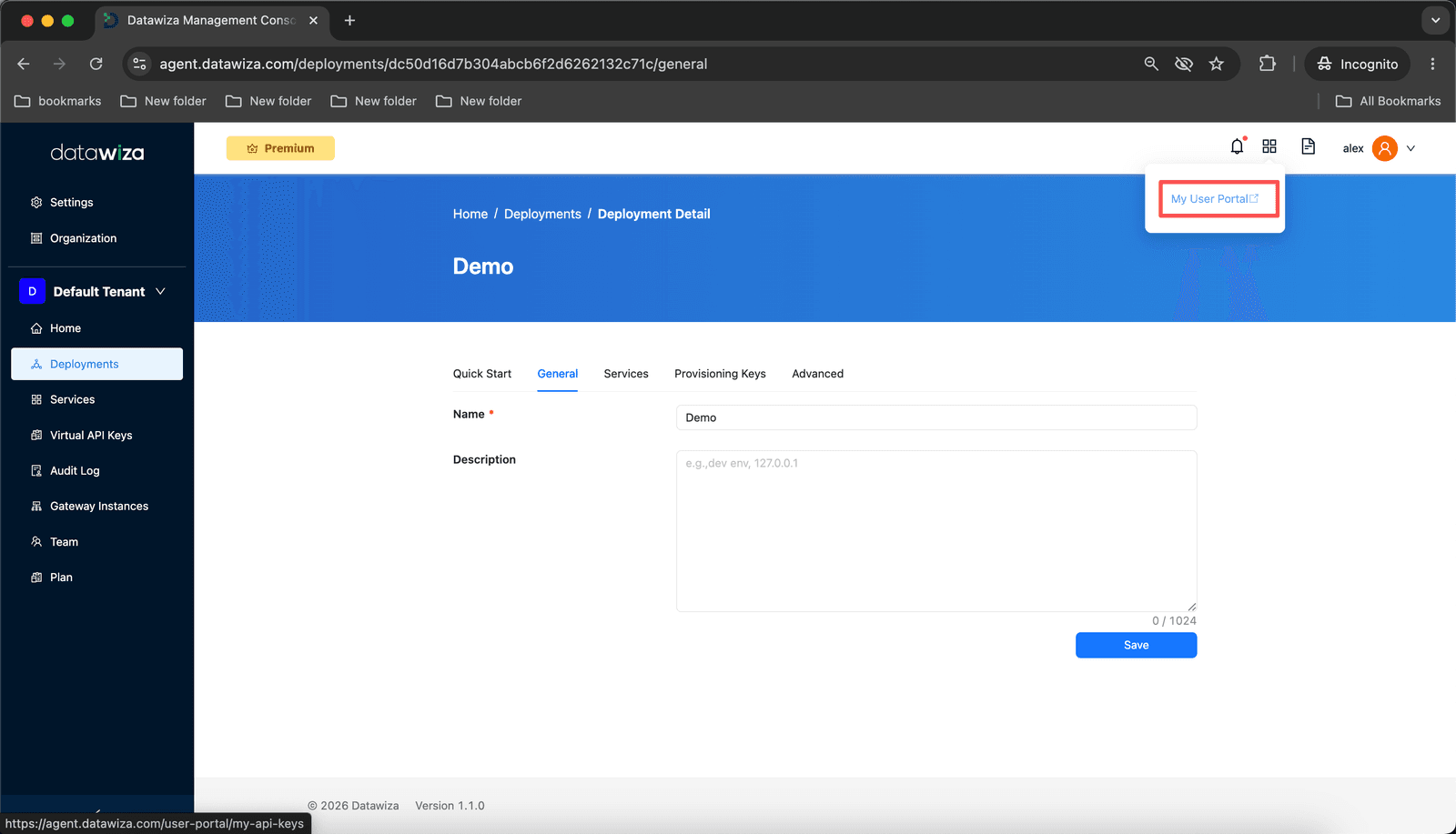
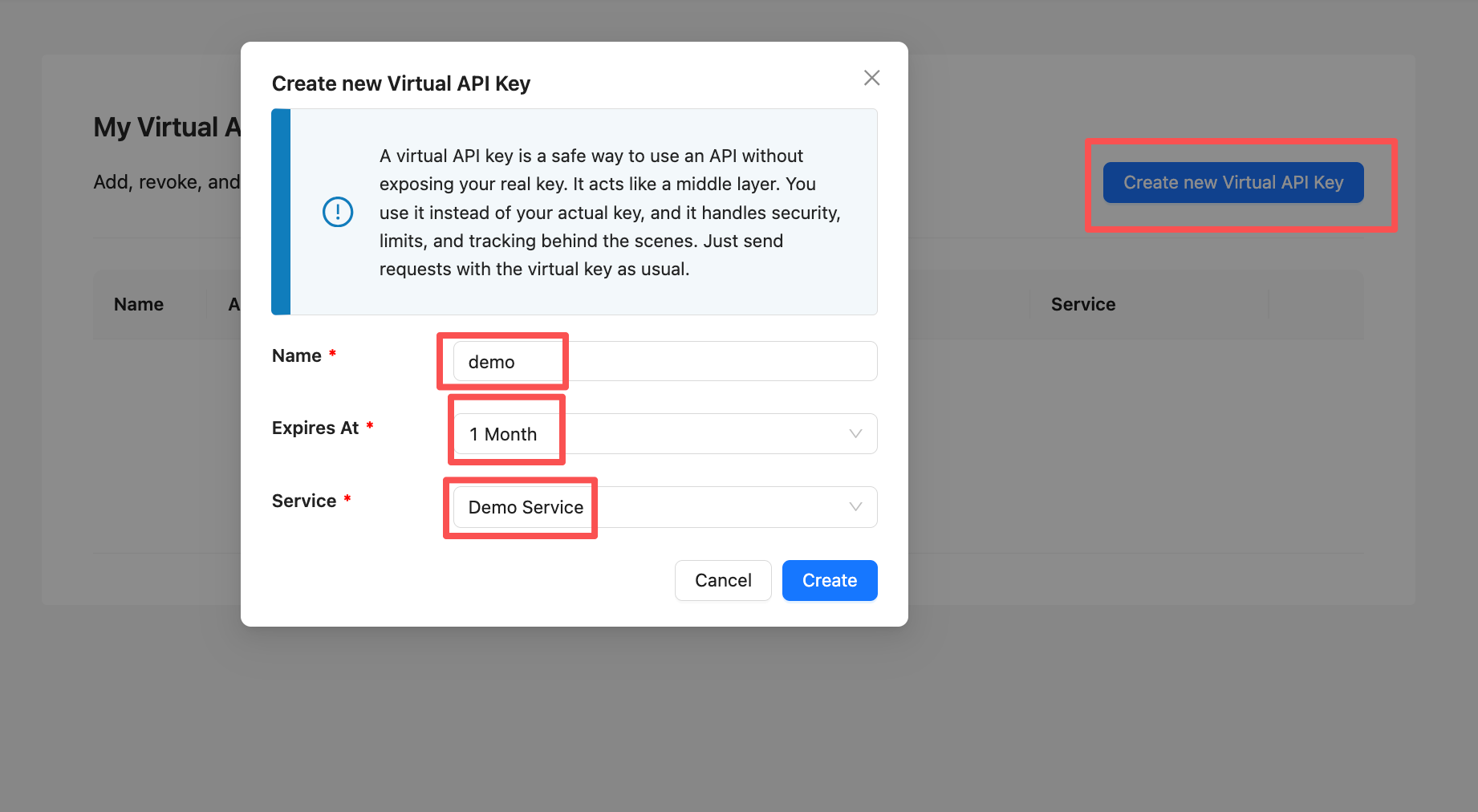
Click Create new Virtual API Key.
Fill in the dialog:
Field Value Name e.g. demoExpires At e.g. 1 MonthService Select the service created in Part I (e.g. Demo Service)Click Create.
Copy the key (
dw_vl07...) from the confirmation dialog. It is shown only once — save it before closing.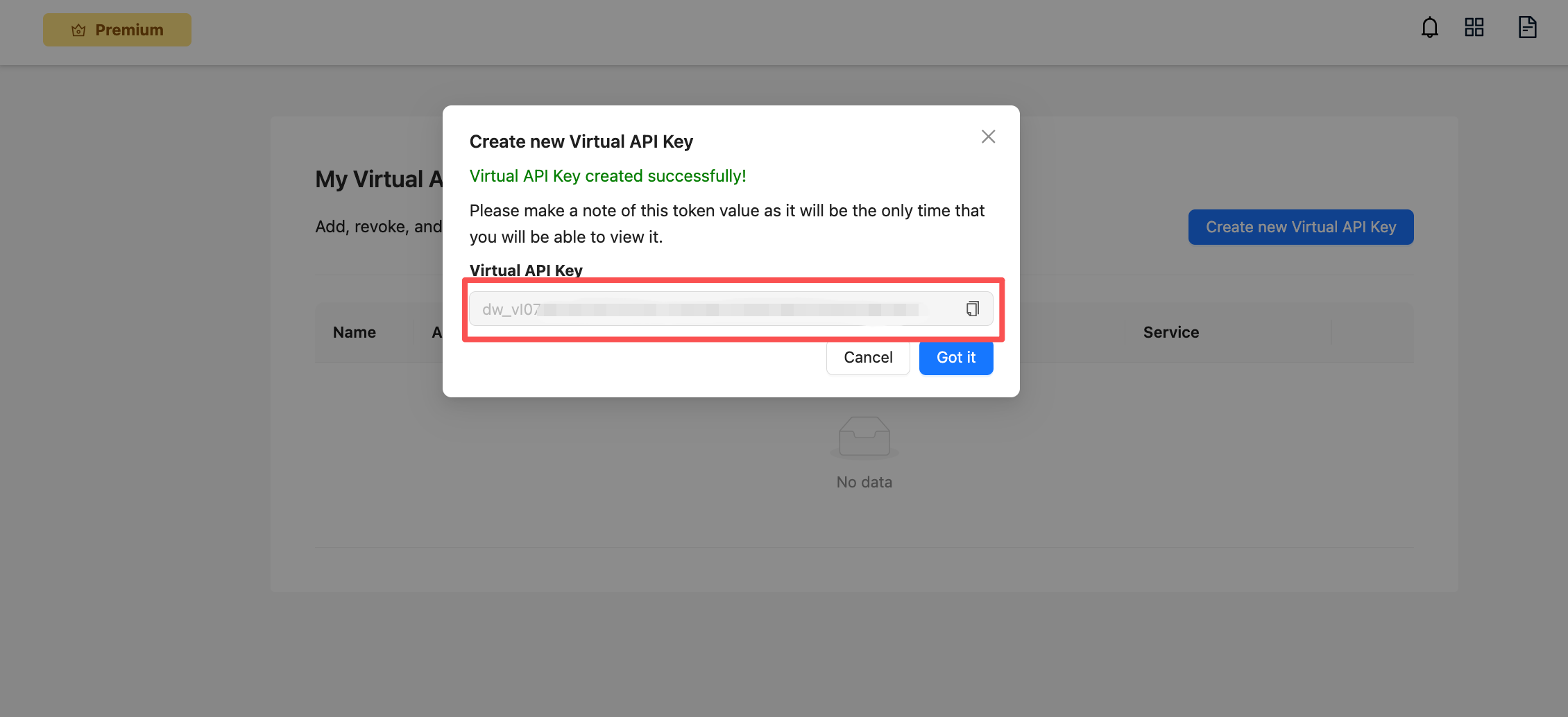
Part III: Quick Test
Before configuring Claude Desktop or Claude Code, verify the gateway is working end-to-end. Replace https://<your-gateway-host> with your gateway URL from Part I Step 3 and dw_vl07... with your virtual key from Part II.
curl
curl https://<your-gateway-host>/v1/messages \
     --header "Authorization: Bearer dw_vl07xxxxxxxxxxxxxxxxxxxxxxxx" \
     --header "anthropic-version: 2023-06-01" \
     --header "content-type: application/json" \
     --data '{
         "model": "claude-sonnet-4-5",
         "max_tokens": 1024,
         "messages": [
             {"role": "user", "content": "Hello, Claude! What is the capital of France?"}
         ]
     }'
A successful response looks like:
{
  "content": [{"type": "text", "text": "The capital of France is Paris."}],
  "model": "claude-sonnet-4-5",
  ...
}
Self-signed certificate
If you enabled the Datawiza self-signed cert, add -k to skip TLS verification during testing: curl -k https://<your-gateway-host>/v1/messages ...
Part IV: Configure Claude Desktop
Step 1: Enable Developer Mode
In Claude Desktop, go to the top menu bar:
Help → Troubleshooting → Enable Developer Mode
Claude Desktop restarts automatically. Once it reopens, a Developer item appears in the top menu bar.
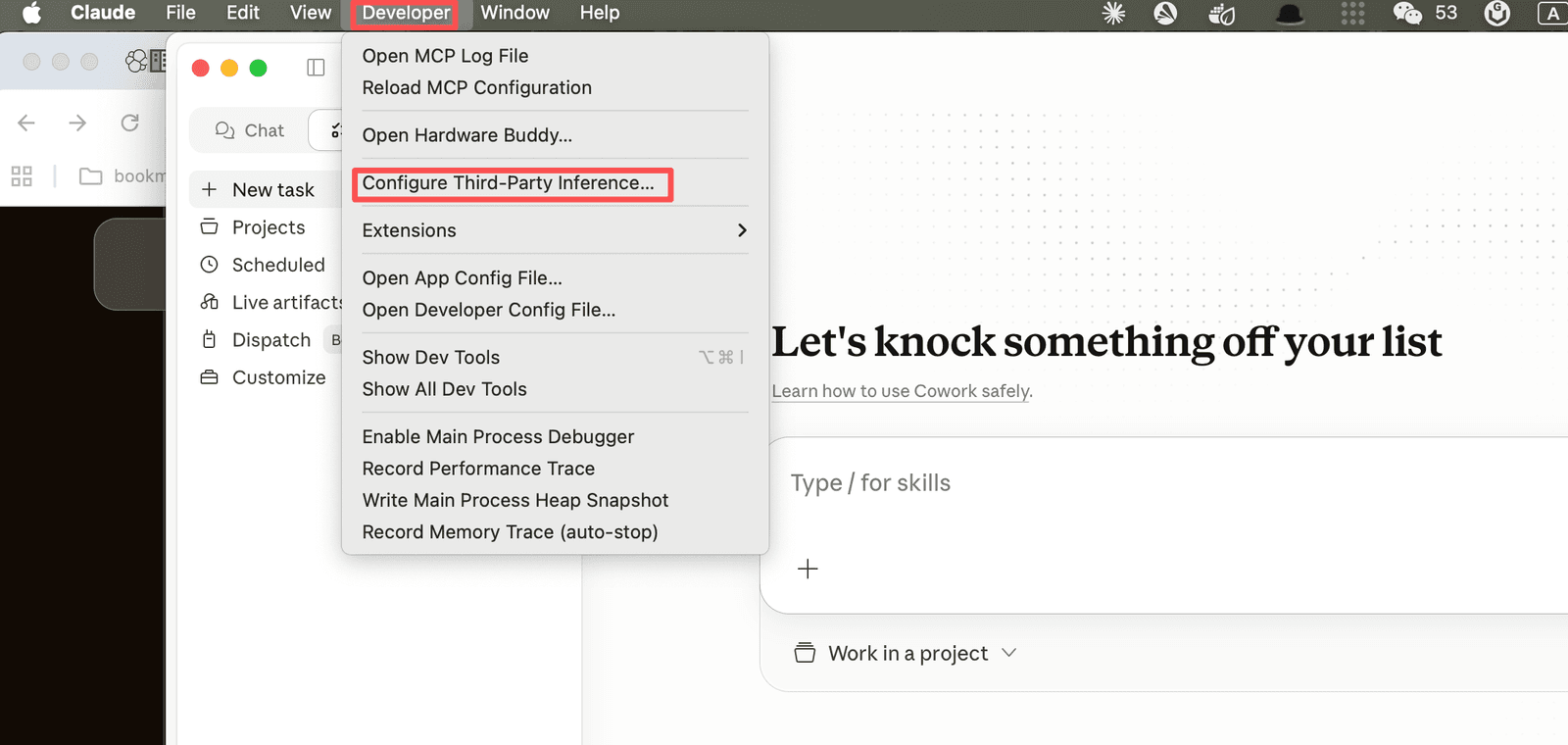
Step 2: Open Configure Third-Party Inference
Click Developer → Configure Third-Party Inference…
Step 3: Enter the Gateway Credentials
The Configure third-party inference dialog opens at the Connection tab. Under Gateway Credentials, fill in:
| Field | Value |
|---|---|
| Credential kind | Static API key |
| Gateway base URL | Your gateway URL from Part I Step 3 (e.g. https://<your-gateway-host>) |
| Gateway API key | The virtual key copied in Part II (dw_vl07...) |
| Gateway auth scheme | bearer |
Click Apply Locally.
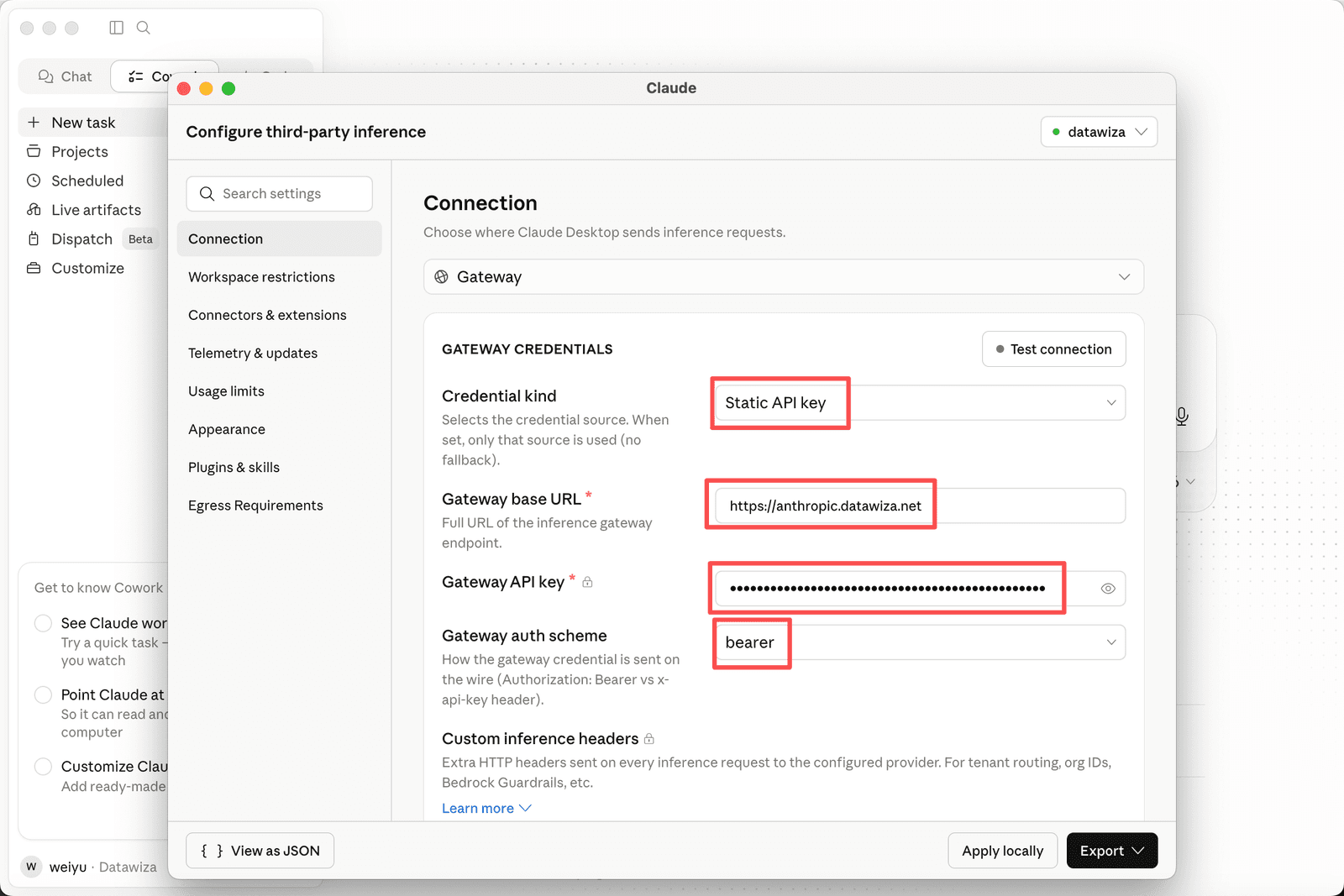
Claude Desktop sends the virtual key as Authorization: Bearer dw_vl07.... The gateway validates it, injects the real Anthropic API key, and forwards the request to api.anthropic.com.
Certificate requirement
Claude Desktop does not have a way to skip TLS verification. If you used the Datawiza self-signed certificate in Part I Step 3, Claude Desktop will refuse to connect. Either add the self-signed cert to your system trust store, or replace it with a certificate from a trusted CA before proceeding.
Part V: Configure Claude Code
The gateway expects the virtual key as a Bearer token. Use ANTHROPIC_AUTH_TOKEN so Claude Code sends Authorization: Bearer dw_vl07... instead of x-api-key:
Certificate requirement
Claude Code inherits the system trust store. If you used the Datawiza self-signed certificate, add it to your system trust store first, or use a certificate from a trusted CA.
export ANTHROPIC_BASE_URL=https://<your-gateway-host>   # gateway URL from Part I Step 3
export ANTHROPIC_AUTH_TOKEN=dw_vl07xxxxxxxxxxxxxxxxxxxxxxxx   # virtual key from Part II
Then start Claude Code normally:
claude
Troubleshooting
| Symptom | Likely cause | Fix |
|---|---|---|
401 Unauthorized | Virtual key incorrect or expired | Re-copy the key from DAGC → Virtual API Keys |
429 Too Many Requests | Rate limit reached | Review the rate limit rules in DAGC or wait for the window to reset |
502 Bad Gateway | Gateway cannot reach api.anthropic.com | Verify the gateway host has outbound internet access on port 443 |
| Claude Desktop ignores base URL | Setting not saved | Click Apply Locally and restart Claude Desktop |