
Assign role to a user
Less than 1 minute
Overview
This guide walks you through configuring user roles in Datawiza Management Console.
Datawiza includes three built-in roles, each with different permissions and scopes. Refer to the table below for details:
| Role | Description |
|---|---|
| Global Admin | Has maximum permissions and can control all resources across all tenants. |
| Tenant Admin | Can control all resources under its assigned tenant. |
| MFA Admin | Can manage MFA-related resources, such as reading/writing MFA users and groups, and resetting MFA methods within its assigned tenant. |
If a user sees a screen similar to the one below, it indicates they do not have proper roles assigned under the tenant. Follow the steps below to assign the appropriate role.

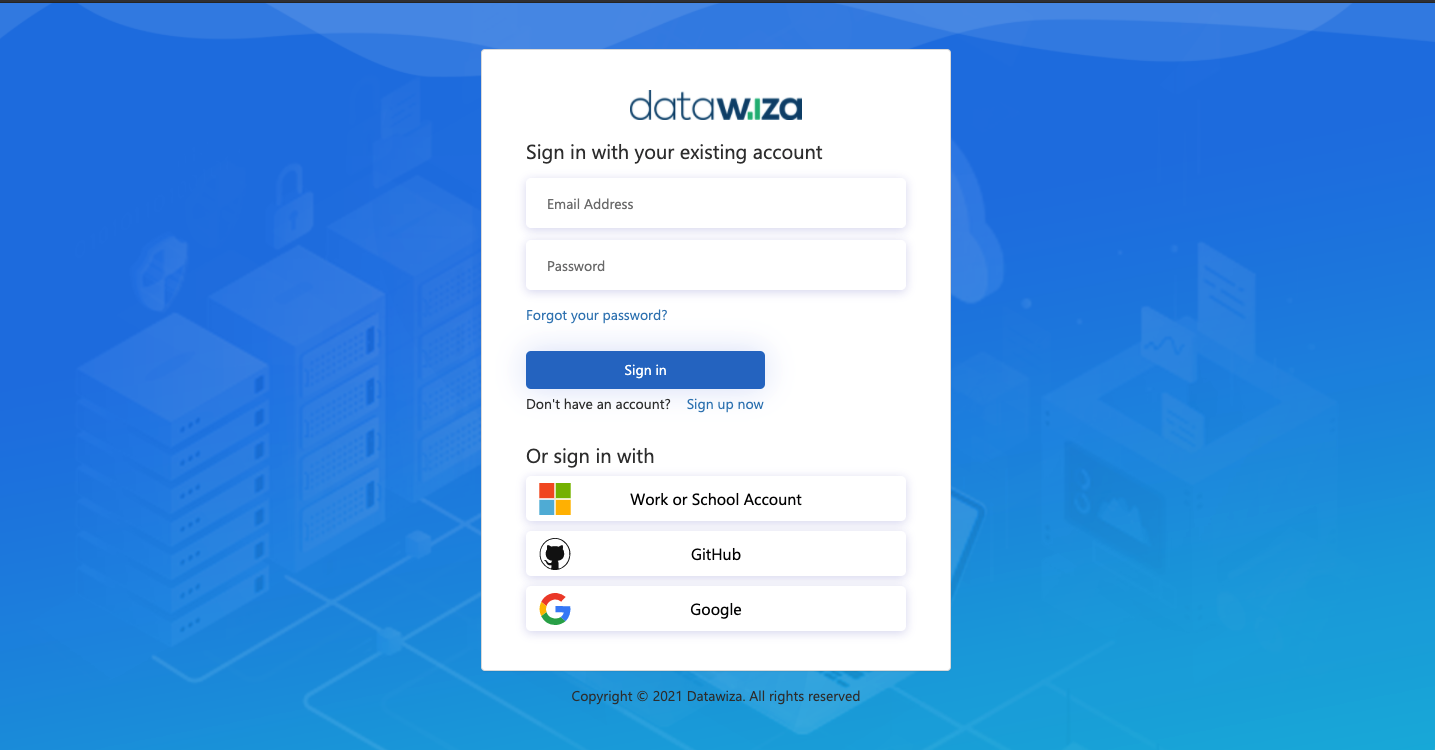
Step 1: Sign in to Datwiza Management Console
- Log into the DCMC.
Step 2: Find the target user
- Navigate to the Organization tab.
- Locate the target user.
- Click the three dots (
...) next to the user, then select Edit. - Assign the appropriate role.

Step 3: Assign the User to the Target Tenant
Info
If assigning the Global Admin role, you are done after Step 2. Skip this step.
- If you have multiple tenants, switch to the relevant tenant.
- Go to the Team tab.
- Click Assign Member and select the target user.
