
Enable Entra ID SSO and MFA to Oracle WebCenter Content
Overview
This tutorial shows how to enable Microsoft Entra ID (Azure AD) SSO and MFA for Oracle WebCenter Content (WCC) via Datawiza.
The benefits of integrating applications with Microsoft Entra ID via Datawiza include:
- Improved Zero Trust security through Microsoft Entra ID SSO, MFA and Conditional Access.
- No-Code easy integration between Microsoft Entra ID and any web applications, including Oracle WebCenter Content, JD Edwards, E-Business Suite, Siebel, PeopleSoft and homegrown apps.
- A single control plane, Datawiza Cloud Management Console, to manage access to applications in public clouds and on-premise.
Background
This document focuses on Oracle WebCenter Content integration using HTTP header-based authentication to manage access to protected resources.
Oracle WebCenter Content runs on Oracle WebLogic Server and delegates authentication to the WebLogic security realm. It doesn't support modern SSO protocols such as OIDC or SAML out of the box, so a direct integration with Microsoft Entra ID is difficult. Datawiza Access Proxy bridges the gap between WebCenter Content and the modern identity provider through protocol transitioning: DAP signs the user in with Microsoft Entra ID, then passes the username to WebLogic in an HTTP header, which WebLogic trusts through an Identity Assertion provider. DAP lowers integration overhead, saves engineering time, and improves application security.
Architecture
The solution contains the following components:
- Microsoft Entra ID: Microsoft's cloud-based identity and access management service, which helps users sign in and access external and internal resources.
- Oracle WebCenter Content Application: the application to be protected by Microsoft Entra ID and Datawiza.
- Datawiza Access Proxy (DAP): A lightweight container-based reverse-proxy that implements OIDC or SAML for user sign-on flow and transparently passes identity to applications through HTTP headers.
- Datawiza Cloud Management Console (DCMC): A centralized management console that manages DAP. DCMC provides UI and RESTful APIs for administrators to manage the configurations of DAP and its granular access control policies.
Steps Description
- The user requests access to a DAP-protected WebCenter Content resource, for example
https://wcc.example.com/cs. - DAP checks the user's authentication state. If there's no valid session, DAP redirects the user's browser to Microsoft Entra ID.
- Microsoft Entra ID authenticates the user, applies any MFA and Conditional Access policies, and redirects the user's browser back to DAP.
- DAP exchanges the authorization code for tokens and retrieves the user's attributes.
- DAP evaluates its access policies, sets the
OAM_REMOTE_USERHTTP header to the user's username, and forwards the request to the WebCenter Content managed server. - The WebLogic OAM Identity Asserter reads the
OAM_REMOTE_USERheader, and a WebLogic authentication provider (for example, the Active Directory Authenticator) looks up the user and their groups. - WebCenter Content maps the user's groups to its roles and accounts, and presents the requested content to the user.
Prerequisites
Prior Datawiza Access Proxy experience isn't necessary, but you need:
- An Azure subscription. If you don't have a subscription, you can get a trial account.
- A Microsoft Entra ID tenant that's linked to your Azure subscription.
- Docker and docker-compose are required to run DAP.
- User identities synchronized from an on-premises directory to Microsoft Entra ID or created directly within Microsoft Entra ID and flowed back to your on-premises directory.
- An account with Microsoft Entra ID application admin permissions.
- (Optional) An SSL Web certificate for publishing services over HTTPS, or use default Datawiza self-signed certs while testing.
- An existing Oracle WebCenter Content environment (12c or later) whose WebLogic domain is connected to the same directory your Entra ID users come from (for example, through an Active Directory or LDAP authentication provider).
- Access to the WebLogic Server Administration Console of the WebCenter Content domain.
Getting started with DAP
To integrate Oracle WebCenter Content with Microsoft Entra ID:
Sign in to Datawiza Cloud Management Console.
The Welcome page appears.
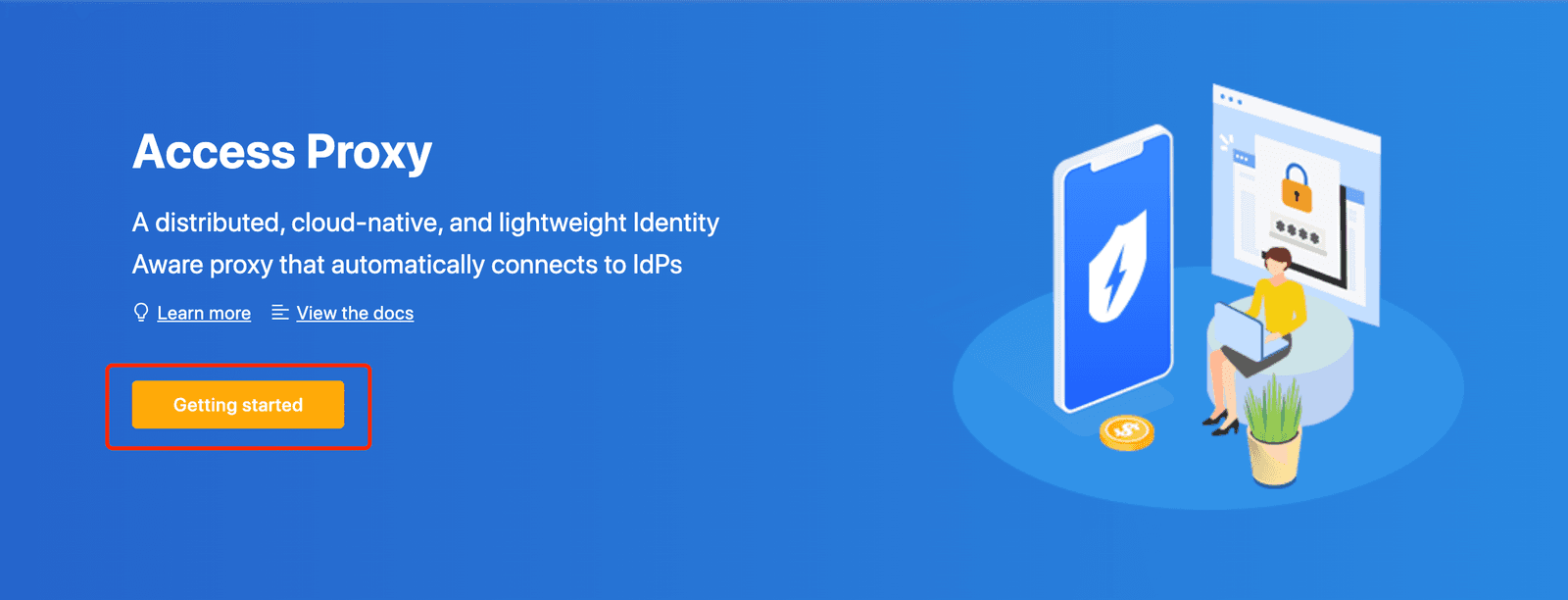
Select the orange Getting started button.
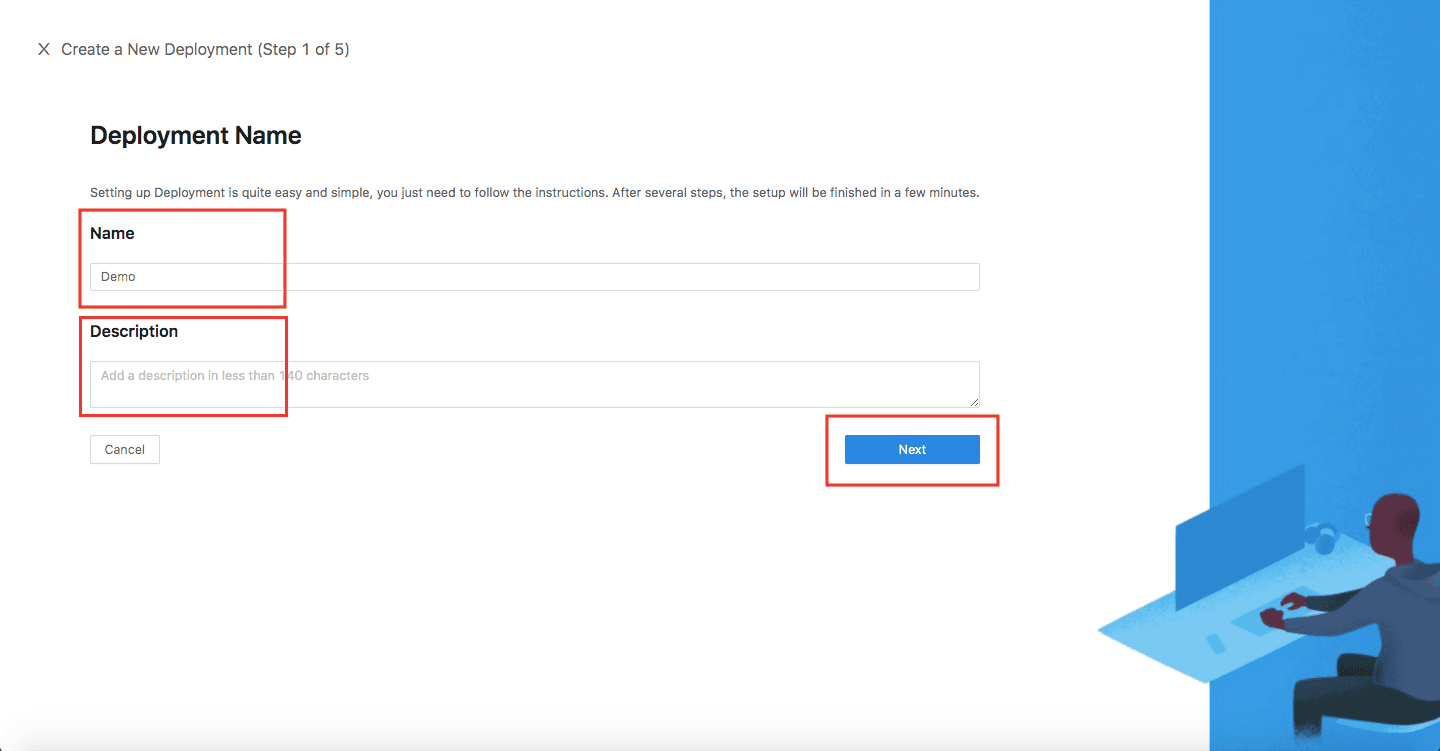
In the Name and Description fields, enter the relevant information.
Select Next.
On the Add Application dialog, use the following values:
Property Value Platform Web App Name Enter a unique application name. Application URL For example: https://wcc.example.com. For testing, you can use localhost DNS. If you aren't deploying DAP behind a load balancer, include the port in the Application URL.SSL Check the Enable SSL and use datawiza self-signed certificate checkbox for testing if you are using SSL. For production, you can upload your own certificates. Listen Port The port that DAP listens on. For example: 443. Upstream Servers The WebCenter Content managed server URL and port to be protected. For example: http://wcc-internal.example.com:16200.Select Next.
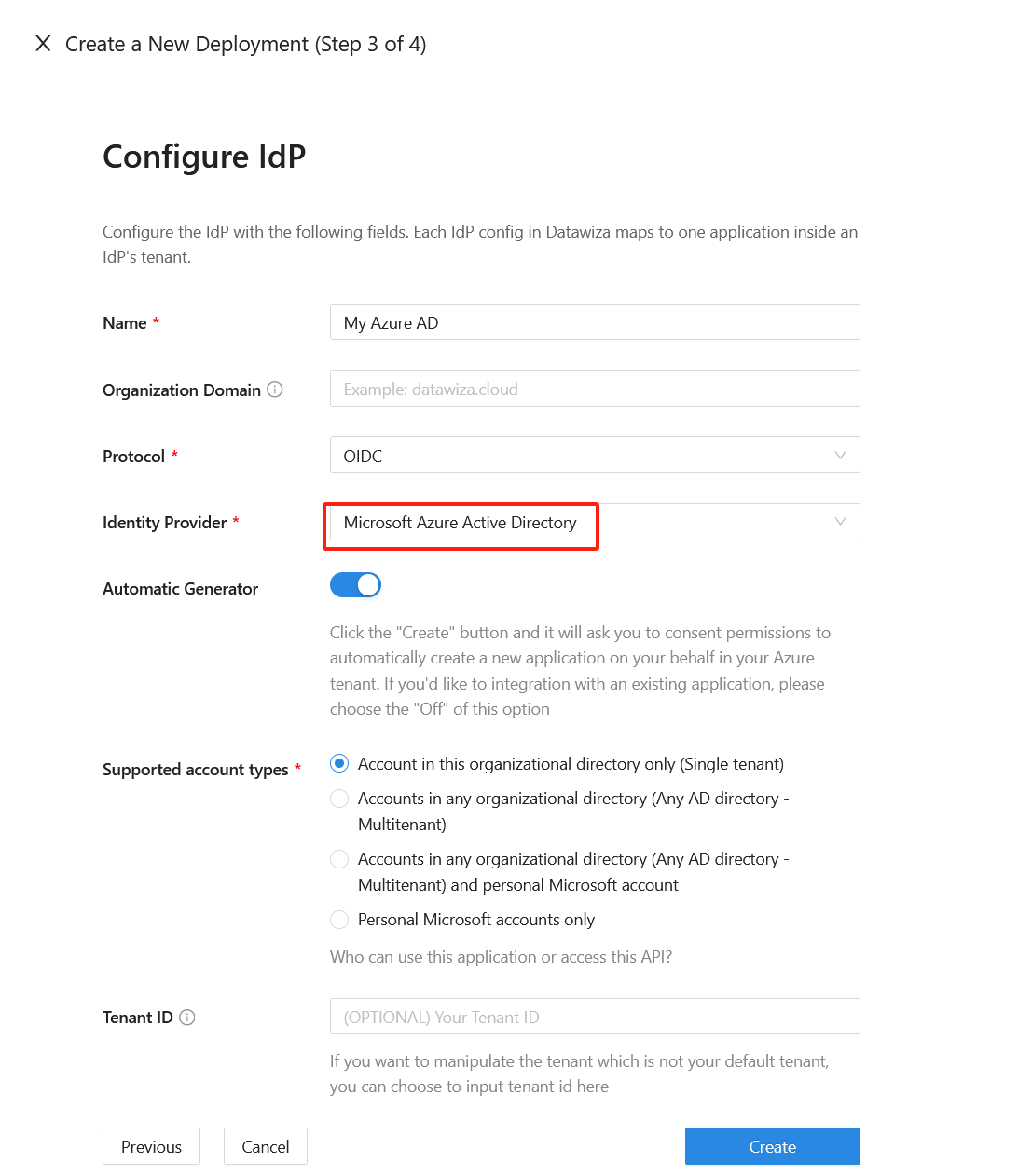
On the Configure IdP dialog, enter the relevant information.
Info
DCMC has one-click integration to help complete Microsoft Entra ID configuration. DCMC calls the Microsoft Graph API to create an application registration on your behalf in your Microsoft Entra ID tenant.
Select Create.
Install and run Datawiza Access Proxy
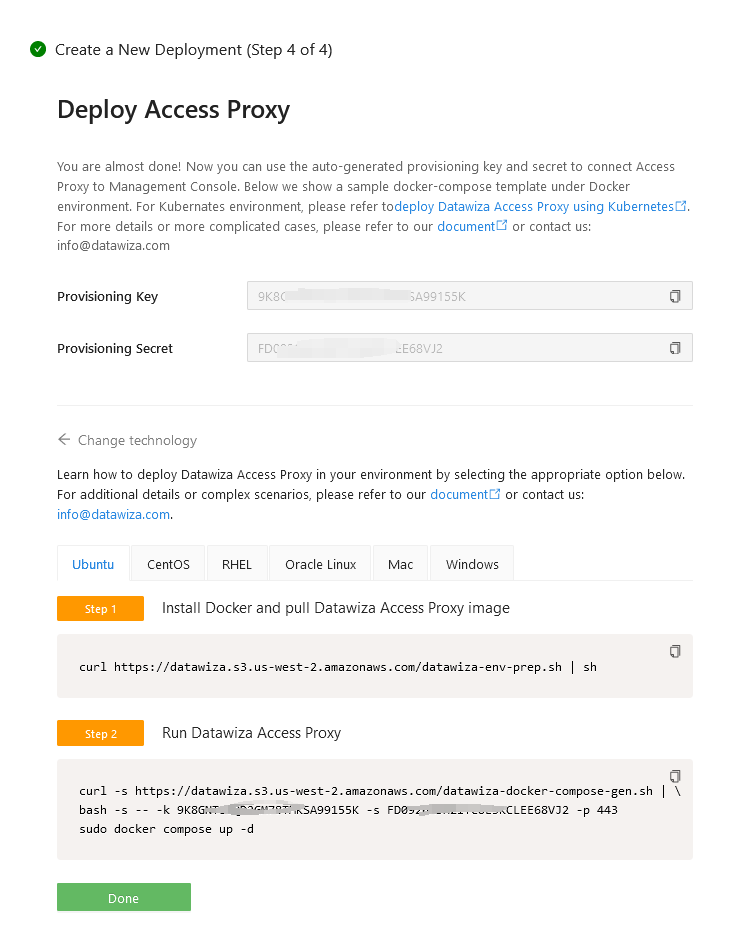
Once clicking on the Create button, the basic configuration on the management console is finished. You will see the final step of the guide, which presents you with a page showing the simple steps to deploy Datawiza Access Proxy (DAP) with your application. Note down the commands for your deployment. The first command will download Docker and Datawiza Access Proxy image, and the second command will create a Docker Compose file and run Datawiza Access Proxy. You can refer to Install and Run Datawiza Access Proxy by command for more information.
SSO and HTTP headers
DAP gets user attributes from the IdP and passes them to the upstream application via header or cookie.
For WebLogic to recognize the user, DAP must pass the username in the OAM_REMOTE_USER header. Configure this in the Applications tab on the left panel, under the Attribute Pass sub-tab:
| Property | Value |
|---|---|
| Field | sAMAccountName |
| Expected | OAM_REMOTE_USER |
| Type | Header |
Info
The value DAP sends must match the user name attribute of your WebLogic authentication provider (for example, sAMAccountName for the Active Directory Authenticator). If your WebLogic authenticator uses a different attribute, such as userPrincipalName or mail, choose the matching Field, or change the attribute mapping in the Mappings sub-tab.
(Optional) SSL Configuration
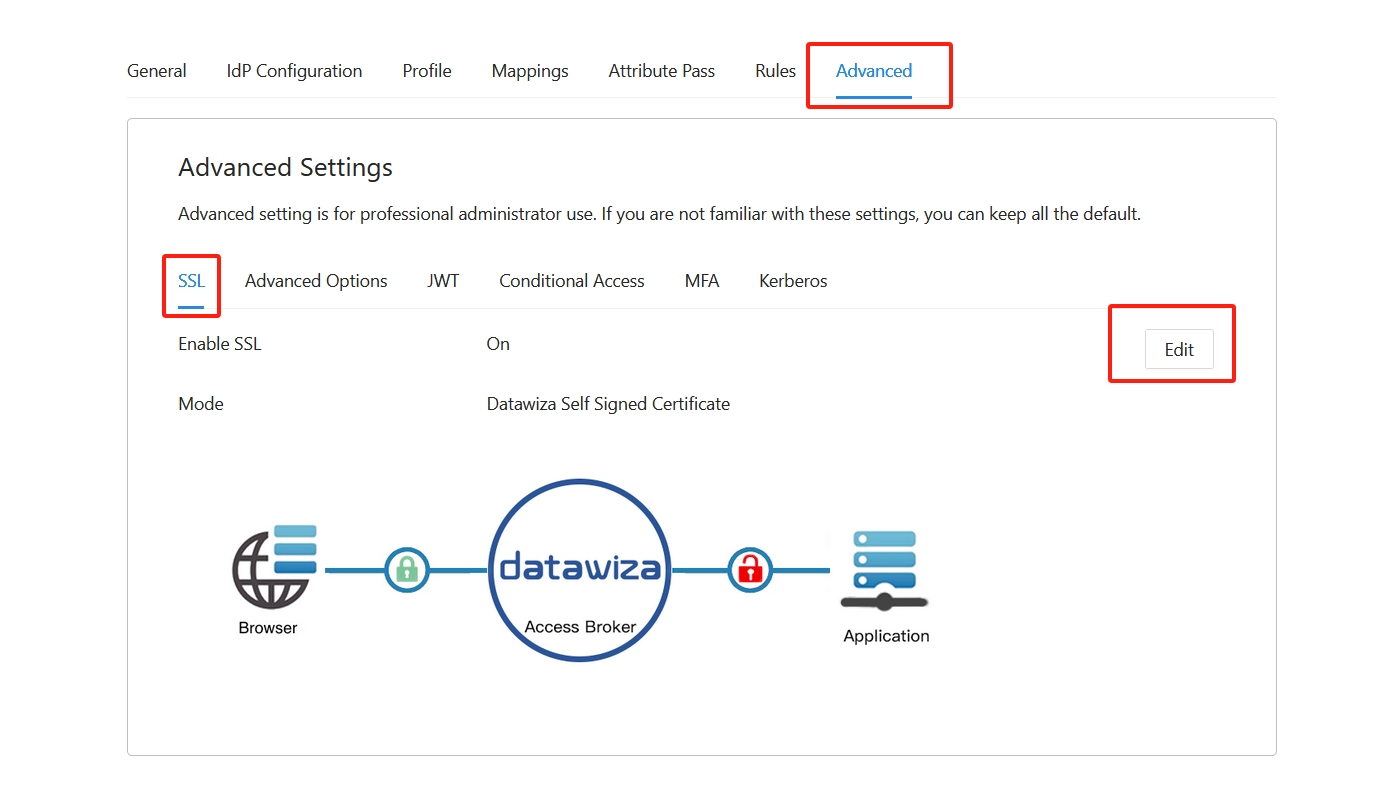
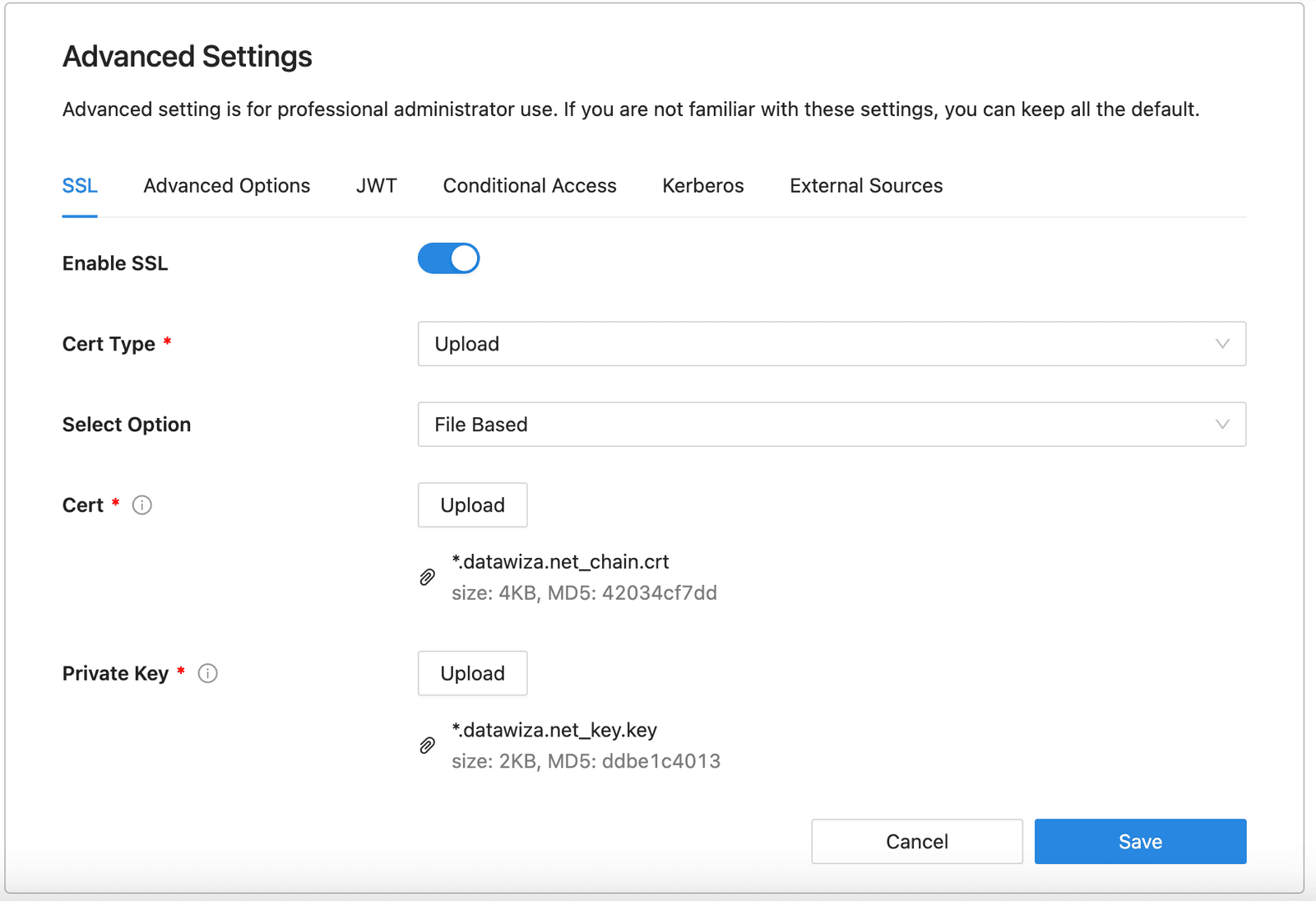
- By default, when you set up this application, it will use the Datawiza self-sign certificate, but you still have the chance to replace it with your own certificate. Select the Advanced tab. Click the edit button, then upload your own certificate.
- Select Save.
Enable SSO in Oracle WebCenter Content
WebCenter Content trusts the identity that DAP passes once the WebLogic domain has an Identity Assertion provider for the OAM_REMOTE_USER header. To configure it:
- Sign in to the WebLogic Server Administration Console of the WebCenter Content domain:
http://{your-admin-server-fqdn}:7001/console. - If your domain is in production mode, select Lock & Edit in the Change Center.
- Go to Security Realms > myrealm > Providers > Authentication.
- Make sure an authentication provider for your directory (for example, ActiveDirectoryAuthenticator) exists and can list your users and groups. Set its Control Flag to SUFFICIENT, and set the DefaultAuthenticator control flag to SUFFICIENT as well.
- Select New, and create the identity asserter:
- Name:
DatawizaIdentityAsserter - Type:
OAMIdentityAsserter
- Name:
- Select the new provider, and on the Configuration > Common tab:
- Control Flag -- REQUIRED
- Active Types -- move
OAM_REMOTE_USERto Chosen, and removeOAM_IDENTITY_ASSERTIONif it's chosen.
- Select Save.
- Back on the Providers page, select Reorder and put the providers in the following order:
- DatawizaIdentityAsserter
- ActiveDirectoryAuthenticator (or your LDAP authenticator)
- DefaultAuthenticator
- DefaultIdentityAsserter
- Select Activate Changes, then restart every server in the domain for the changes to take effect: the Administration Server and all managed servers, including every WebCenter Content managed server in the cluster (for example,
UCM_server1andUCM_server2). The security realm is shared by the whole domain, so a server that isn't restarted keeps the old provider configuration and won't accept header-based sign-in.
Info
WebCenter Content uses the groups returned by the WebLogic authenticator to assign roles and accounts. Users signing in through Entra ID get the same permissions they would get with a WebLogic sign-in, so no changes to role mappings are needed. Make sure the users you test with exist in the directory that WebLogic is connected to.
Note
The OAM Identity Asserter is added to the security realm, which every server in the domain shares (for example, the Administration Server, UCM_server1 and IBR_server1). Anyone who can reach a WebLogic listen port directly can send a forged OAM_REMOTE_USER header and be signed in as any user. This includes the Administration Server port, where a forged header for a WebLogic administrator can grant admin access to the domain.
For production environments, use firewall rules or network security groups to:
- Block end users and other untrusted networks from reaching all WebLogic listen ports (Administration Server and managed servers, HTTP and SSL), so that end-user traffic reaches WebCenter Content only through DAP.
- Allow the DAP host to reach the WebCenter Content managed server port configured in Upstream Servers.
- Keep allowing the traffic the domain needs internally: between the Administration Server, the managed servers (including
IBR_server1andUCM_server1), and Node Manager. - Limit the Administration Console port (for example,
7001) and the WebCenter Content intradoc socket port used by RIDC and integration clients (default4444) to a trusted admin or integration subnet.
Note
DAP terminates HTTPS and can forward requests to the managed server over plain HTTP. If you see redirects that switch from https:// to http://, enable WebLogic Plug-In Enabled on the WebCenter Content managed server so that WebLogic honors the WL-Proxy-SSL header DAP sends and treats the original request as HTTPS:
- In the WebLogic Server Administration Console, go to Environment > Servers > UCM_server1 > Configuration > General, and expand Advanced.
- Set WebLogic Plug-In Enabled to yes. In a cluster, repeat this for every WebCenter Content managed server (for example,
UCM_server2). - Select Save and Activate Changes, then restart all WebCenter Content managed servers you changed.
With this setting enabled, WebLogic trusts WL-Proxy-* headers (such as WL-Proxy-SSL and WL-Proxy-Client-IP) from any client that reaches the managed server, so it depends on the direct-access lockdown described above.
Configure logout
By default, signing out of WebCenter Content only ends the WCC session. Because the DAP session is still active, the next request is signed in again automatically. To end both sessions, point the WCC logout URL to the DAP logout endpoint:
Sign in to WebCenter Content as an administrator:
https://wcc.example.com/cs.Go to Administration > Admin Server > General Configuration.
Scroll to Additional Configuration Variables, and add the following line. If a
LogoutServerUrlentry already exists (for example, one pointing to a previous SSO provider), replace it:LogoutServerUrl=https://wcc.example.com/datawiza/ab-logoutReplace
https://wcc.example.comwith the Application URL of your DAP application, not the internal address of the WebCenter Content managed server.Select Save, then restart all WebCenter Content managed servers (every
UCM_serverin the cluster) for the change to take effect.
Info
LogoutServerUrl is stored in <IntradocDir>/config/config.cfg, so you can also set it by editing that file directly.
(Optional) Enable MFA on Microsoft Entra ID (Formerly Azure AD)
To provide an extra level of security for sign-ins, sometimes you might want to enforce MFA for user sign-in. There are several ways to achieve this. The simplest and easiest way is to enable MFA on the Azure portal.
- Sign in to the Azure portal as a Global Administrator.
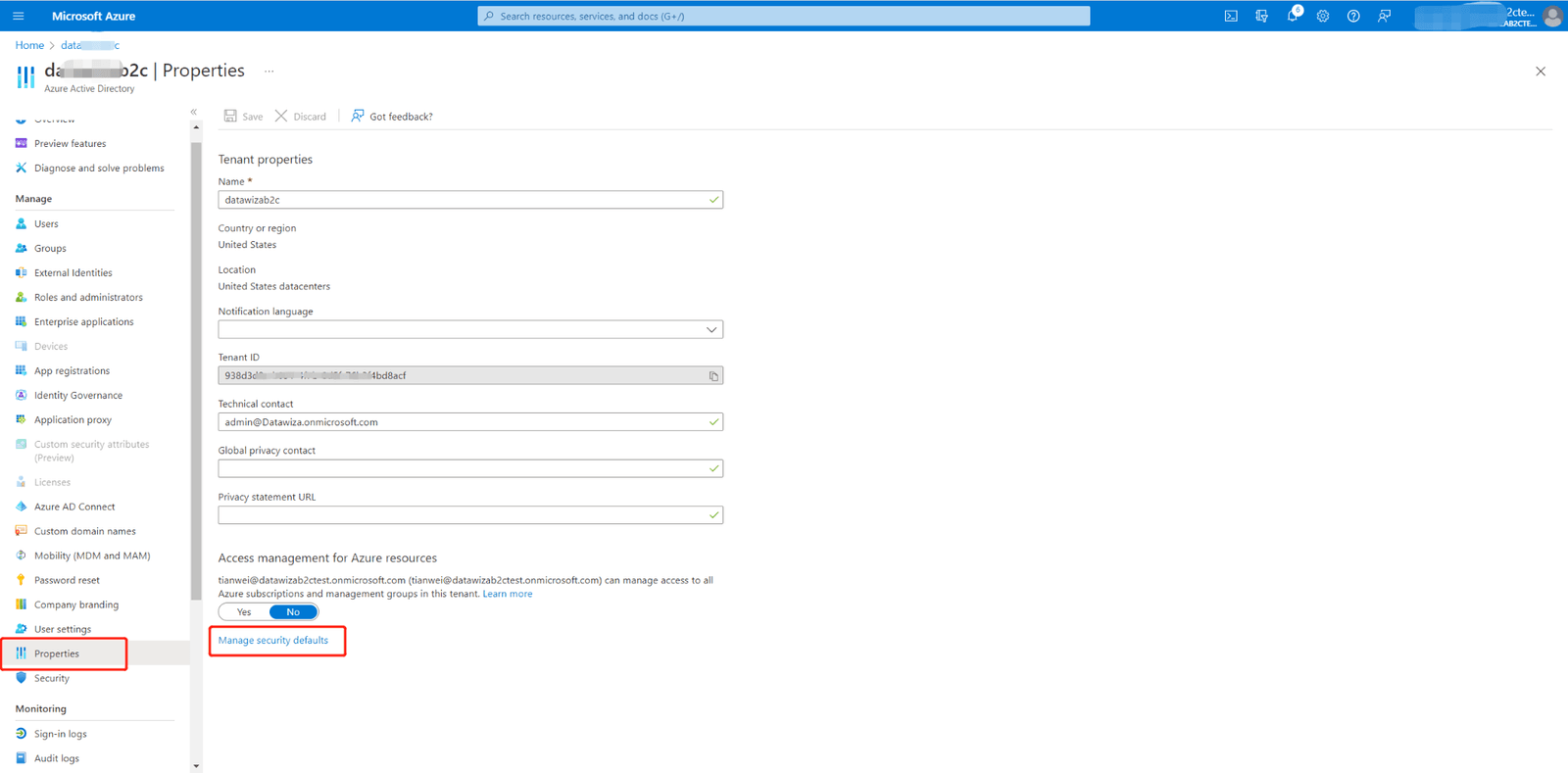
- Select Microsoft Entra ID > Manage > Properties.
- Under Properties , click the Manage security defaults.
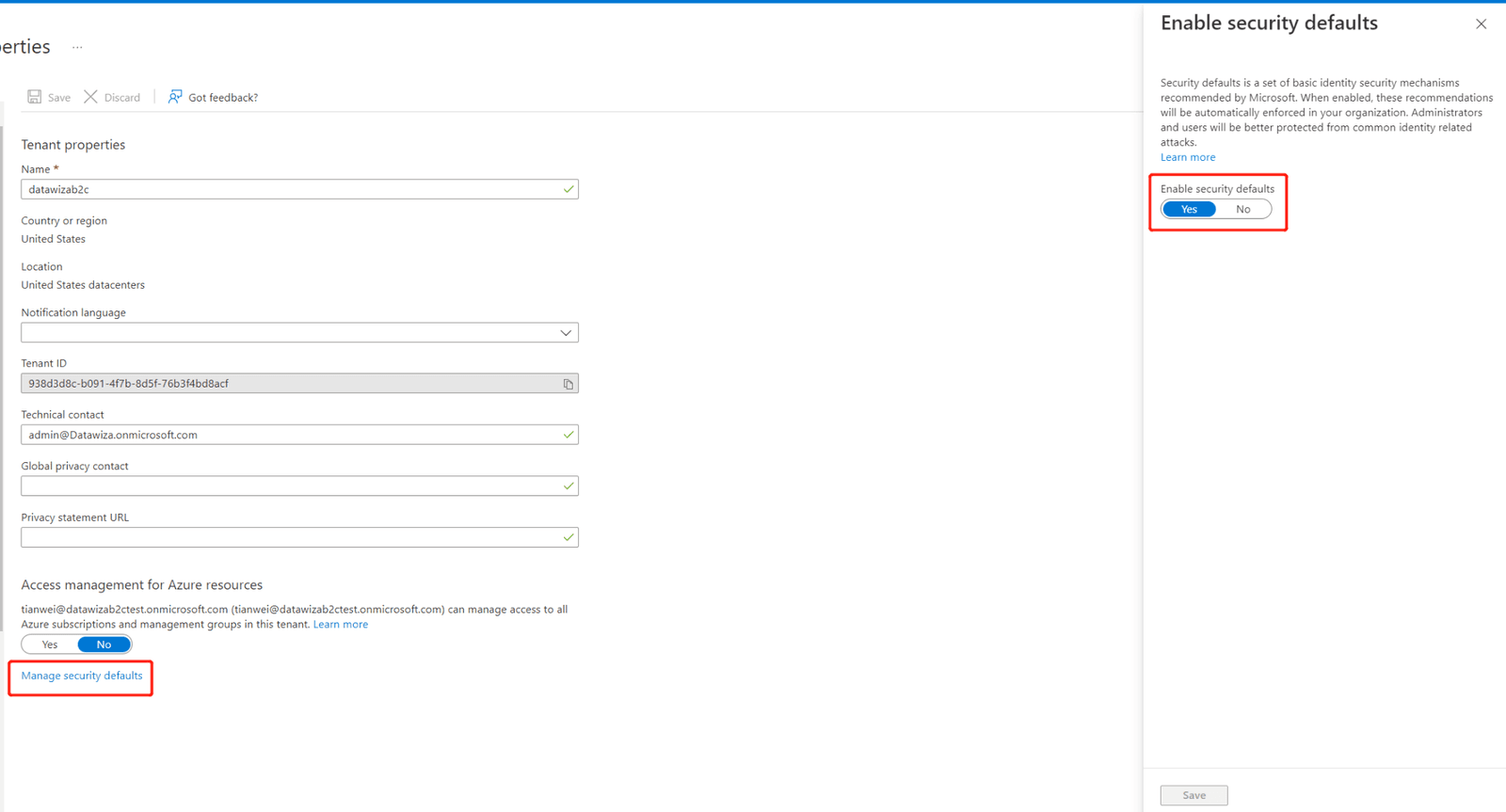
- Under Enable Security defaults, select Yes and then Save.
(Optional) Configure for Desktop Integration Suite (DIS)
If your users connect to WebCenter Content through Oracle Desktop Integration Suite (DIS), for example from Windows Explorer or Microsoft Office, two more settings are needed in DCMC. DIS signs in through an embedded browser window and recognizes the WebCenter Content login form by a special marker in the page, so the DAP login page must include that marker and must be shown to the user.
Add the DIS marker to the login page
In DCMC, go to the Deployments tab.
Locate the target deployment and click the deployment name.
Navigate to the Customization tab, and open the Login Page branding settings.
Insert the following marker into the Footer:
<!--IdcClientLoginForm=1-->Select Save.
Turn off Skip Login Page
- In DCMC, go to the Applications tab and click the WebCenter Content application name.
- Navigate to the Advanced tab.
- Turn off Skip Login Page.
- Select Save.
Info
These two settings are only required for DIS. If your users access WebCenter Content only through a web browser, you can skip this section.
Skip Login Page applies to the whole application, so turning it off also affects browser users: they see the DAP login page and must select the sign-in button before being redirected to Microsoft Entra ID.
Test an Oracle WebCenter Content application
To confirm SSO and MFA for Oracle WebCenter Content work correctly, access the new WebCenter Content URL https://wcc.example.com/cs in the browser. A prompt should appear to use a Microsoft Entra ID account for signing in. After credentials and optional MFA are checked, WebCenter Content opens. If the home page still shows you as a guest, select Login: you're signed in as your directory user without the WebCenter Content login form appearing.
Select Logout in WebCenter Content to confirm that both the WebCenter Content and DAP sessions end. The next request to https://wcc.example.com/cs is redirected to Microsoft Entra ID again. By default, /datawiza/ab-logout doesn't end the Microsoft Entra ID session, so Entra ID may sign you back in without asking for your credentials. This is expected. If you want users to enter their credentials again after logout, enable Single Sign Out under Applications > Advanced in DCMC. See The APP logout and IdP logout.
If you configured DIS, connect to the WebCenter Content server from DIS. The embedded window shows the DAP login page and then the Microsoft Entra ID sign-in page. The connection completes after you sign in.
Summary
In this article, you learned how to:
- Configure and Deploy the Datawiza Access Proxy
- Integrate the Datawiza Access Proxy with Oracle WebCenter Content
- Enable Microsoft Entra ID SSO login and MFA for Oracle WebCenter Content
If you have any questions, don't be afraid to contact us through support email (support@datawiza.com)!