
Configure Load Balancer Health Check for Datawiza Access Proxy
When you deploy multiple Datawiza Access Proxy (DAP) instances behind a load balancer (LB) for high availability or scaling, the LB needs a way to know whether each DAP instance is healthy so that it only routes traffic to instances that can actually serve requests. DAP exposes a built-in health check endpoint for this purpose, and the LB's health check must be updated to use it.
Health Check Endpoint
DAP exposes the following health check endpoint on the same port and protocol as the Listen Port you configured for the application (i.e. it does not require a separate port):
- Path:
/dap-health-check - Protocol: same as the application's
Listen Port(HTTP or HTTPS) - Expected response when healthy:
HTTP 200, no specific response body is required
This endpoint is served directly and does not go through the application's SSO authentication flow or Resource Path access rules, so the LB can call it without credentials.
Configure in AWS Application Load Balancer (ALB)
If your DAP instances are registered as targets in an ALB target group, update the target group's health check settings:
Go to the EC2 console and select
Target GroupsunderLoad Balancing.Select the target group used by your DAP instances, go to the
Health checkstab, and clickEdit.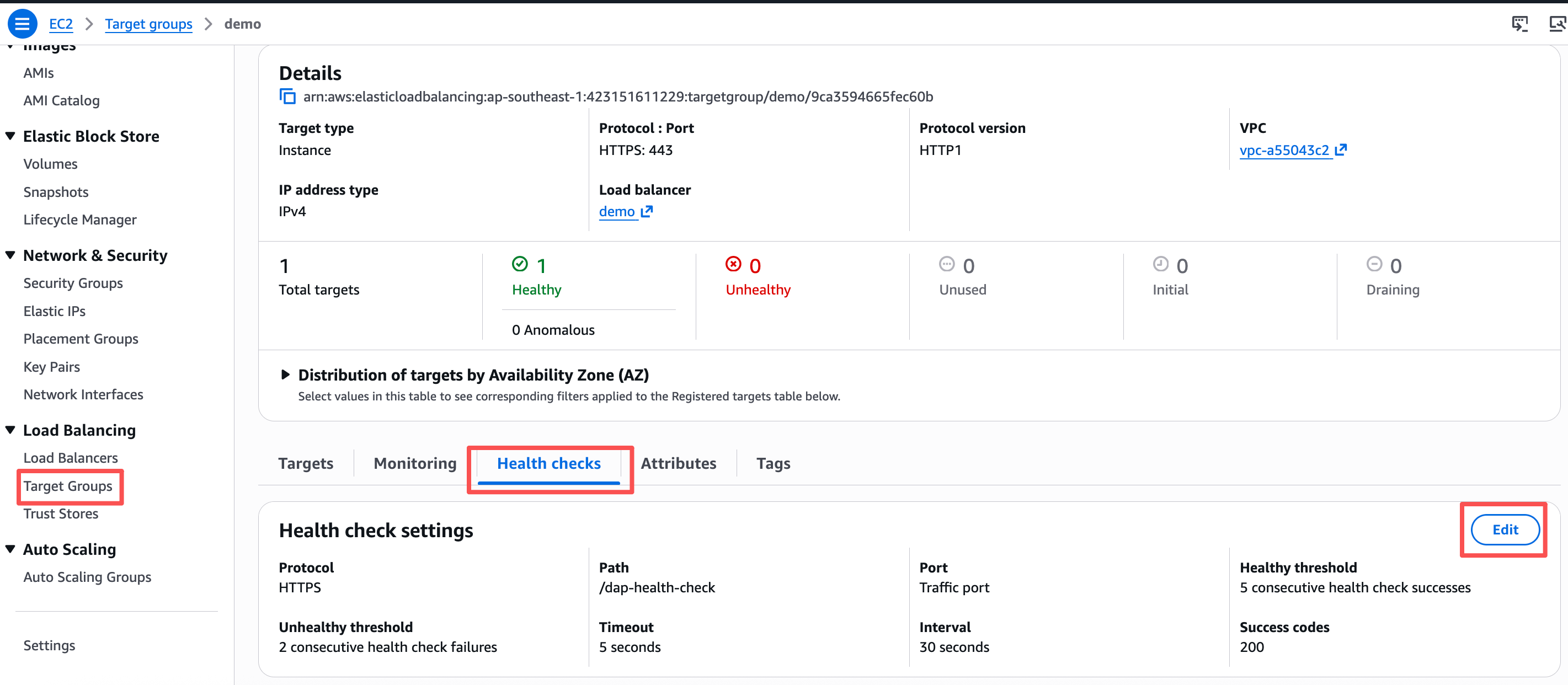
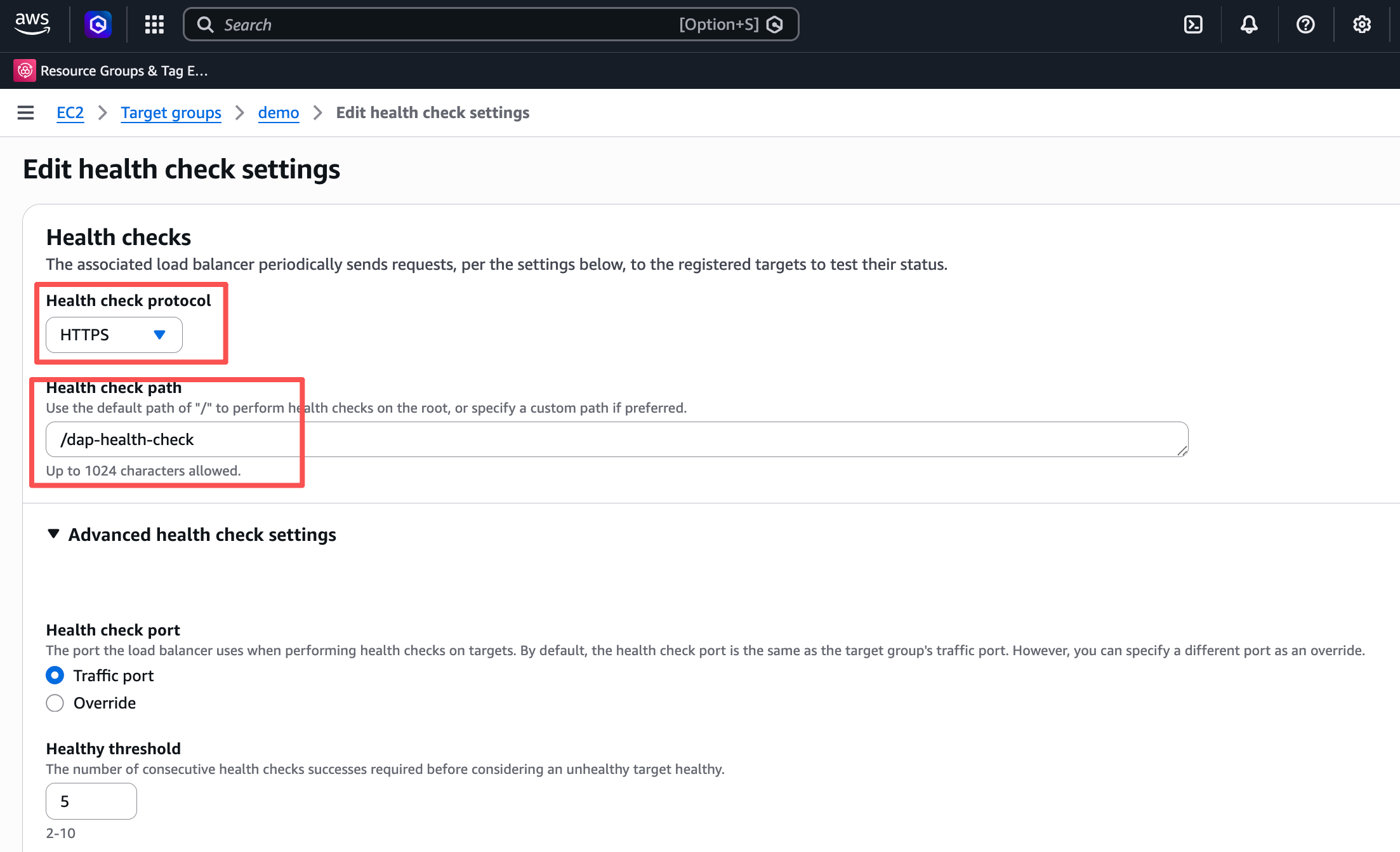
Set the fields as follows:
- Protocol:
HTTPorHTTPS, matching the protocol of the DAPListen Port - Path:
/dap-health-check - Port:
Traffic port(reuses the target's registered port, i.e. the DAPListen Port) - Success codes:
200
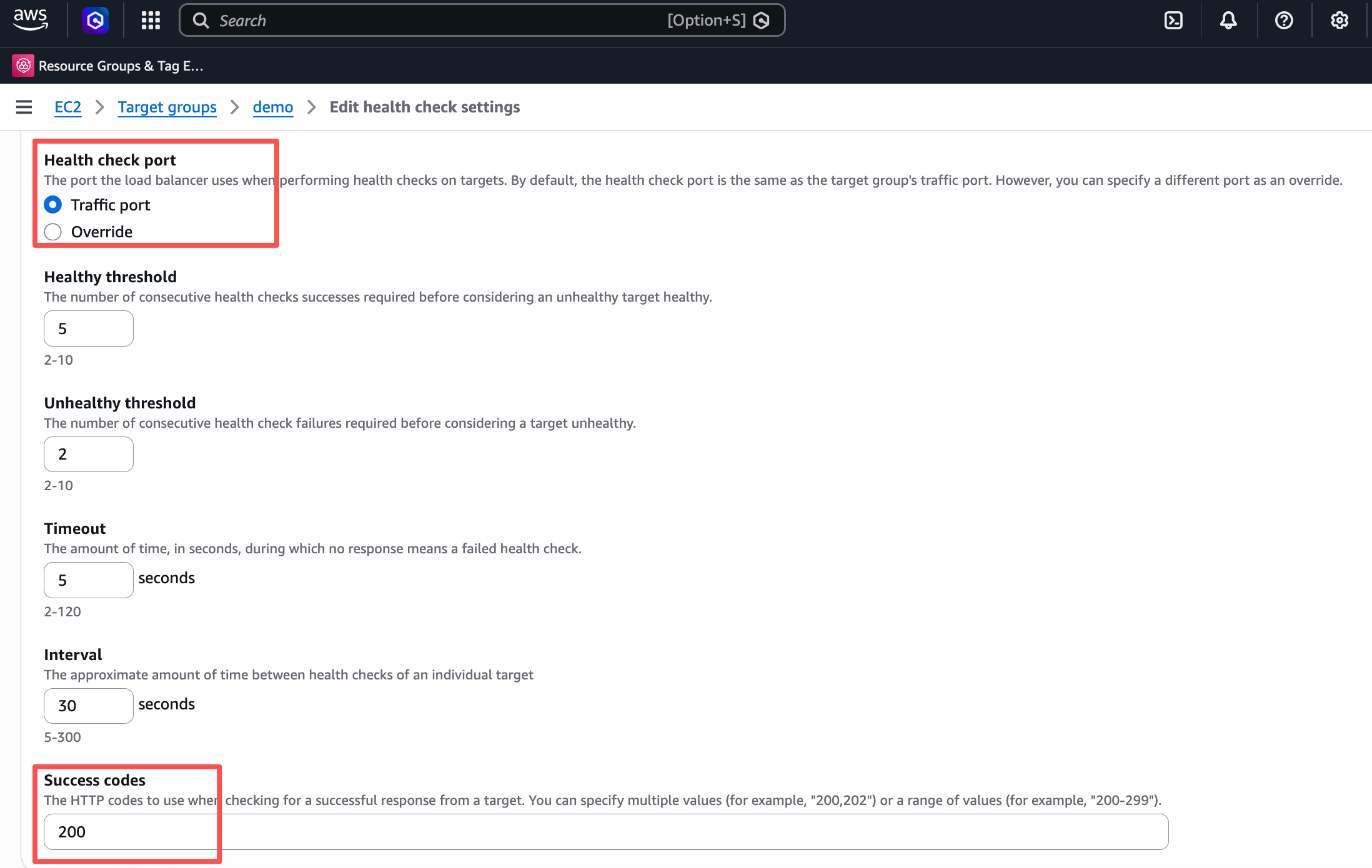
- Protocol:
Adjust
Healthy threshold,Unhealthy threshold,Timeout, andIntervalas needed for your environment, then clickSave changes.Once the change takes effect, the target's health status should show
healthy.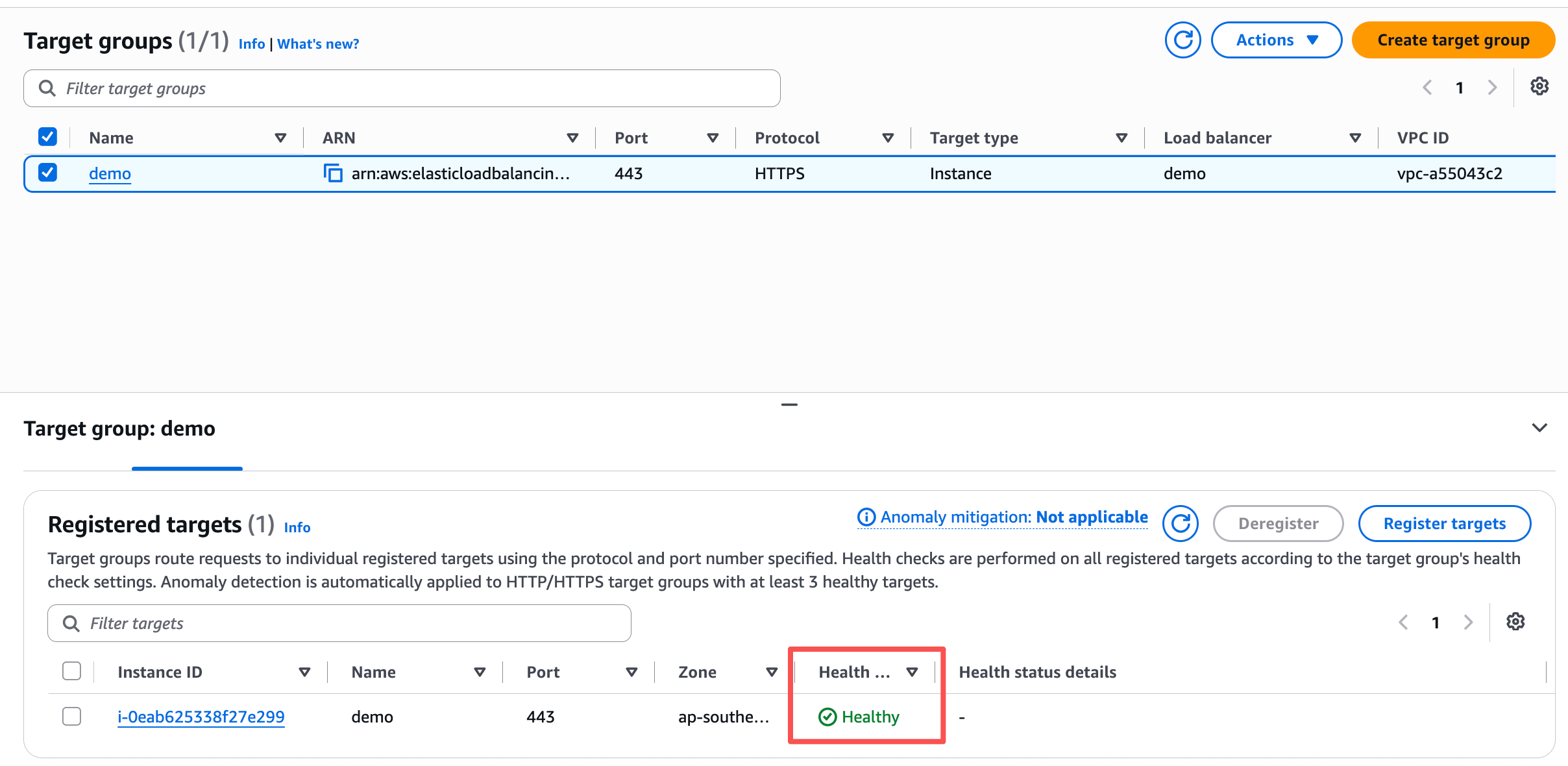
Other Load Balancers
The same principle applies to any other load balancer in front of DAP (Azure Load Balancer/App Gateway, F5, Nginx, HAProxy, etc.): change the health check monitor from the default / path to /dap-health-check, keep the health check protocol/port aligned with the DAP Listen Port, and treat HTTP 200 as the healthy response. The AWS ALB walkthrough above is the only one this page covers screen-by-screen; the field names on other products are conceptually the same (protocol, path, port, success codes) but not enumerated here.
HTTP/HTTPS protocol required
This only works if the health check's protocol is set to HTTP/HTTPS, since a path can only be configured for that protocol. Some of these products default to a TCP or ICMP monitor with no path field at all (for example, AWS NLB target groups default to TCP, and some F5 monitors default to a generic host check). If your health check is currently TCP/ICMP-based, change its protocol to HTTP/HTTPS first — a path field will then become available — and set it to /dap-health-check.
Verify
After updating the LB configuration, you can confirm the endpoint works directly against a specific DAP instance.
Info
If DAP is serving HTTPS with a certificate issued for its hostname, connecting straight to the instance's IP address can fail on SNI/certificate name mismatch even though the instance itself is healthy. Use curl --resolve to pin the hostname to that instance's IP while still sending the correct Host header and SNI.
curl -i --resolve dap.example.com:<port>:<dap-instance-ip> https://dap.example.com:<port>/dap-health-check
Replace dap.example.com and both occurrences of <port> with your DAP hostname and Listen Port — the port must match in the --resolve triplet and the URL. Use http:// instead of https:// if the Listen Port is plain HTTP rather than HTTPS.
A healthy DAP instance returns HTTP/1.1 200 OK. In the LB console, the corresponding target/backend should also be shown as healthy.