Maintenance Mode
Less than 1 minute
Overview
This guide walks you through configuring maintenance mode in the Datawiza Cloud Management Console (DCMC).
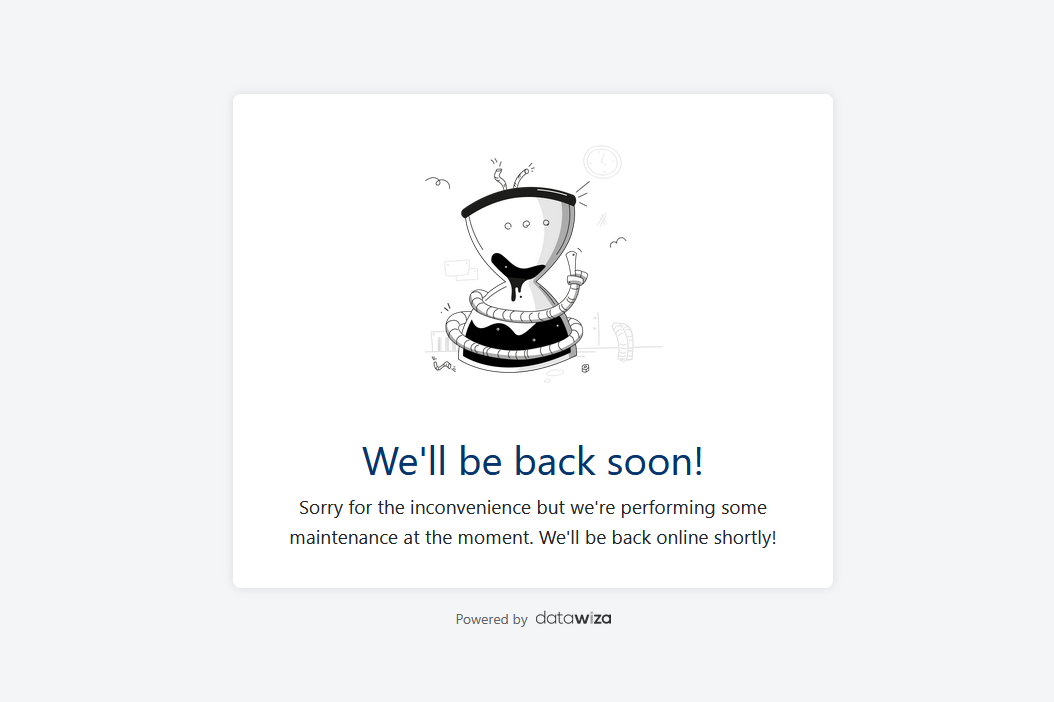
If your application is under maintenance or temporarily unreachable, you can enable maintenance mode in the console. This will display a friendly page to users, informing them that the system is currently unavailable. The page looks like the example below:
Step 1: Sign in to Datawiza Cloud Management Console
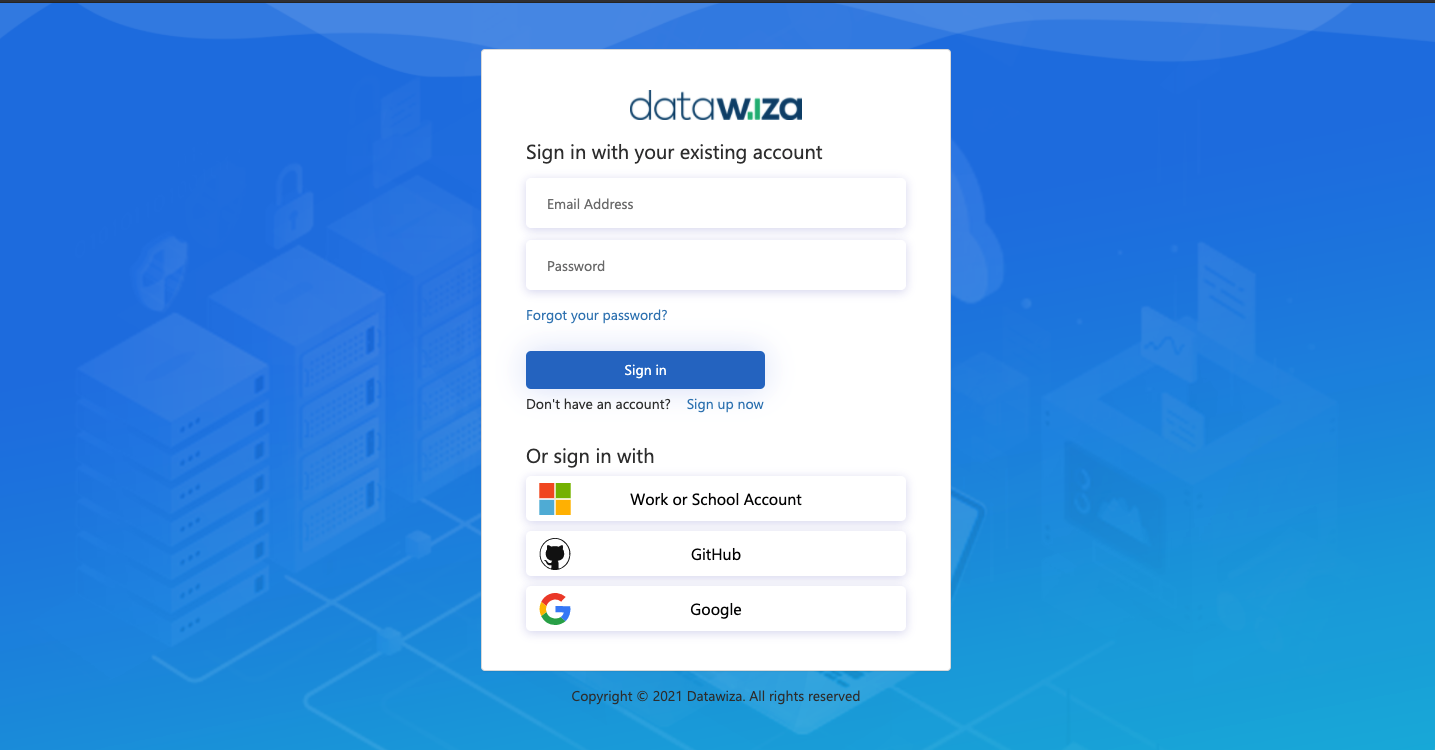
- Log in to the DCMC.
Step 2: Find the target application
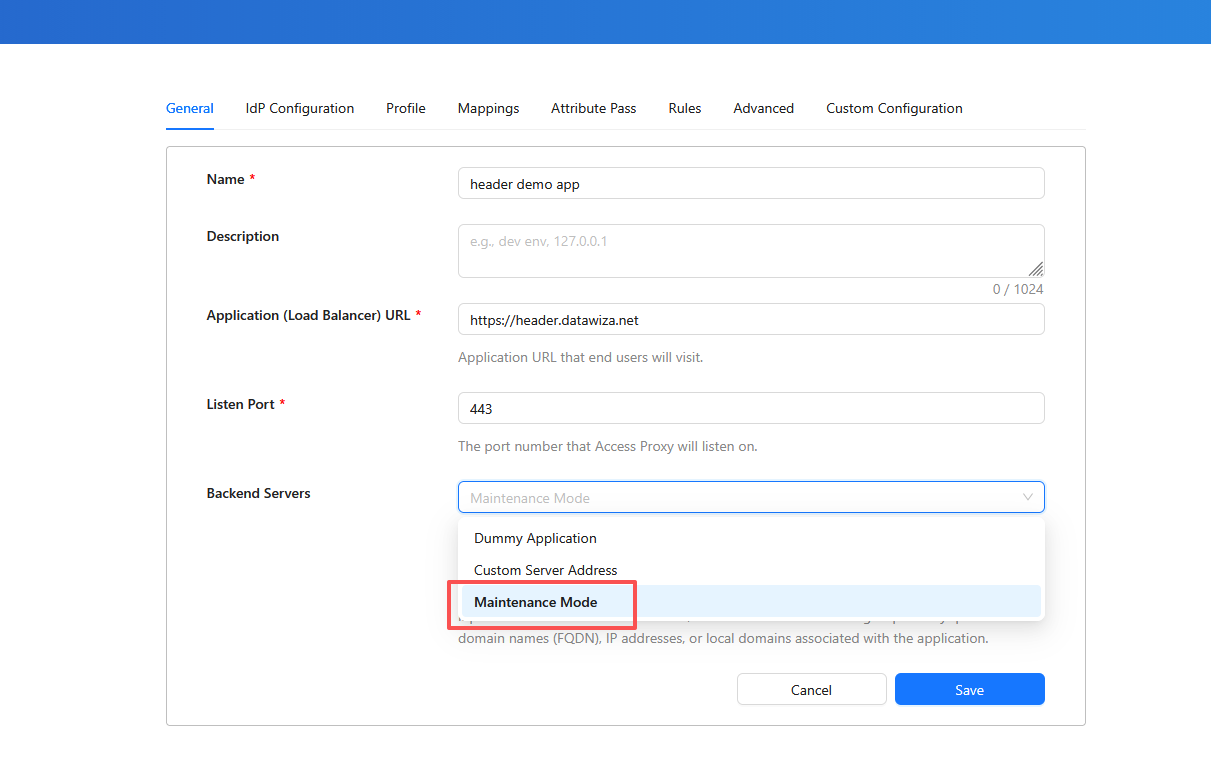
- Navigate to the Applications tab.
- Locate the target application.
- Click the application name.
- In the backend servers section, open the drop-down menu and select Maintenance Mode.
(Optional) Step 3: Customize the maintenance mode page
Info
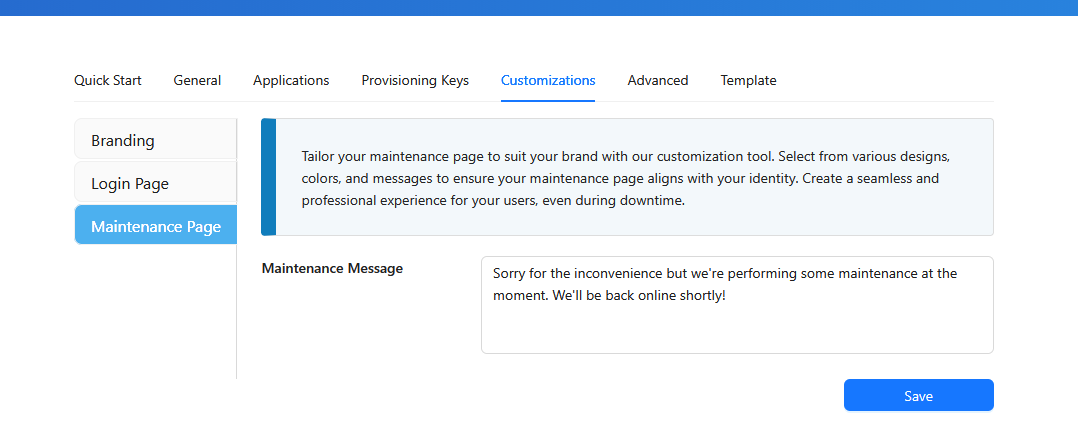
Maintenance mode pages share branding elements (such as logos and backgrounds) with other customizable pages like the login page.
- Go to the Deployments tab.
- Locate the target deployment and click the deployment name.
- Navigate to the Customization tab.
- Go to the Maintenance Page tab and edit the maintenance message.