
Maintenance Mode
Overview
This guide walks you through configuring maintenance mode in the Datawiza Cloud Management Console (DCMC).
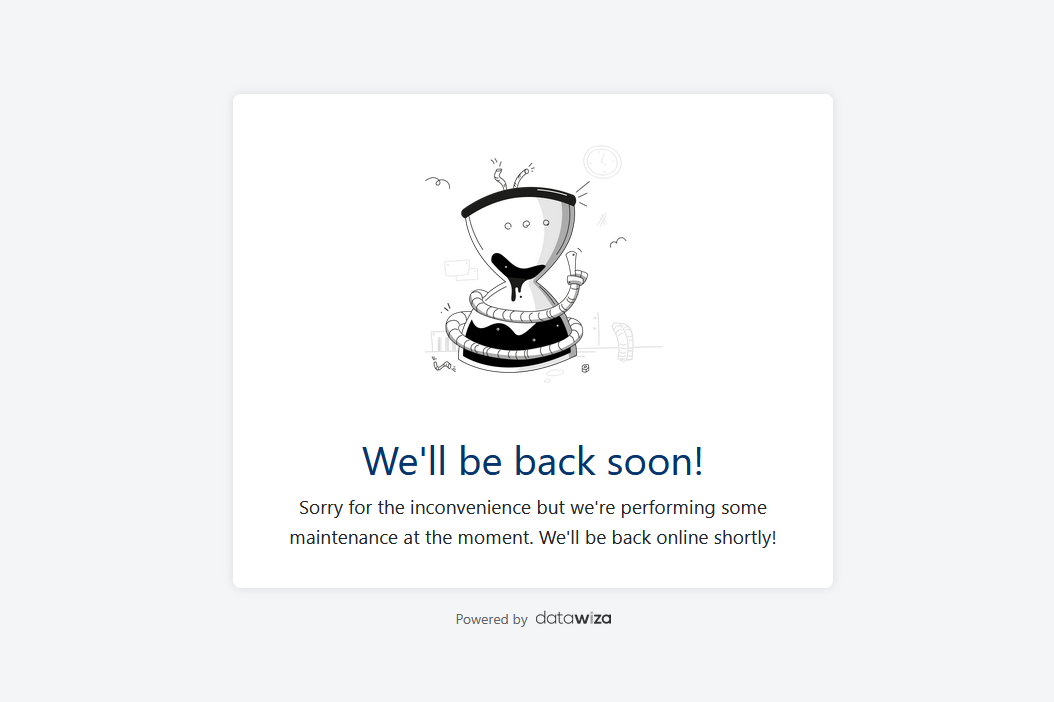
If your application is under maintenance or temporarily unreachable, you can enable maintenance mode in the console. This will display a friendly page to users, informing them that the system is currently unavailable. The page looks like the example below:
When to use maintenance mode
Consider enabling maintenance mode when:
- You're performing planned maintenance on the backend servers.
- The backend server is unreachable and you'd rather show users a friendly page than a raw connection error.
- You're responding to an incident and need to pause access to the application temporarily.
Step 1: Sign in to Datawiza Cloud Management Console
- Log in to the DCMC.
Step 2: Find the target application
- Navigate to the Applications tab.
- Locate the target application.
- Click the application name.
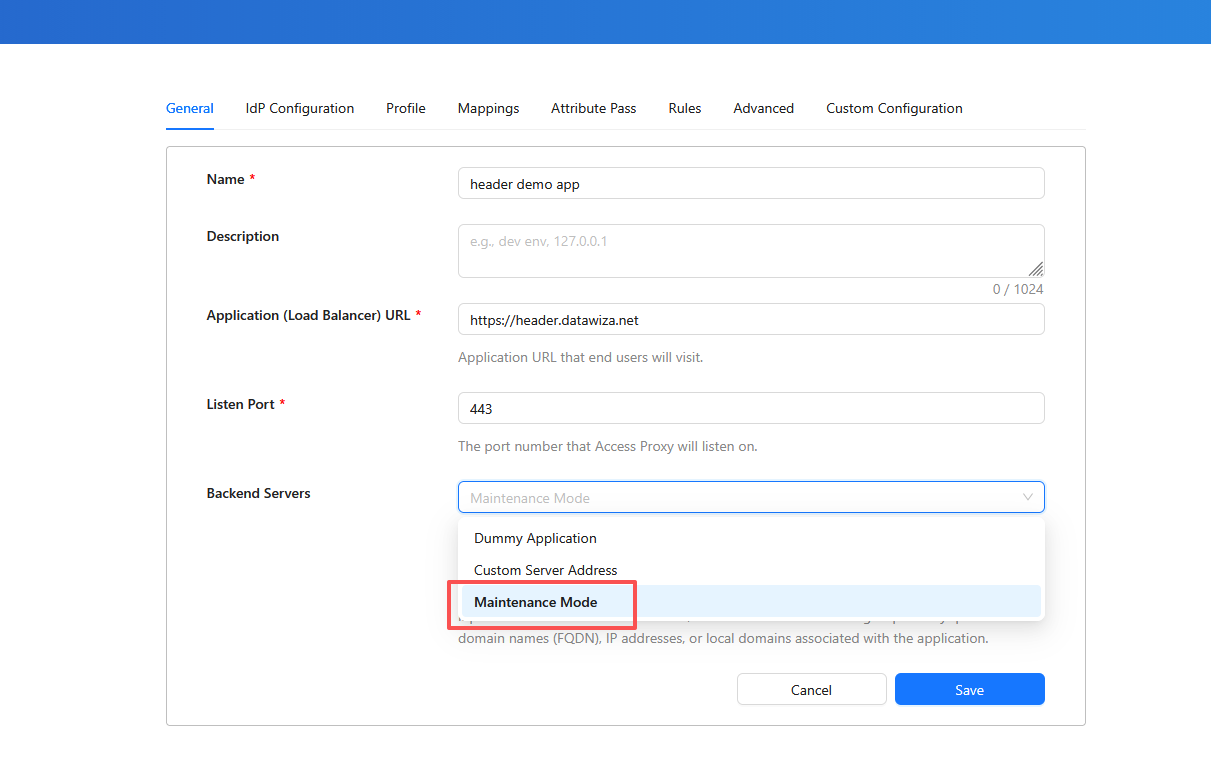
- In the backend servers section, open the drop-down menu and select Maintenance Mode.
(Optional) Step 3: Customize the maintenance mode page
Info
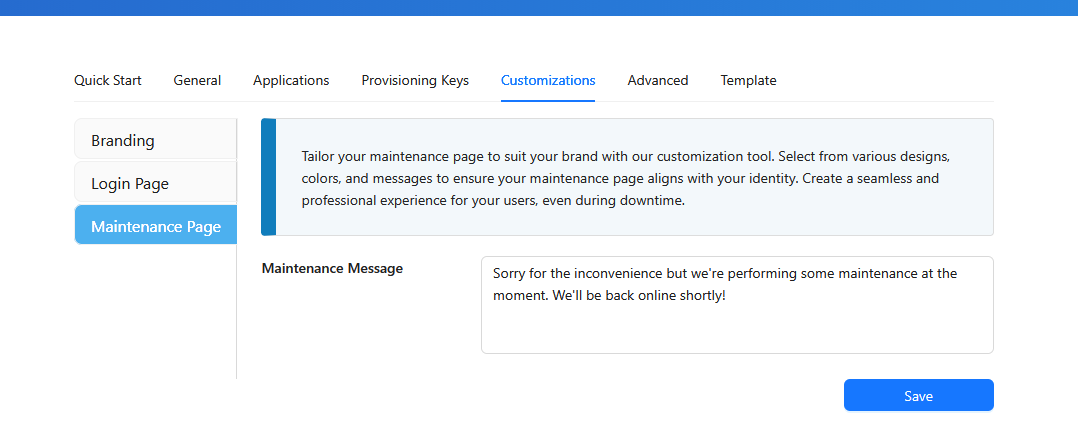
Maintenance mode pages share branding elements (such as logos and backgrounds) with other customizable pages like the login page.
- Go to the Deployments tab.
- Locate the target deployment and click the deployment name.
- Navigate to the Customization tab.
- Go to the Maintenance Page tab and edit the maintenance message.
Verify maintenance mode is active
Once enabled, visit the application's URL in a browser — end users will see the maintenance page shown above instead of the normal application content. Administrators can confirm the setting is active from the same backend servers drop-down in DCMC: it will show Maintenance Mode as the current selection for that application.
Disable maintenance mode
To restore normal traffic, go back to the Applications tab, open the same backend servers drop-down for the deployment, and select your regular upstream server configuration in place of Maintenance Mode. Once the change is saved, users will resume reaching the application as normal.
Troubleshooting
- Maintenance page doesn't appear right away — allow a minute for the change to propagate to Datawiza Access Proxy, then refresh.
- Custom branding doesn't show — confirm the maintenance page customization was saved under the deployment's Customization > Maintenance Page tab, not the application-level settings.
- Need to double-check the current state — the backend servers drop-down for the application always reflects whether Maintenance Mode or your normal upstream configuration is active.