
Fix a login error caused by an expired Microsoft Entra ID client secret
Symptom
Microsoft Entra ID (Azure AD) client secrets are created with an expiration date (up to 24 months). Once a secret expires, Datawiza Access Proxy (DAP) can no longer exchange the authorization code for a token, and users attempting to log in will see a DAP Error 500 page instead of the application. The What happened section of the error page contains the underlying error returned by Entra ID:
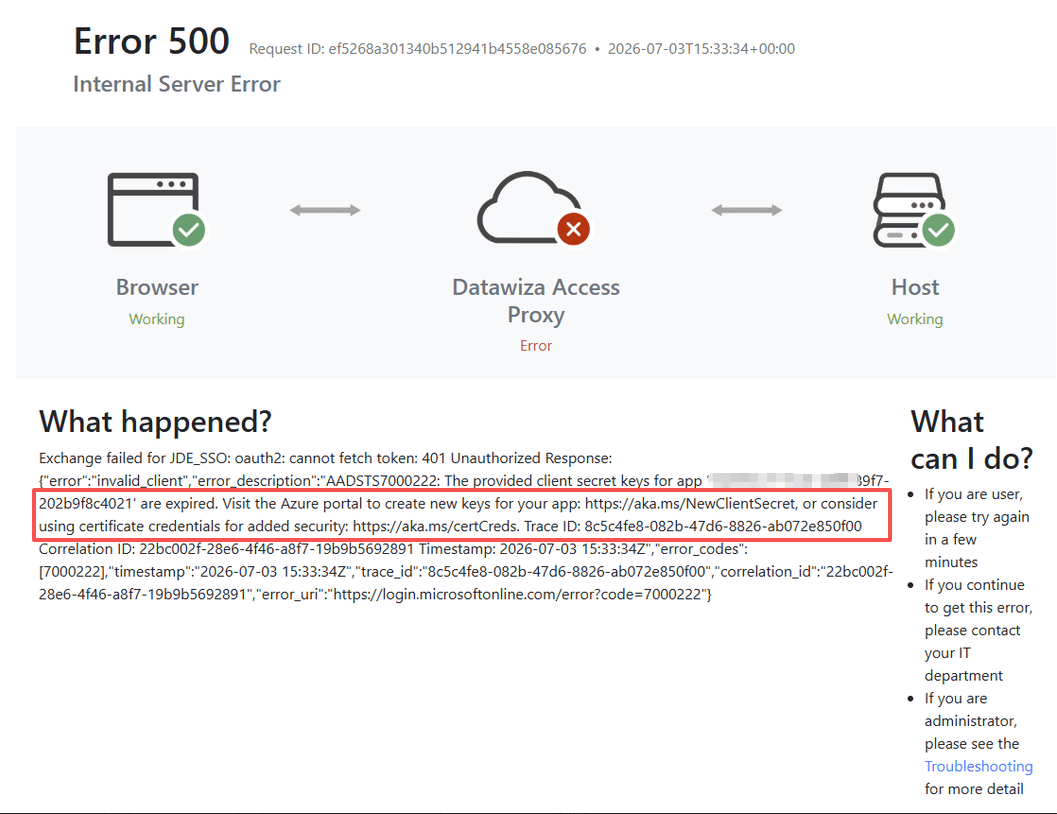
The most common error codes are:
- AADSTS7000222: The provided client secret keys for app '...' are expired. — the secret has passed its expiration date. This is the exact error shown above.
- AADSTS7000215: Invalid client secret is provided. — a more generic "the secret Entra ID received doesn't match" error, which can also occur if a secret was copied incorrectly rather than expired.
Either way, the fix is the same: generate a new client secret and update it in DCMC.
Cause
The Client Secret value configured for the Entra ID application registration used by DAP has expired. This is expected behavior — Entra ID does not support secrets without an expiration date — and requires generating a new secret and updating it wherever it's configured.
Resolution
Step 1: Generate a new client secret in Microsoft Entra ID
- Sign in to the Azure Portal.
- Navigate to Microsoft Entra ID > App registrations, and select the application registration used by DAP.
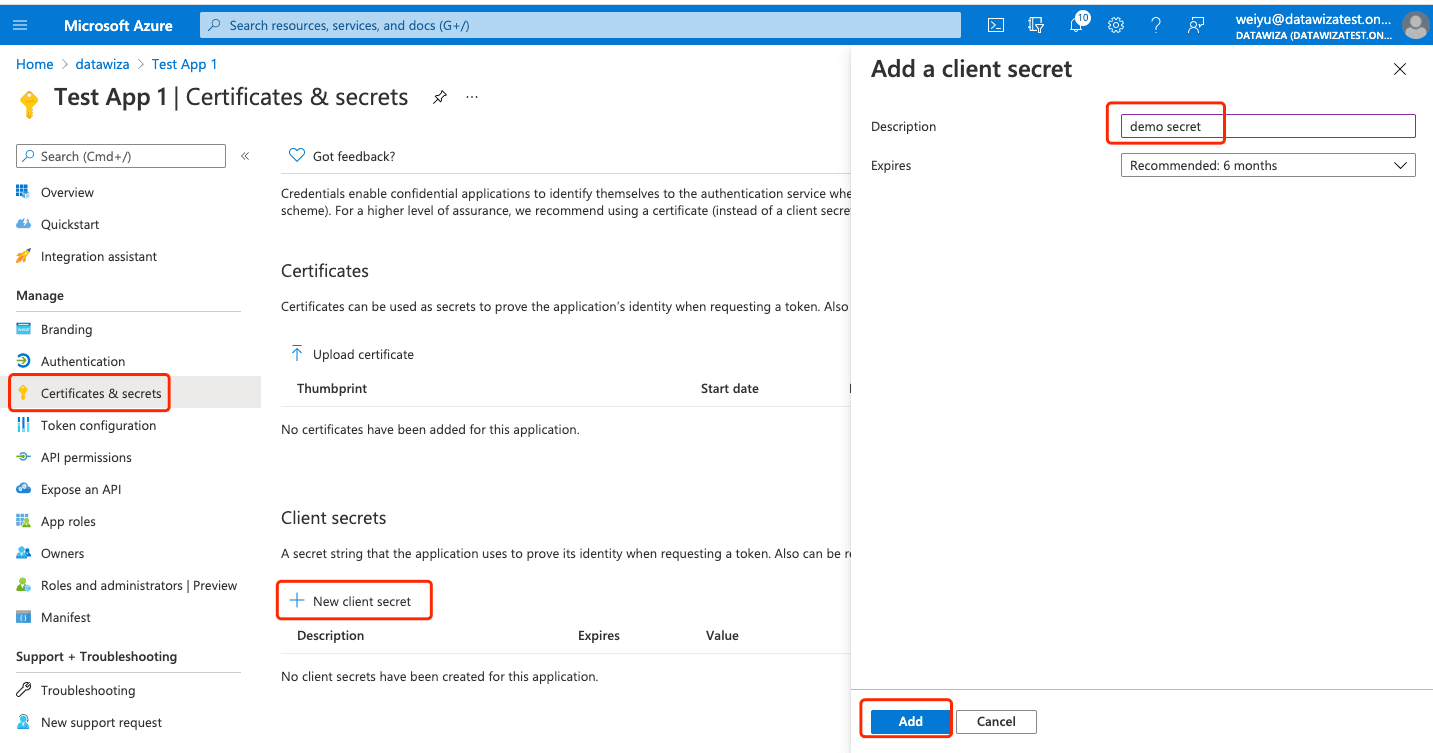
- Choose Certificates & secrets from the left-hand menu.
- Click + New client secret.
- Add a description and choose an expiration period, then click Add.
- Copy the Value of the new secret immediately — it will not be shown again after you leave the page.
Note
Do not delete the old (expired) secret until you've confirmed the new one is working — that gives you a way to roll back if something is misconfigured.
Step 2: Update the client secret in Datawiza Cloud Management Console (DCMC)
- Log in to the DCMC.
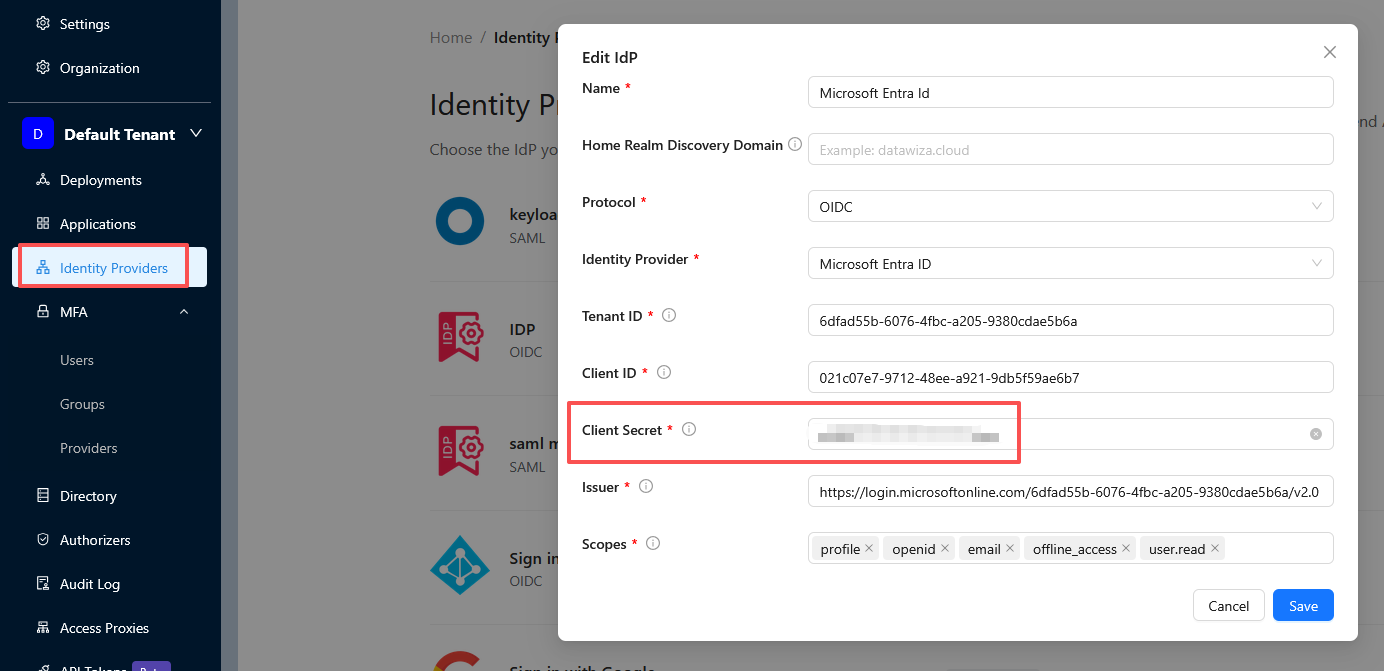
- In the left-hand navigation, go to Identity Providers.
- Find the Microsoft Entra ID entry used by the affected application (for example, Microsoft Entra Id) and open it to edit.
- In the Edit IdP dialog, paste the new secret value from Step 1 into the Client Secret field.
- Click Save.
- Go to the Deployments tab and confirm the configuration update was applied successfully. See Datawiza Access Proxy configuration applied failed if the deployment shows a failure status.
Step 3: Verify
Once the deployment shows a successful status, test the login flow for the affected application to confirm users can authenticate again.
Best Practices to Avoid This in the Future
- Set a calendar reminder ahead of the secret's expiration date — Entra ID does not send an automatic warning to DAP or DCMC when a secret is nearing expiry.
- When creating a new secret, choose the longest available expiration period (24 months) to reduce how often this needs to happen.
- Keep the old secret active for a short overlap period after adding the new one, in case a rollback is needed.