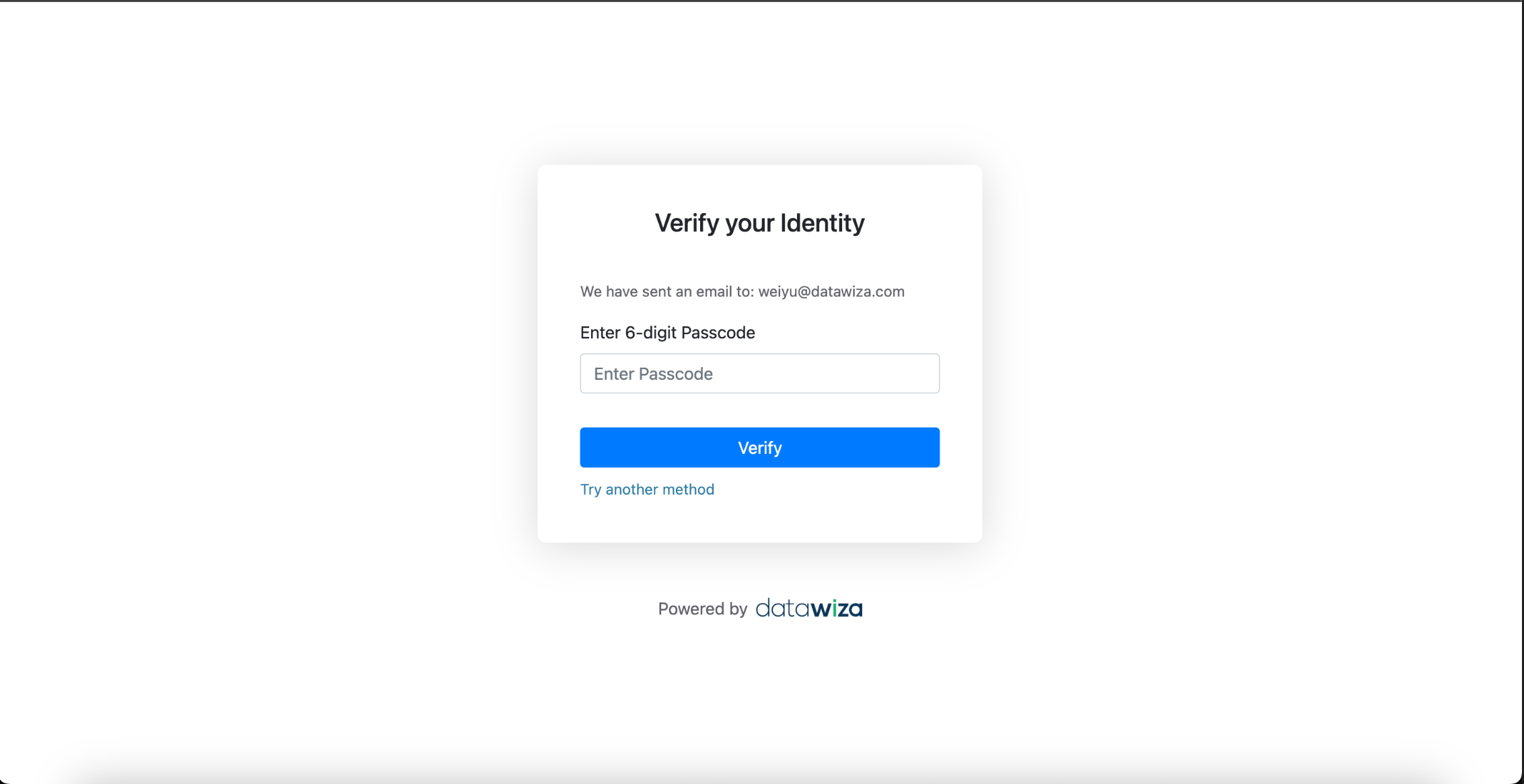
Enable Datawiza MFA (2FA) for Oracle EBS
Overview
This guide walks you through configuring Datawiza Multi-Factor Authentication (MFA/2FA) for Oracle E-Business Suite (EBS). Learn more about configuring Datawiza Multi-Factor Authentication.
Prerequisite
Before proceeding, ensure you have the following:
- A Datawiza Cloud Management Console (DCMC) account
Part I: Datawiza Cloud Management Console (DCMC) Configuration
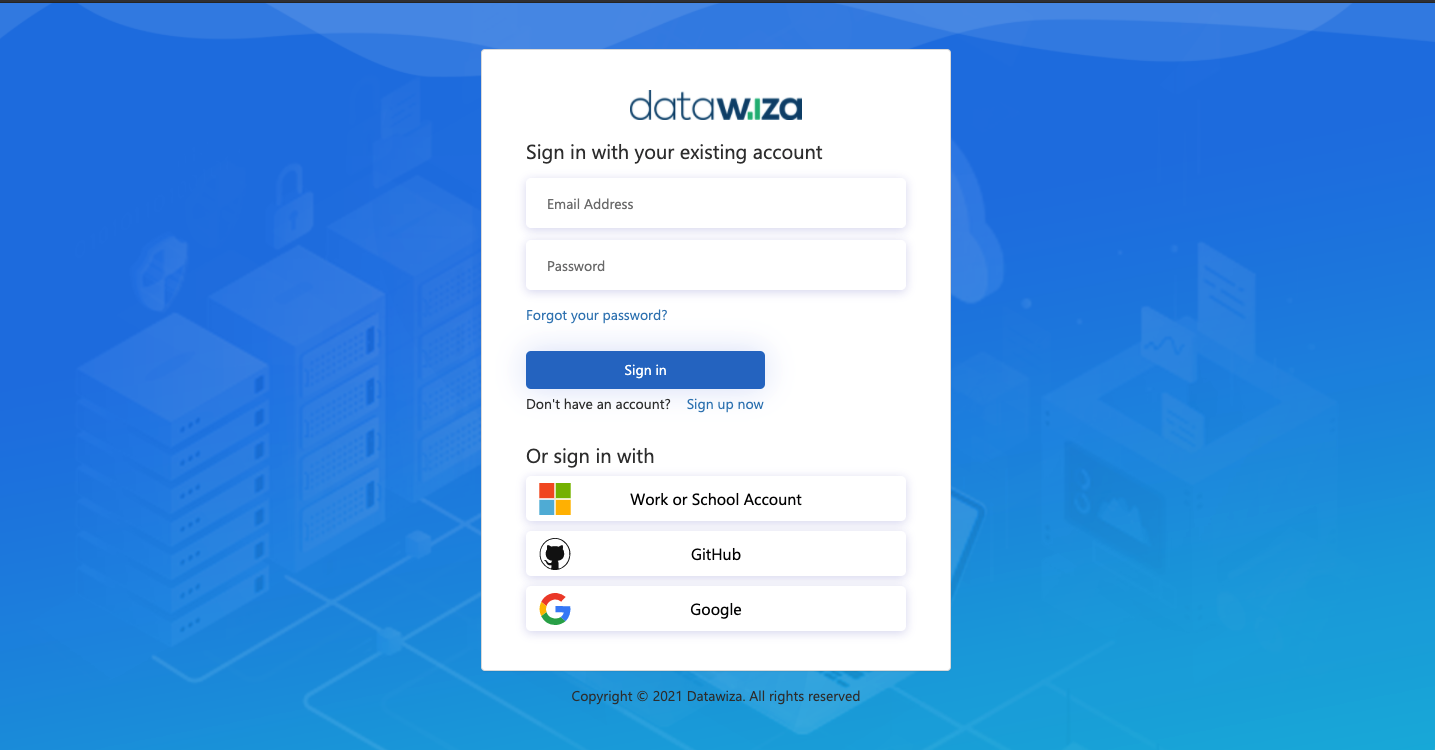
Step 1: Sign in to DCMC
- Log into the DCMC.
Step 2: Create a New Deployment
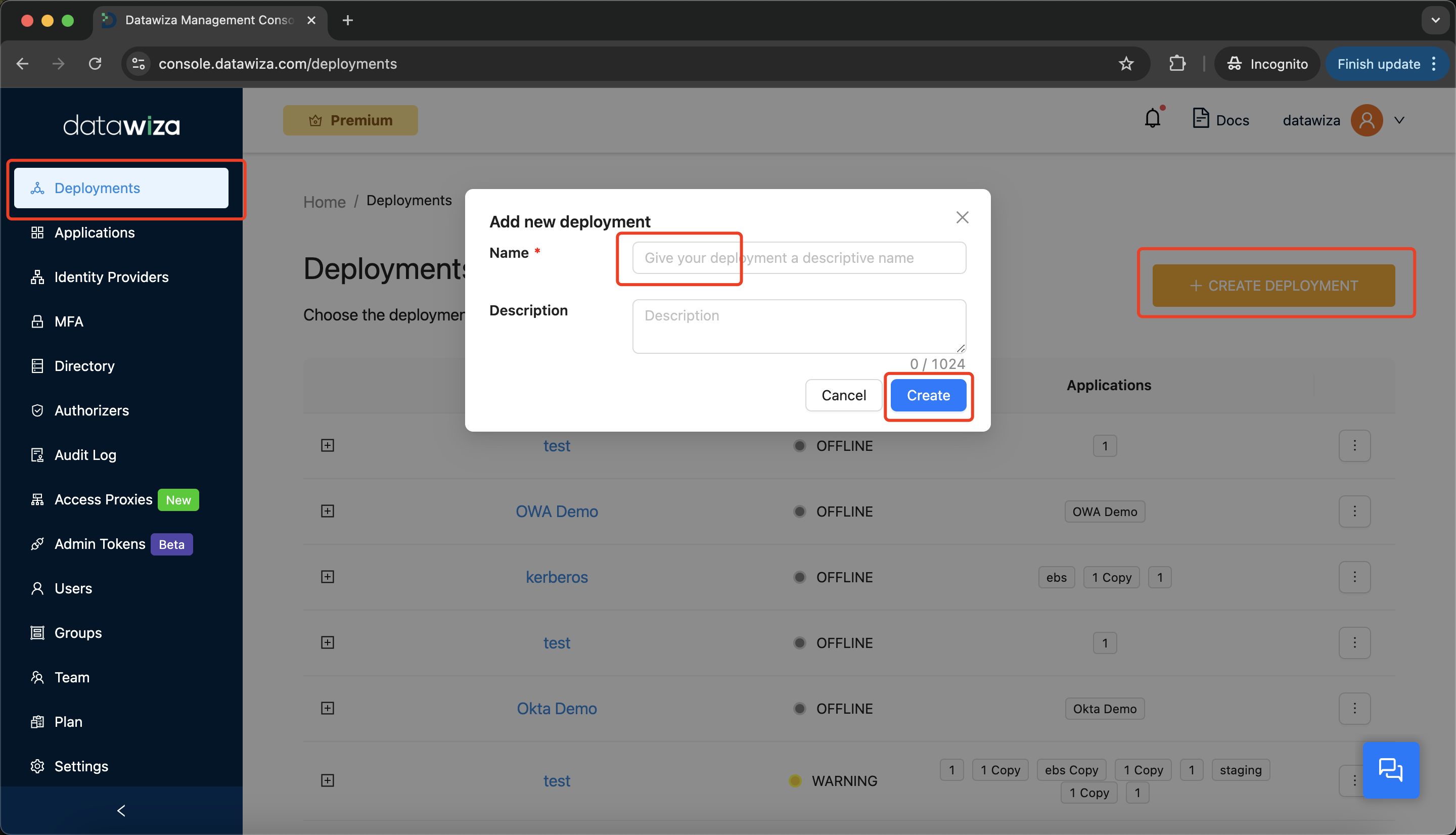
- Navigate to the
Deploymentstab. - Click
+ CREATE DEPLOYMENT. - Enter a
NameandDescription, then clickCreate.
Step 3: Add a New Application
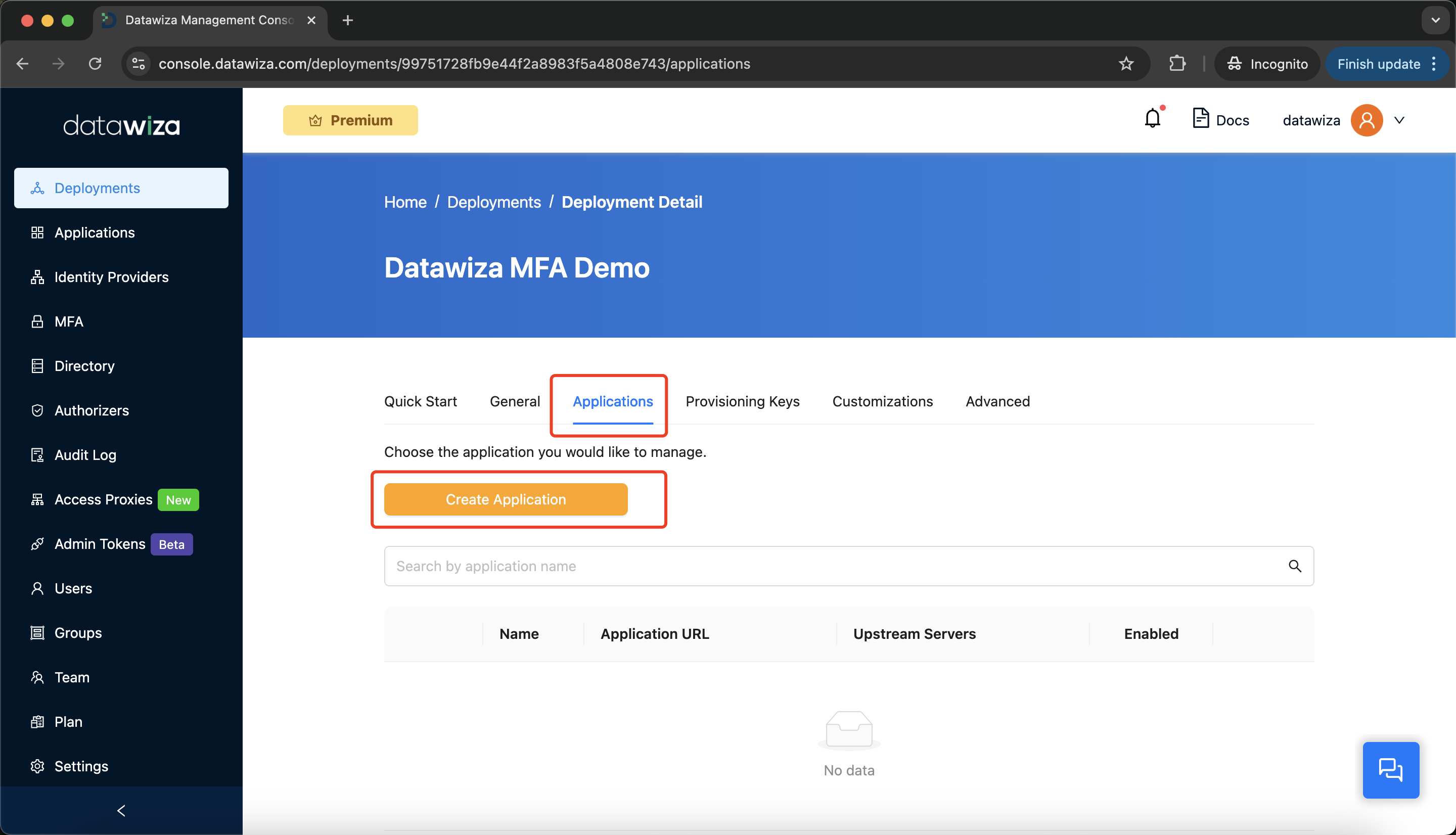
- Go to the
Applicationstab and clickCreate Application.
Configure your application with the following values:
App Type:WEB.Name:Demo App.Application URL:https://ebs.datawiza.net(replace with your own DNS name). This DNS name should match the Site Value setting in your EBS, on the Define Profile Values: Application Authenticate Agent page. The DNS name (e.g., ebs.datawiza.net) should resolve to the IP address of the Datawiza Access Proxy (DAP), or to the IP address of the load balancer or reverse proxy that sits in front of the DAP.SSL: Enable SSL and use datawiza self-signed certificate.Listen Port:443.Upstream Servers:Custom Upstream.Custom Upstream Server Address:http://10.0.1.85:8000(replace with the actual IP address or hostname of your EBS web server).- Click
Next.
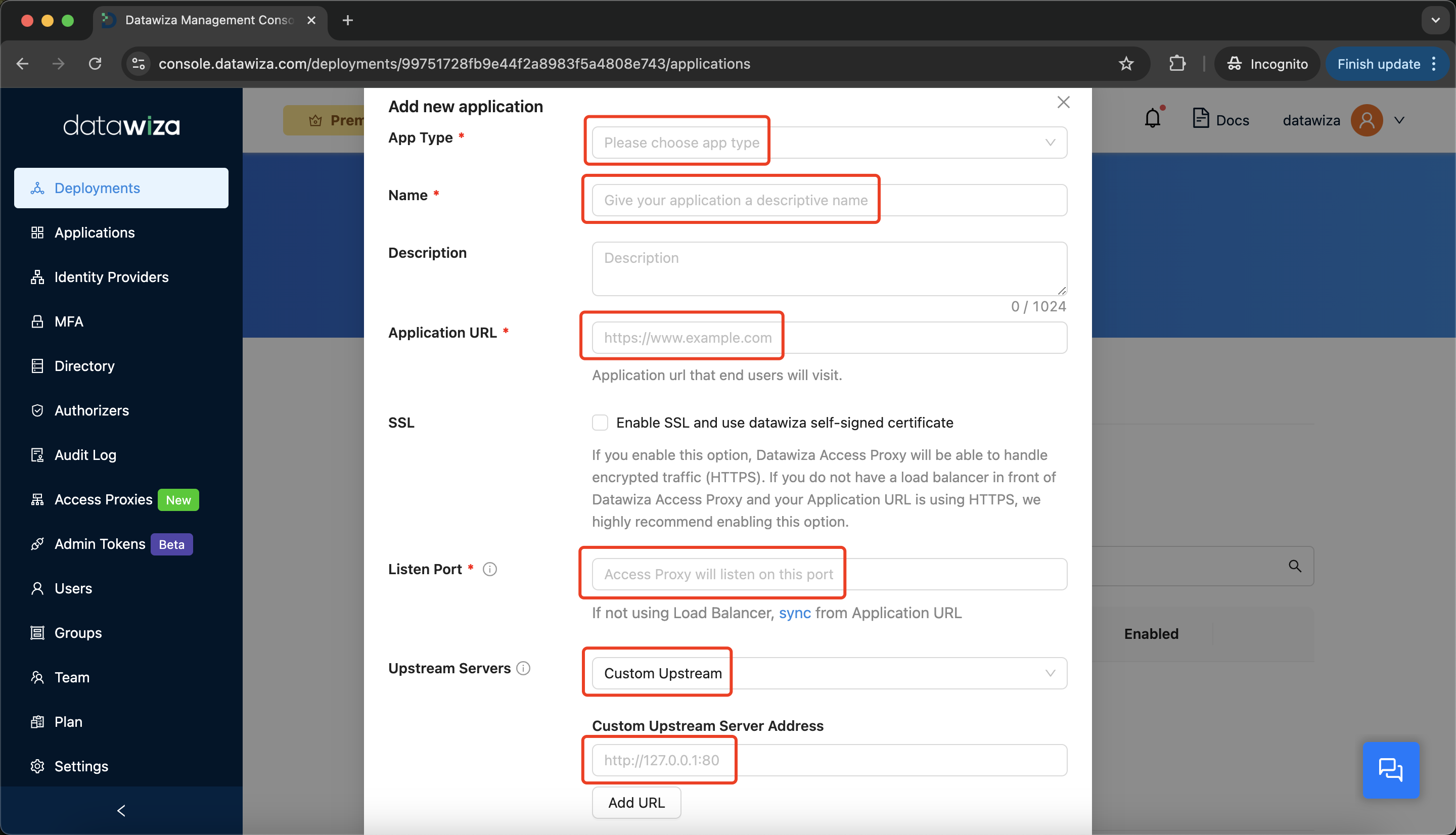
Step 4: Update Access Rules
- Go to the
Rulestab. - Edit the default access rule and set the Rule Type to
Auth Not Required.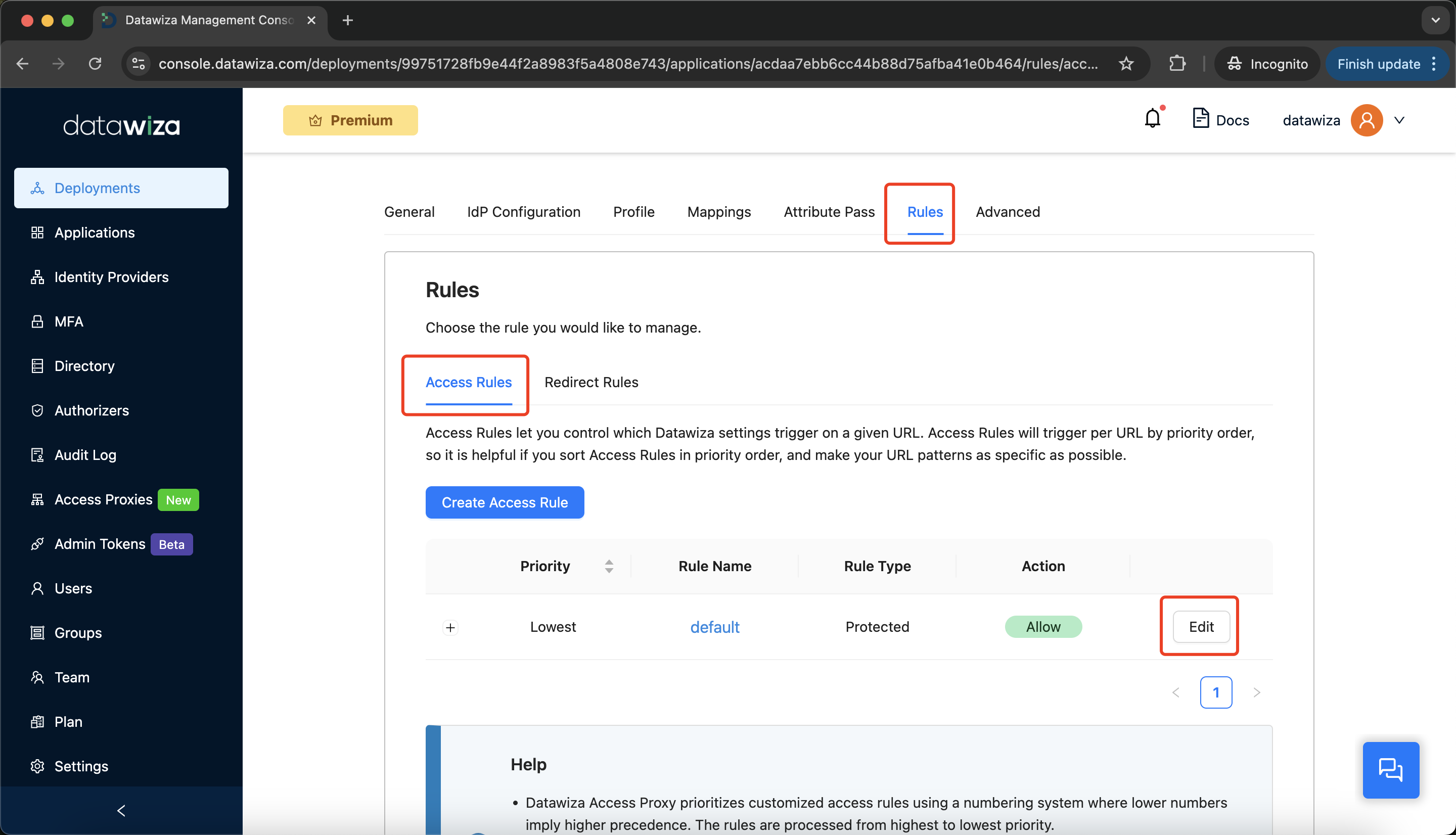
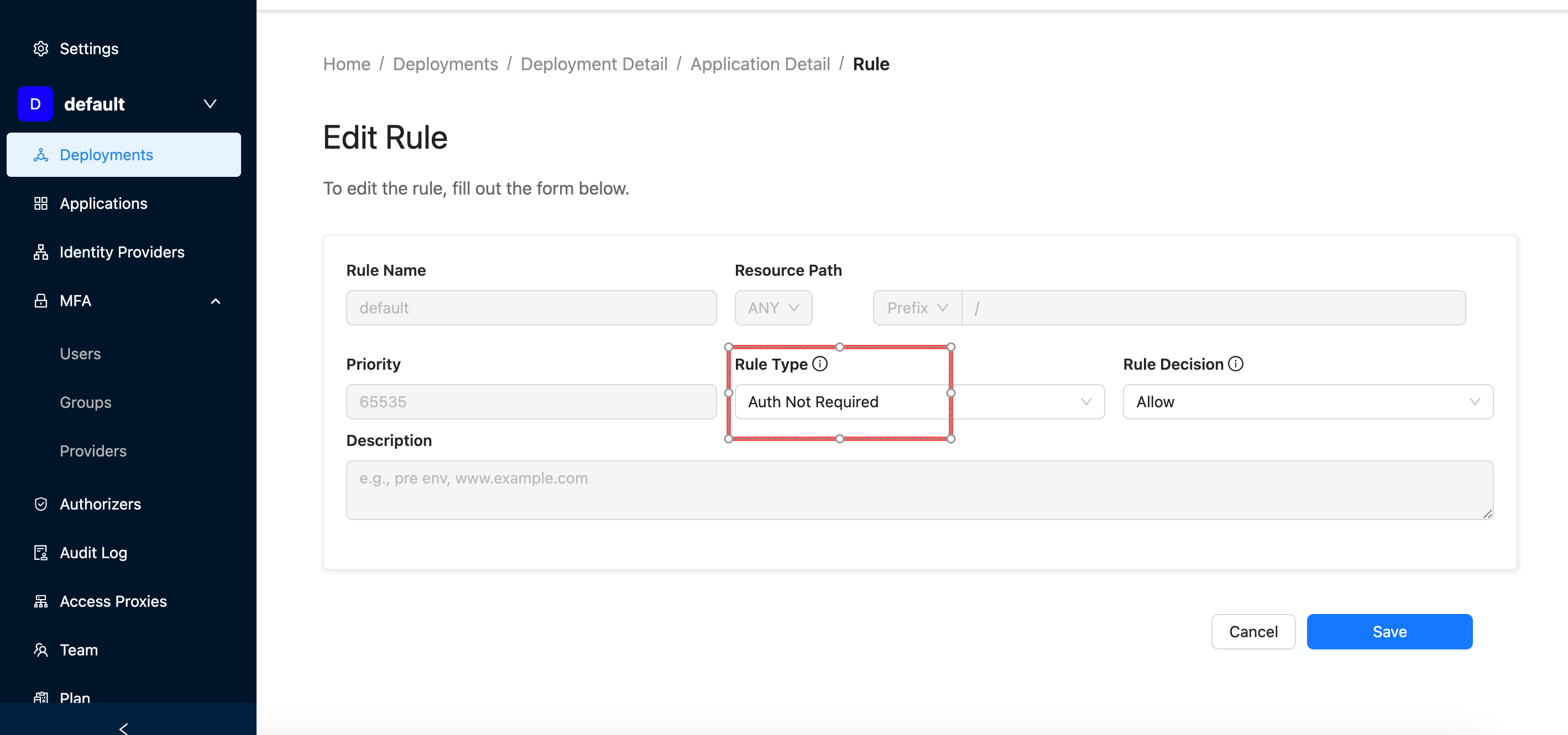
Step 5: Enable Datawiza MFA
- Navigate to the
Advancedtab. - Under Advanced Settings, select
MFA, then clickCreate MFA Configuration.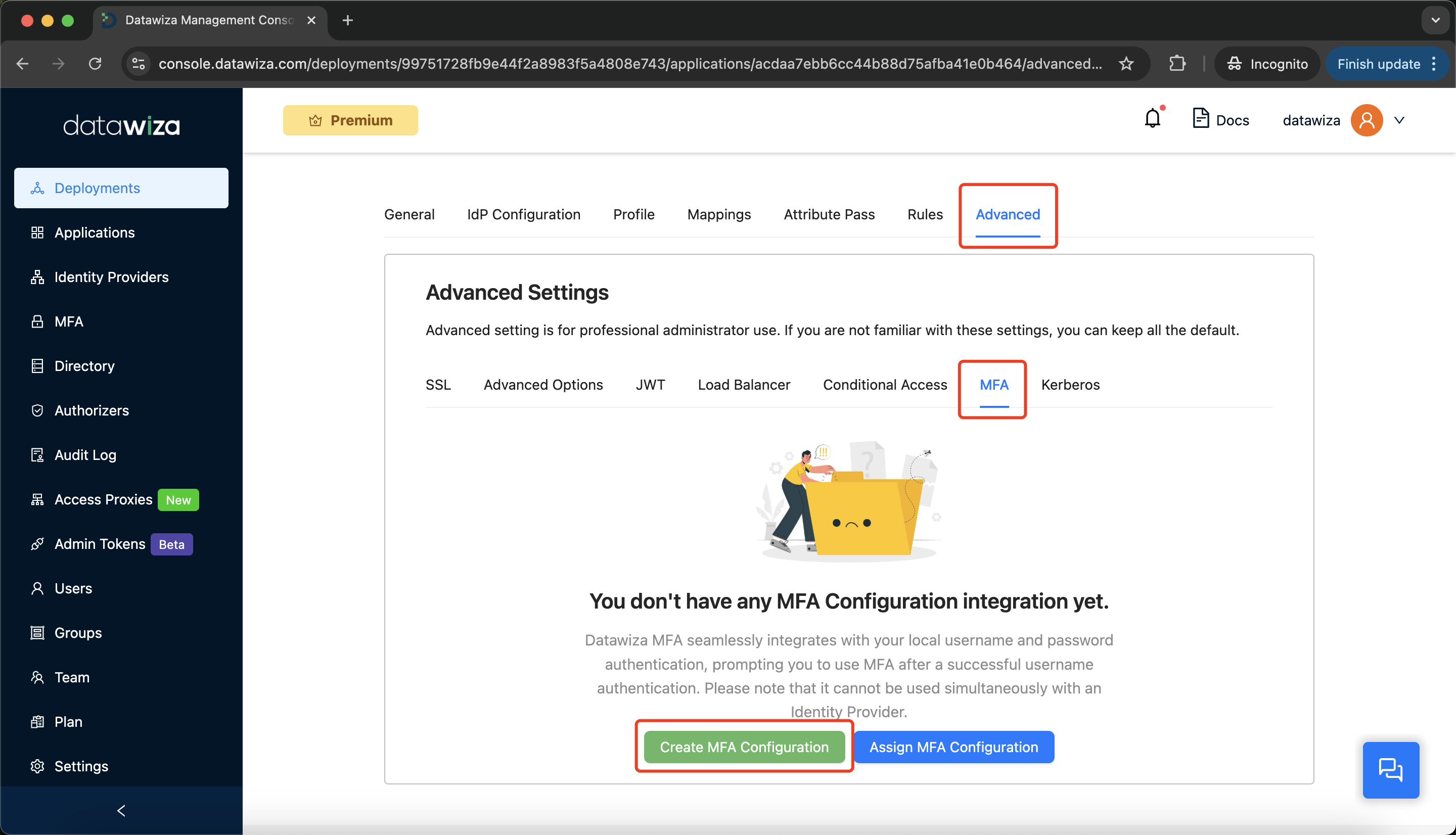
- Enter a name and select
DATAWIZAas the provider.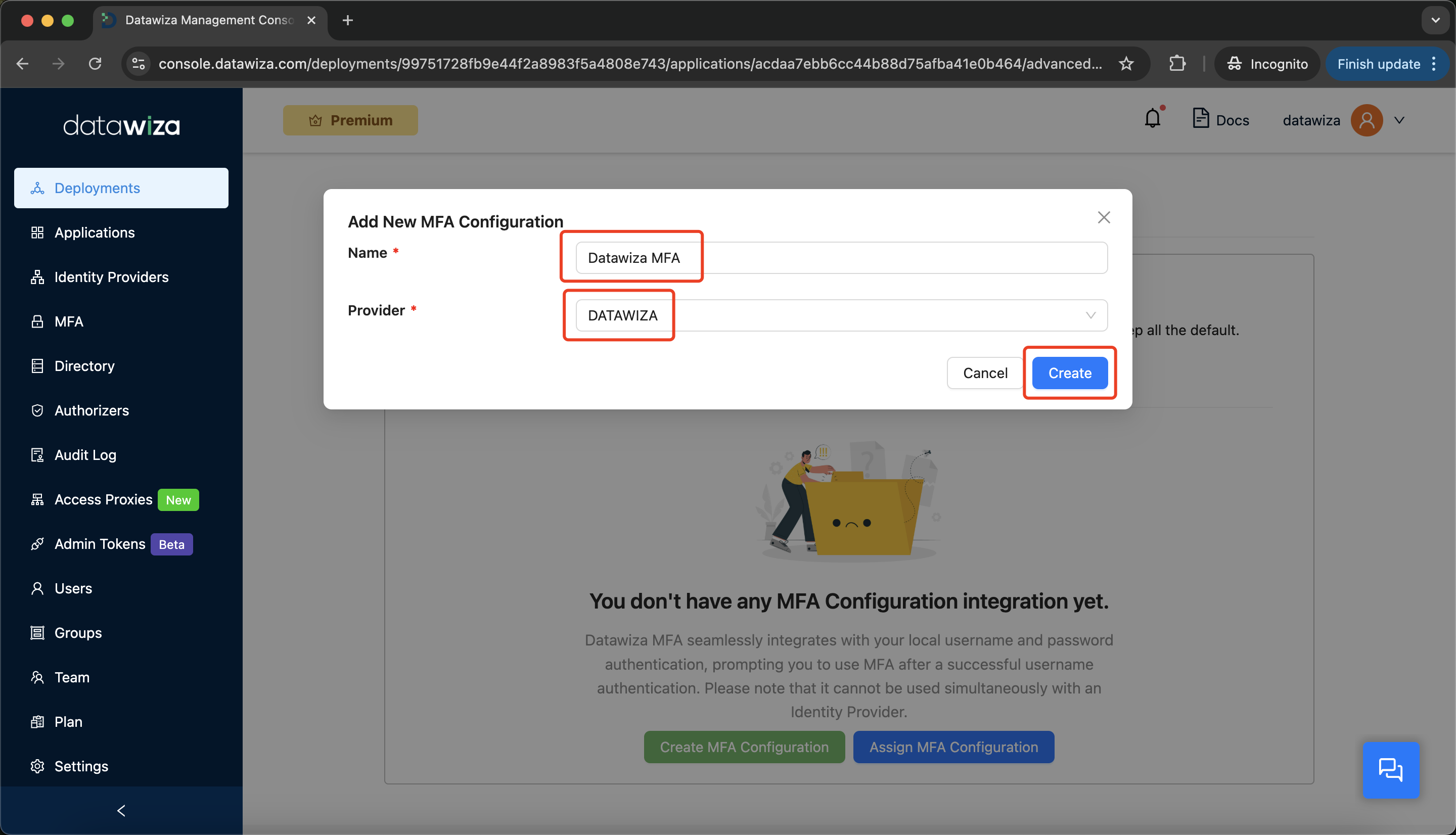
Step 6: Generate Provisioning Keys
Click on
Deployment Detail.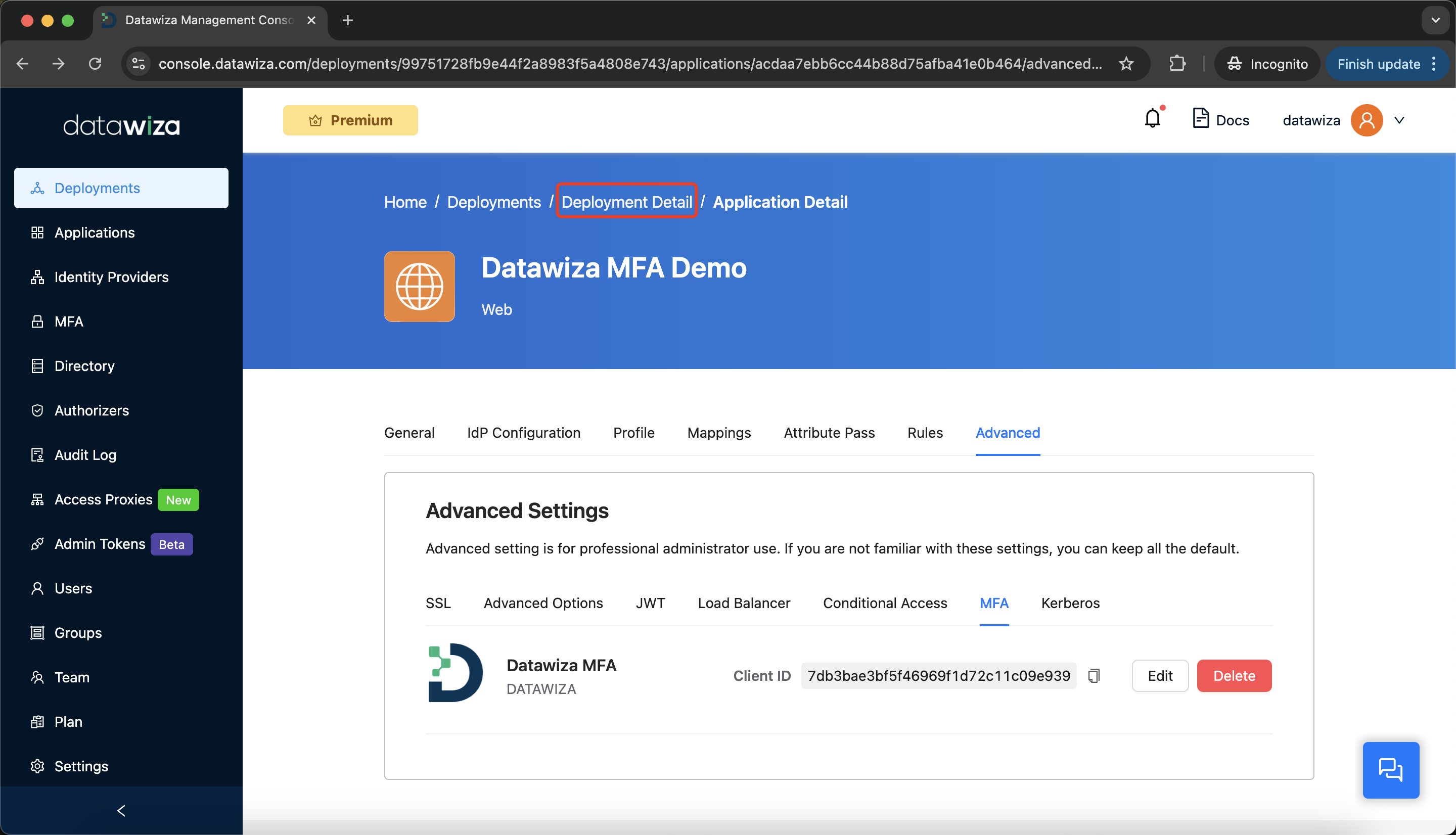
Select the
Provisioning Keystab, then clickCreate Provisioning Key.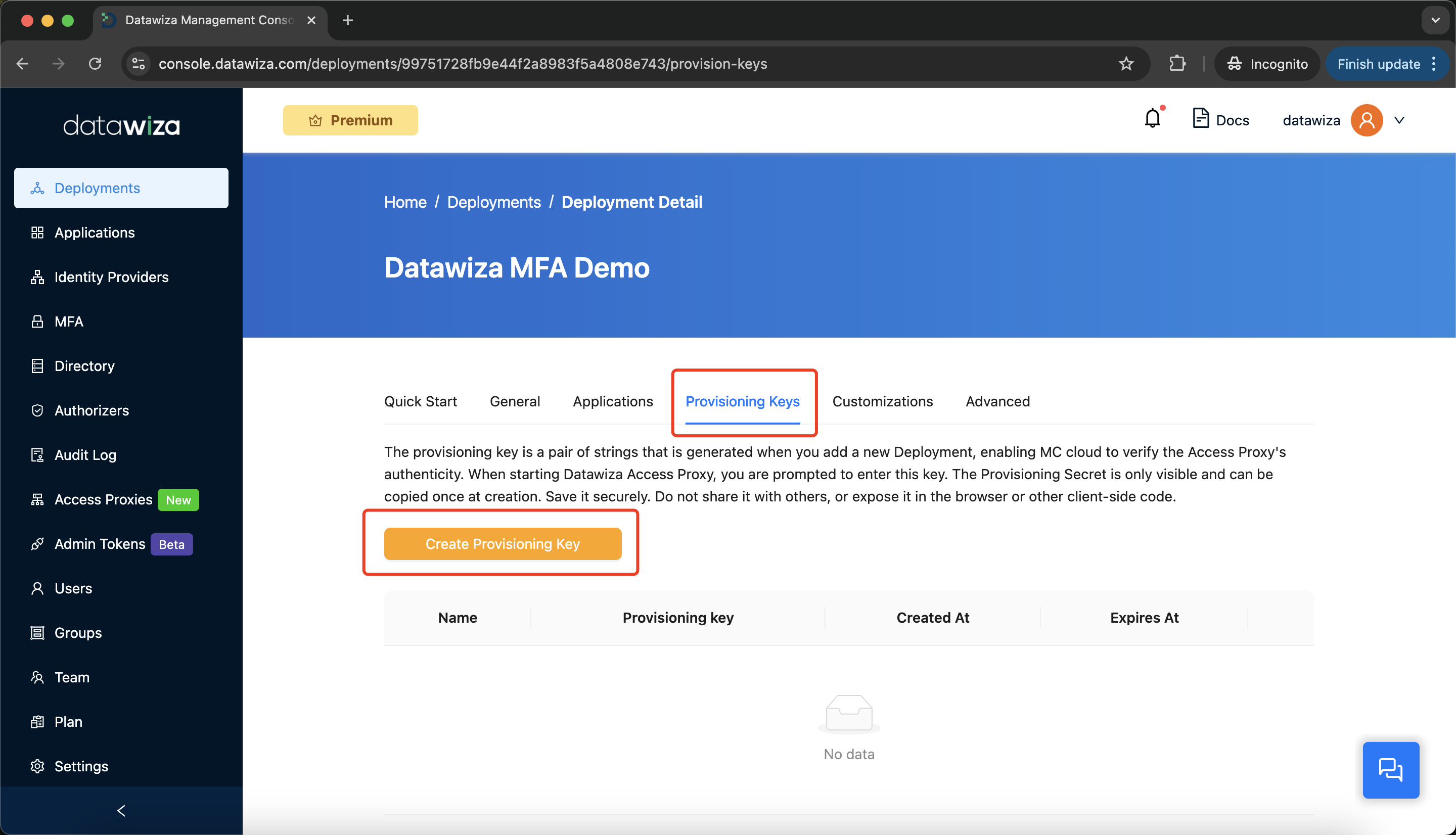
Enter a key name and click
Create.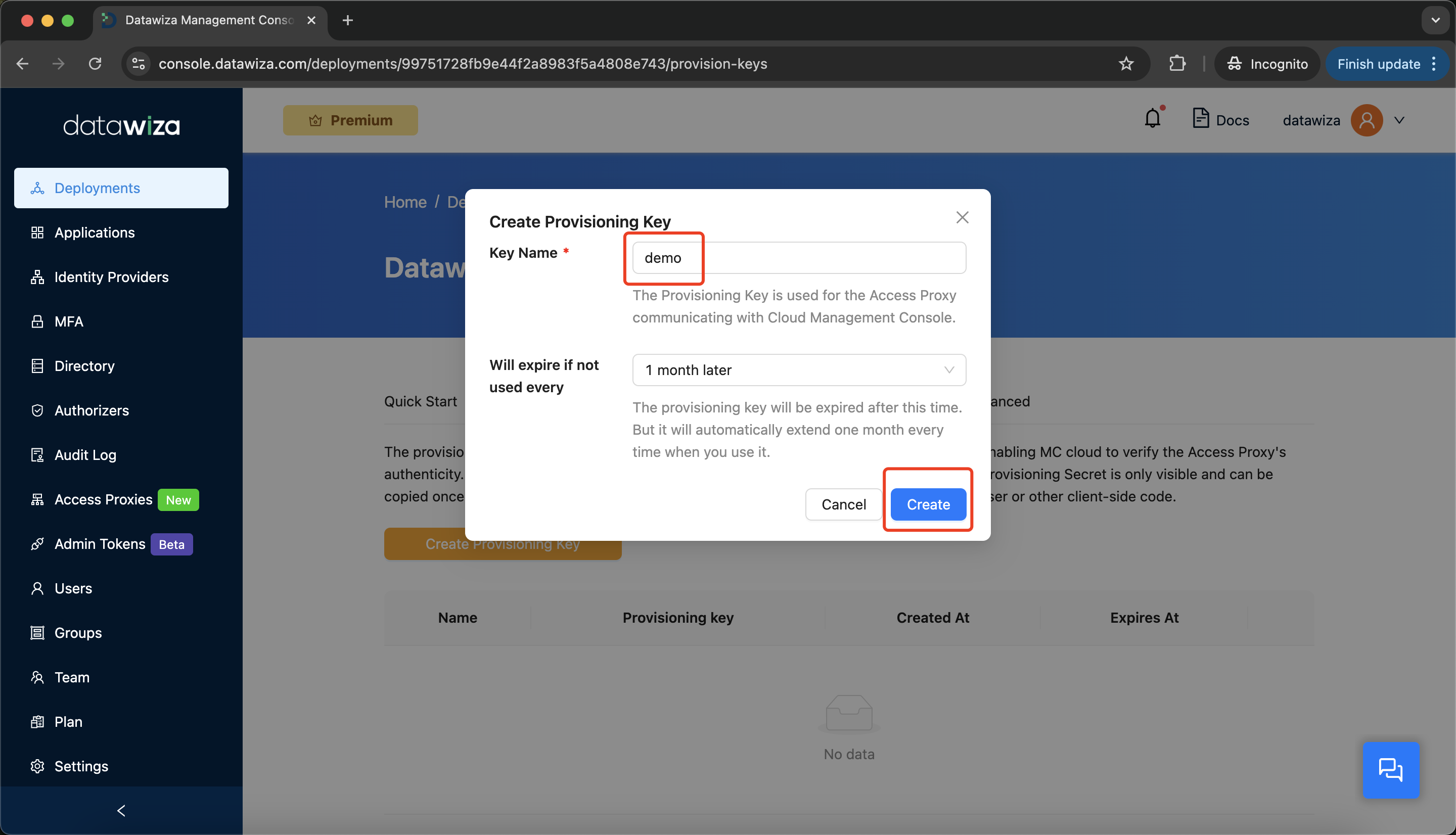
Save the
PROVISIONING_KEYandPROVISIONING_SECRET. You'll use these in your deployment.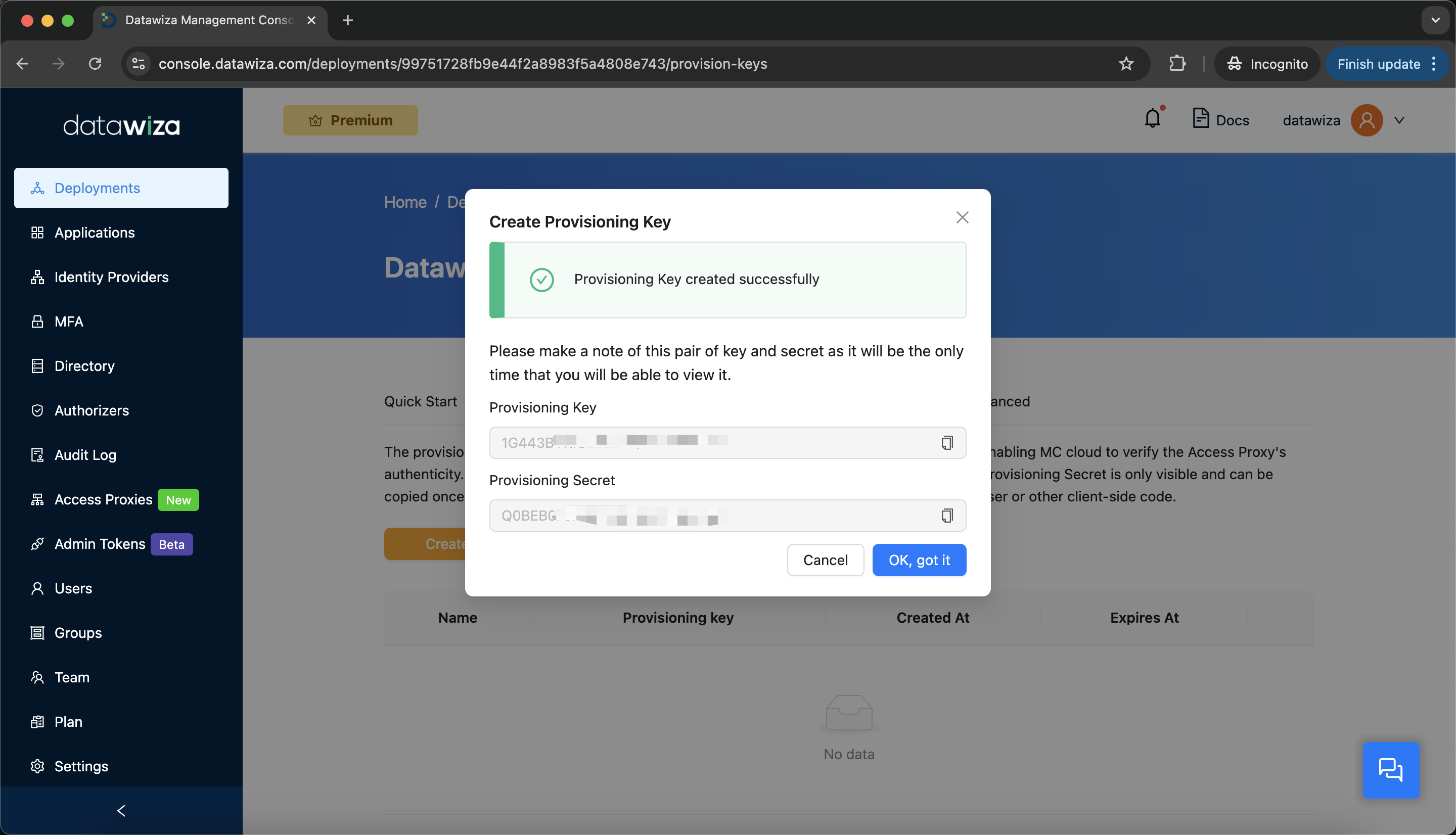
Step 7: Run the Datawiza Access Proxy (DAP)
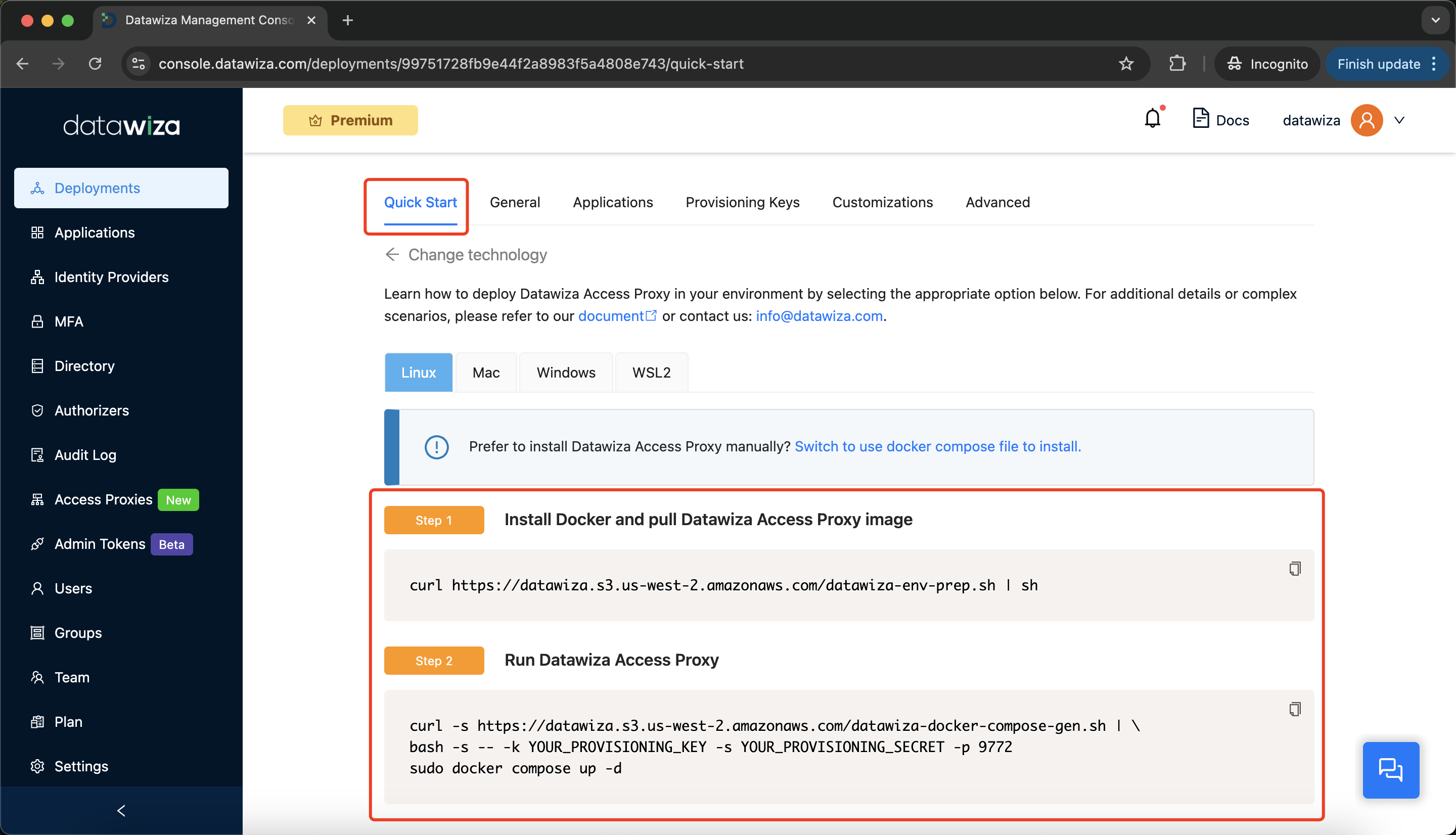
- Go to the
Quick Starttab. - Follow Step 1 to install Docker and pull the DAP image.
- Follow Step 2 to generate a
docker-compose.yamlusing your provisioning keys and start the DAP container.
Part II: MFA User Configuration
Datawiza provides a user management interface for handling MFA users.
Step 1: Add a New MFA User Manually
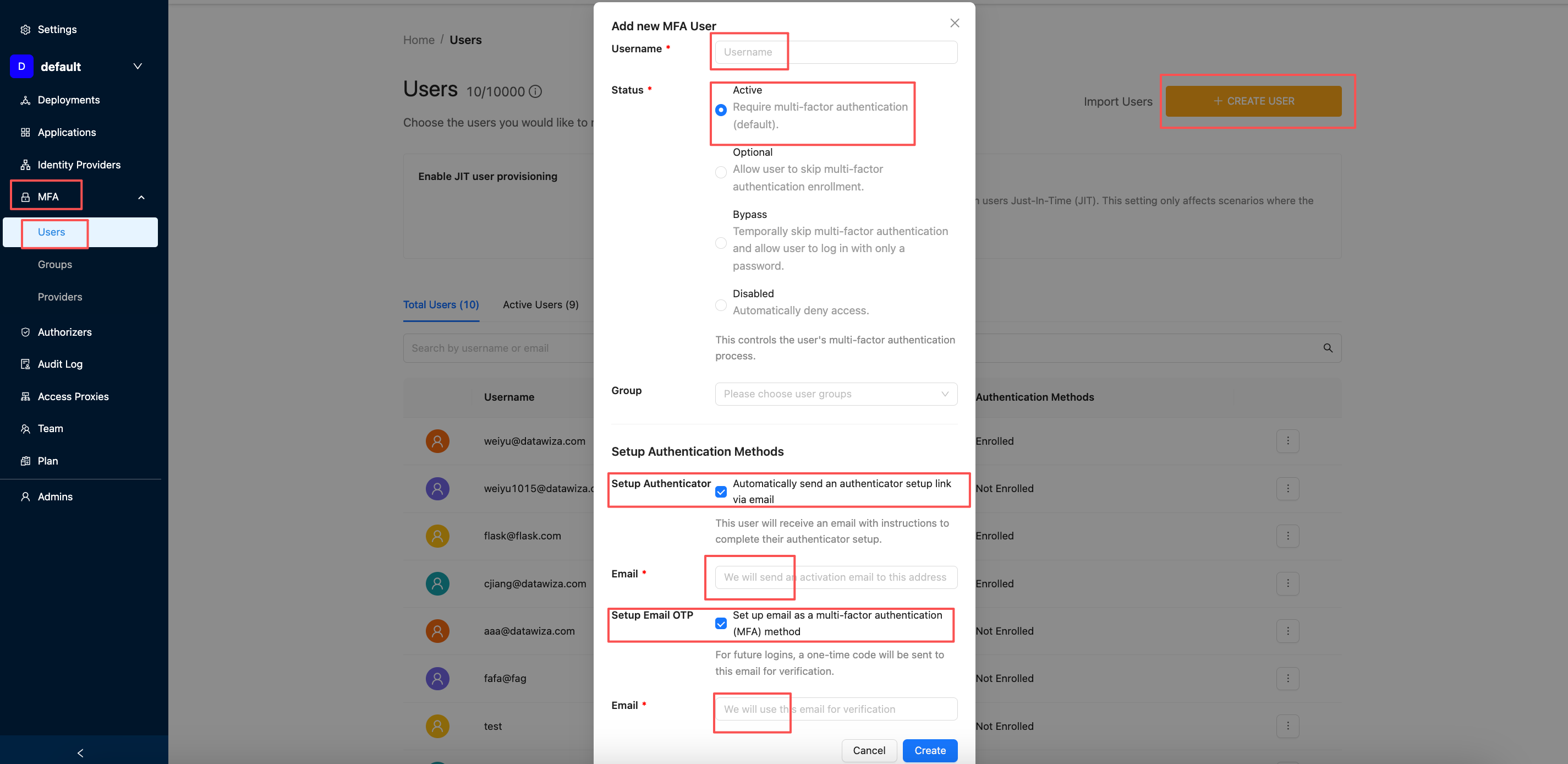
Go to the Users tab and click + CREATE USER.
Provide the following details:
Username:johndoe(We use this user as the example)Status:ActiveSetup Authentication Methods:- You may enable Authenticator, Email OTP, or both.
- You may also leave this section blank. In that case, the user will select a method during their next login.
- Click
Create.
Step 2: Complete MFA Enrollment
If Authenticator is enabled
The user will receive an email containing a setup link. This link guides them through configuring an authenticator app such as Google Authenticator or Microsoft Authenticator. 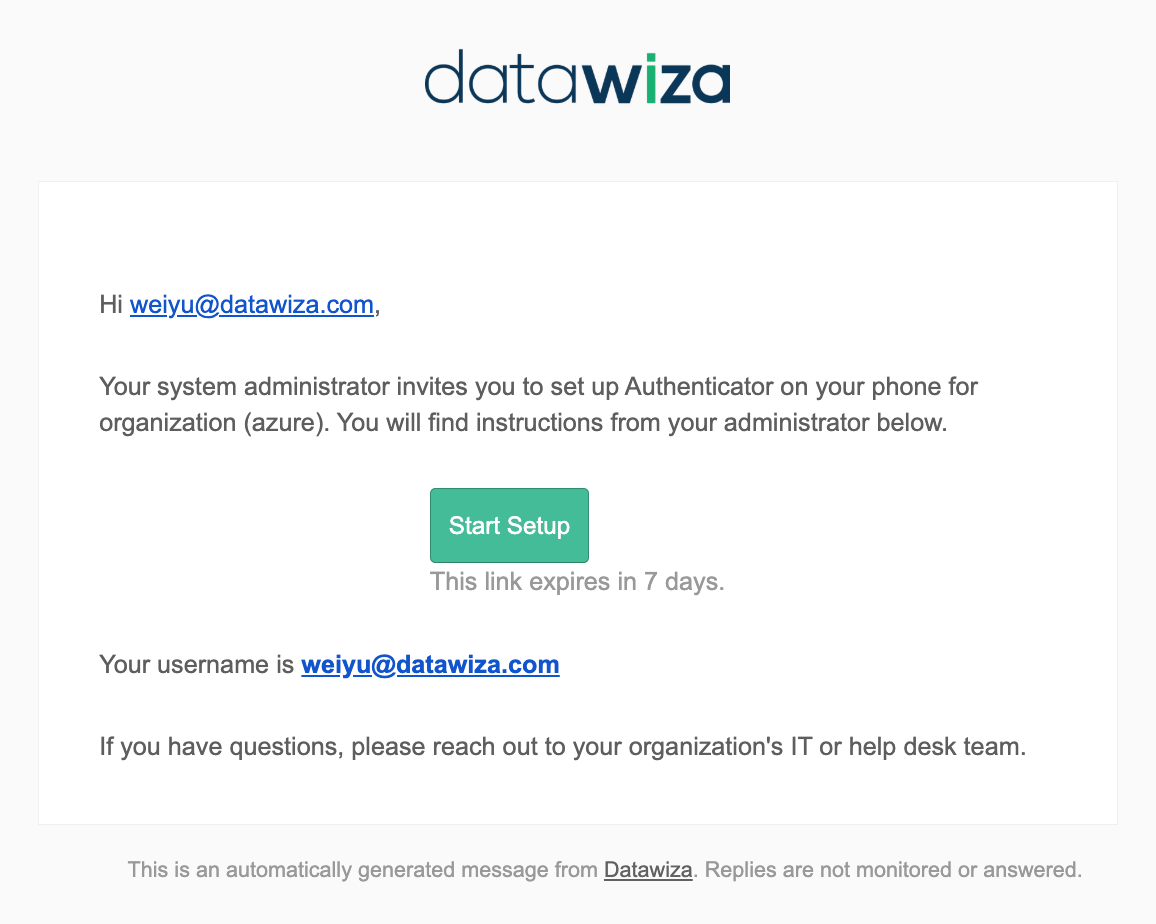
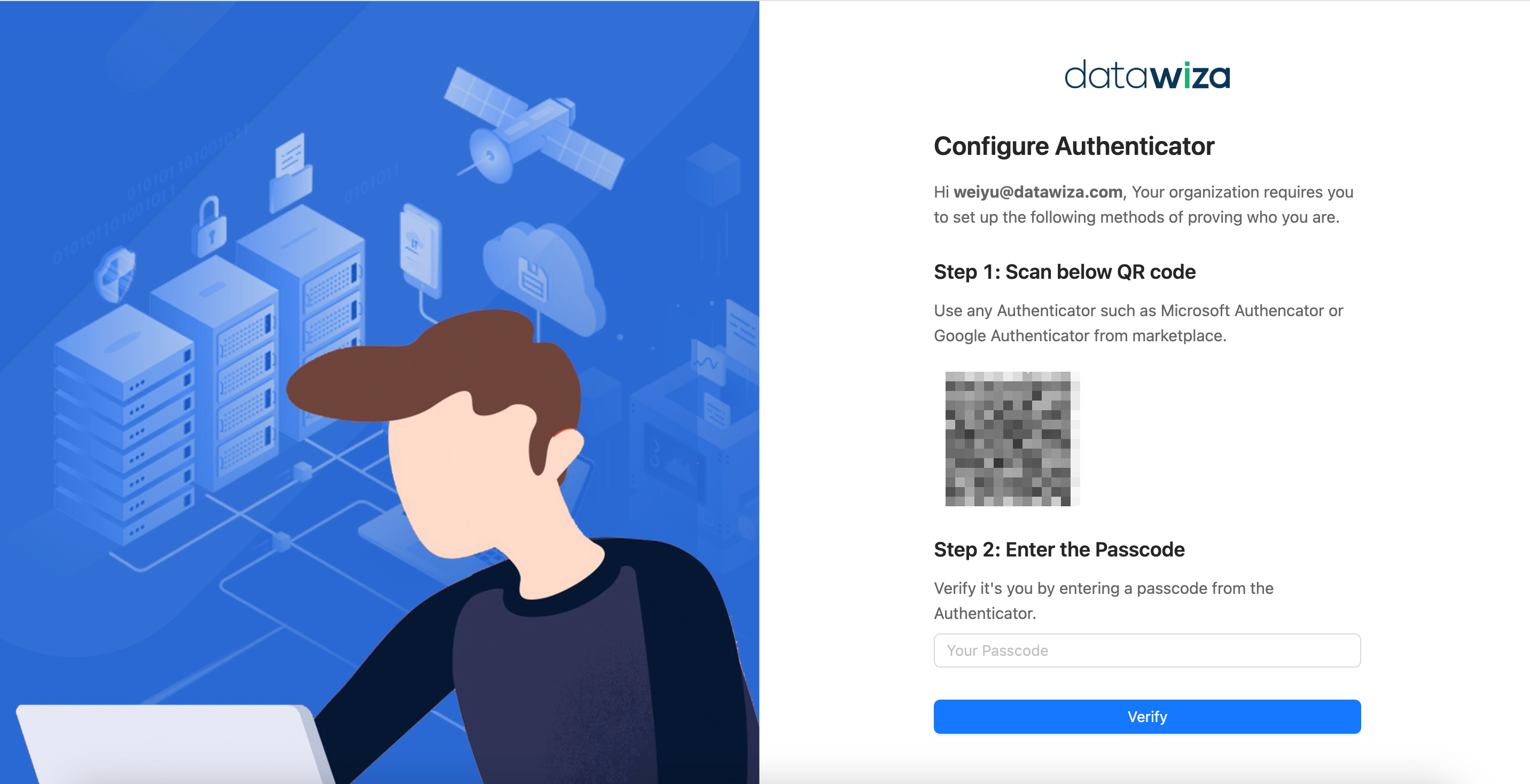
If Email OTP is enabled
The user will receive a one-time password (OTP) via email at their next login. 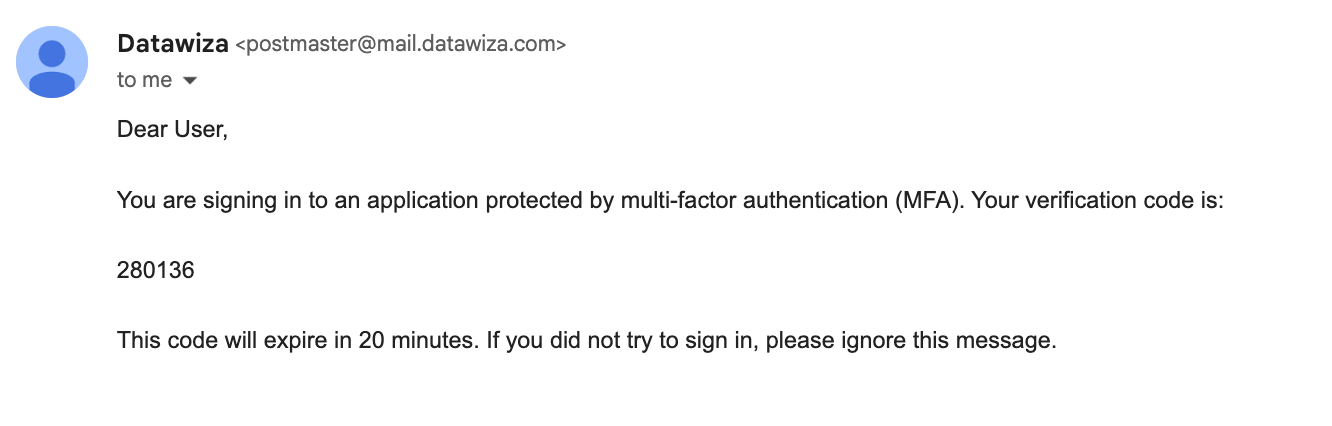
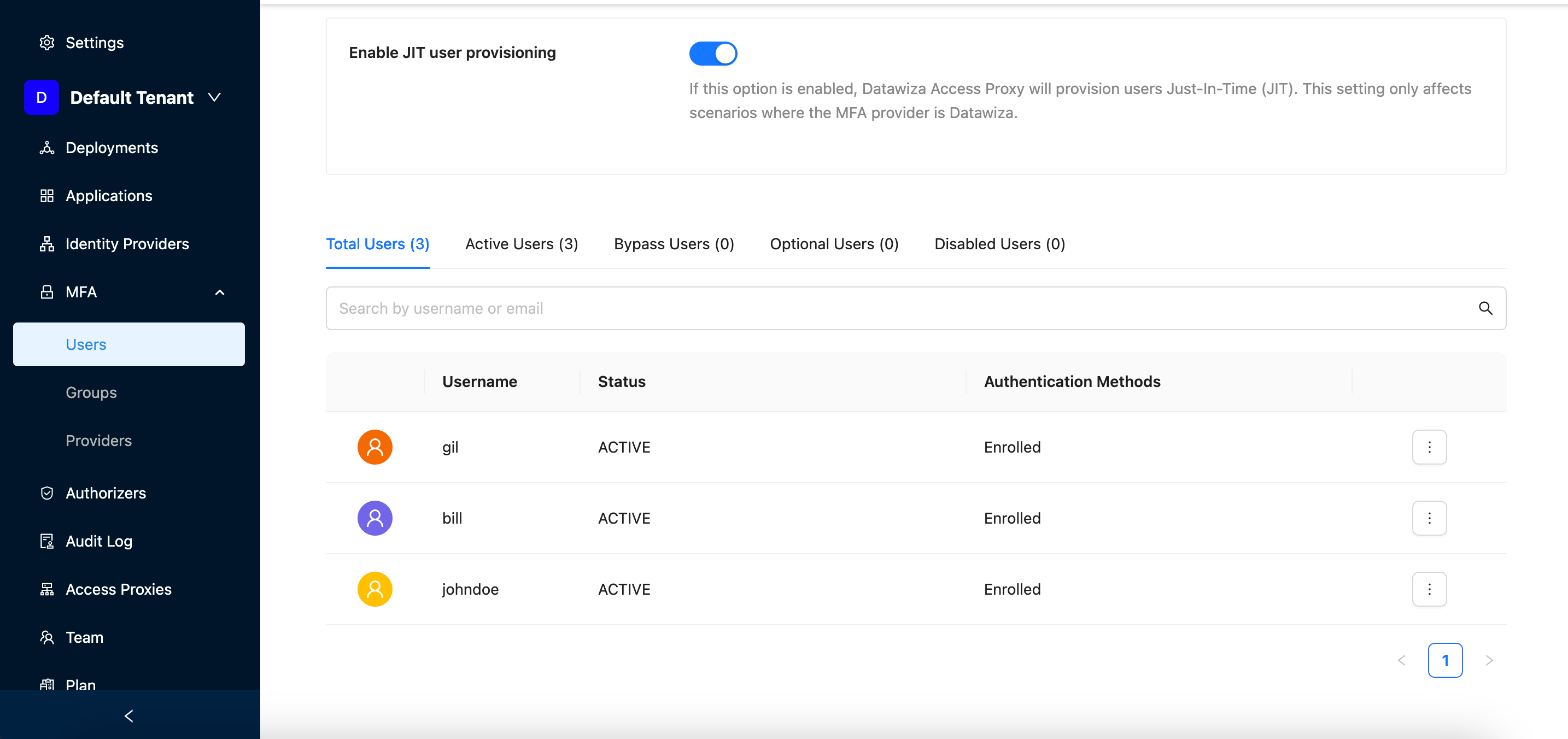
Step 3: (Optional) Enable JIT User Provisioning
To streamline the onboarding process, you can enable Just-In-Time (JIT) user provisioning, which automatically creates a user record the first time a user logs in.
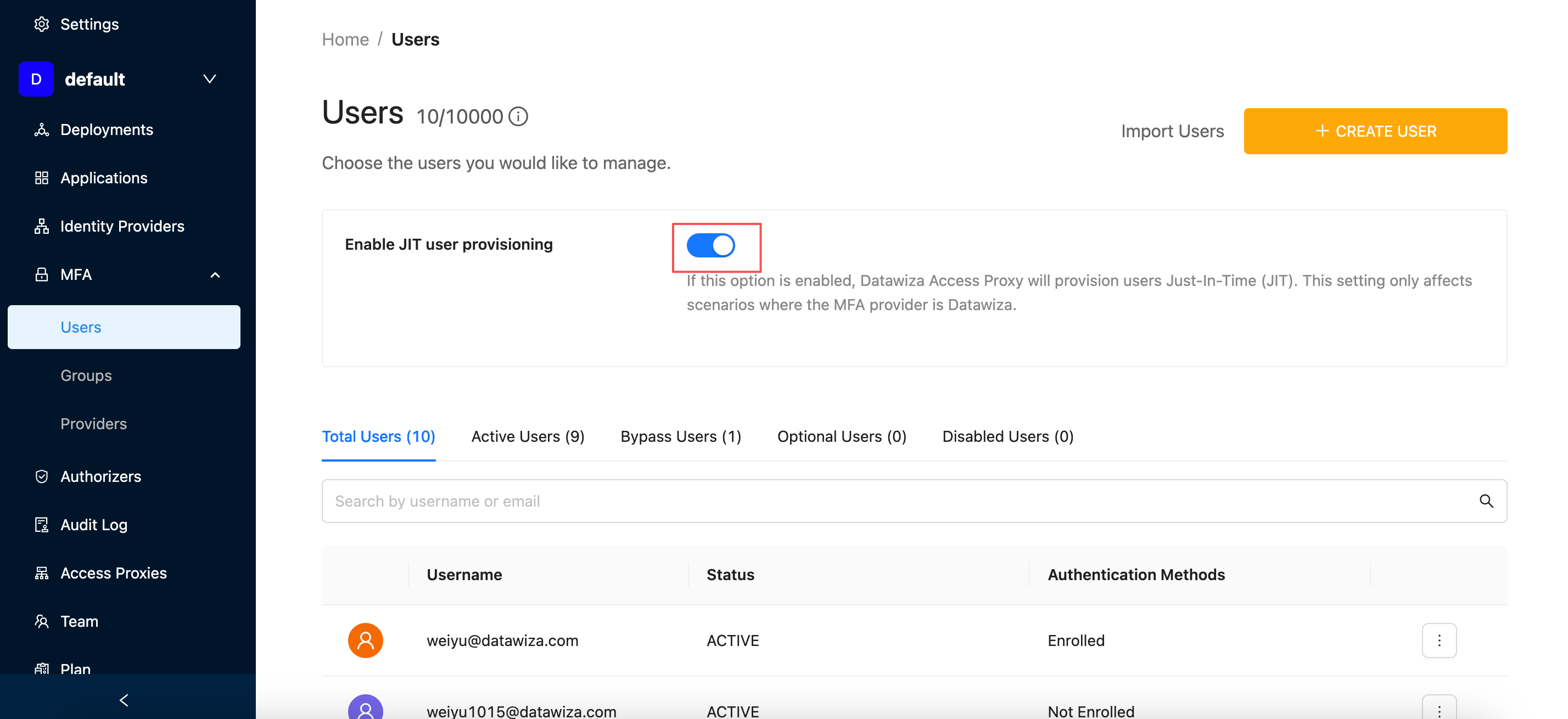
Step 4 (Optional): Bulk Upload MFA Users via CSV
Instead of manually creating users one by one, you can bulk upload multiple users using a CSV file. 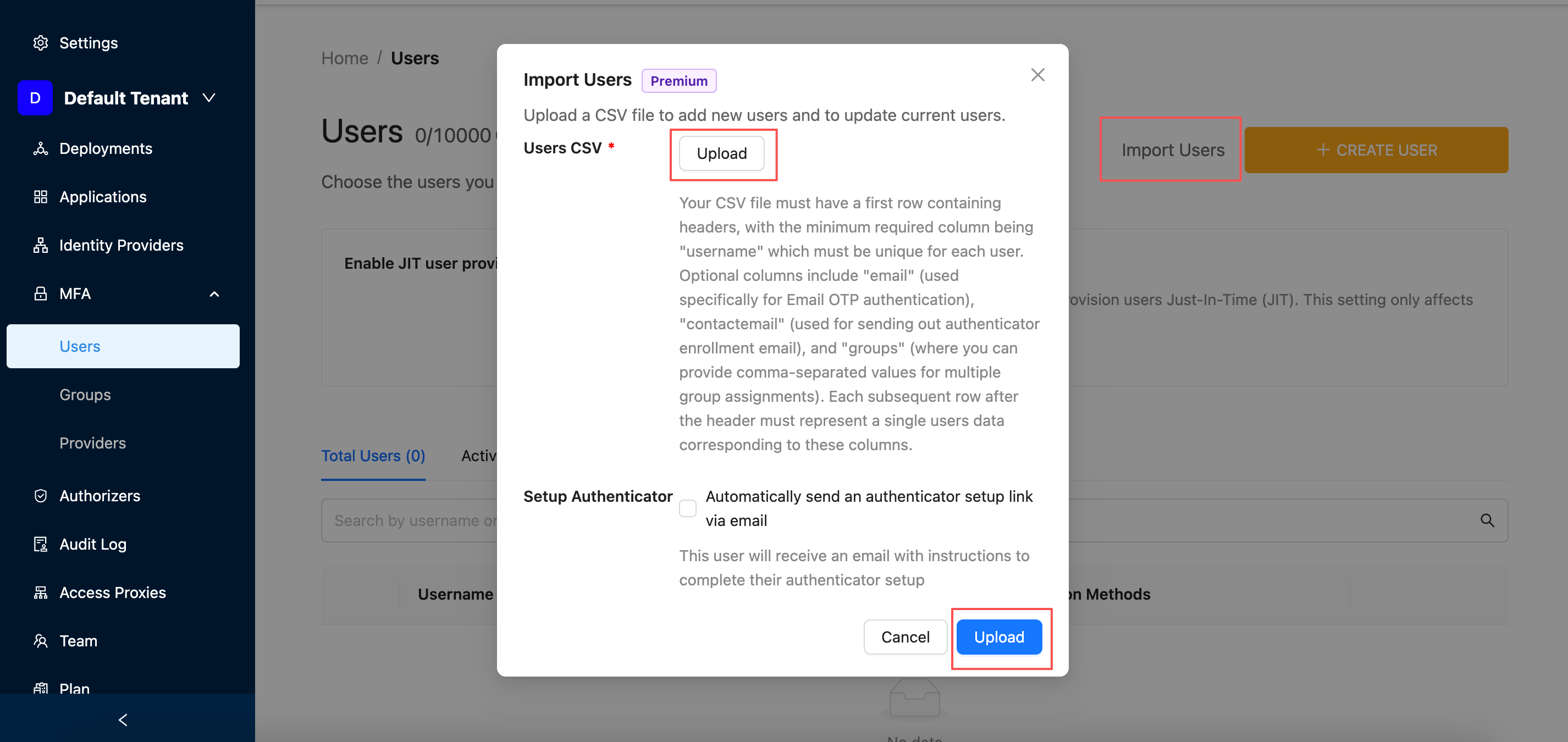
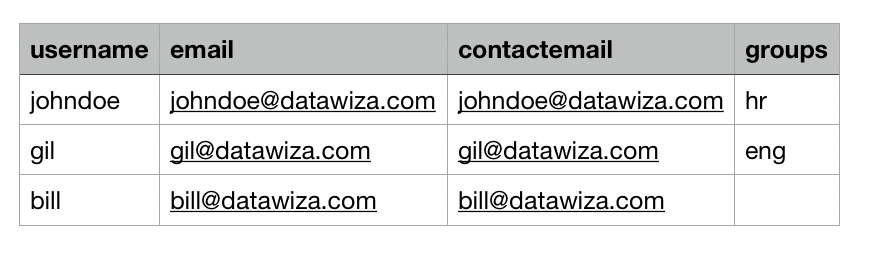
CSV Format Example
| username | contactemail | groups | |
|---|---|---|---|
| johndoe | johndoe@datawiza.com | johndoe@datawiza.com | hr |
| gil | gil@datawiza.com | gil@datawiza.com | eng |
| bill | bill@datawiza.com | bill@datawiza.com |
- username is required and must be unique.
- email, contactemail, and groups are optional.
Enrollment via CSV Upload
If the "Automatically send an authenticator setup link via email" option is enabled during the CSV upload:
- Each user will receive a email with setup link.
If the user has
contanctemailspecified in the csv:- The user will receive an OTP email and will be required to verify the OTP during their next login to Oracle EBS.
Part III: Verify MFA (2FA) for Oracle EBS
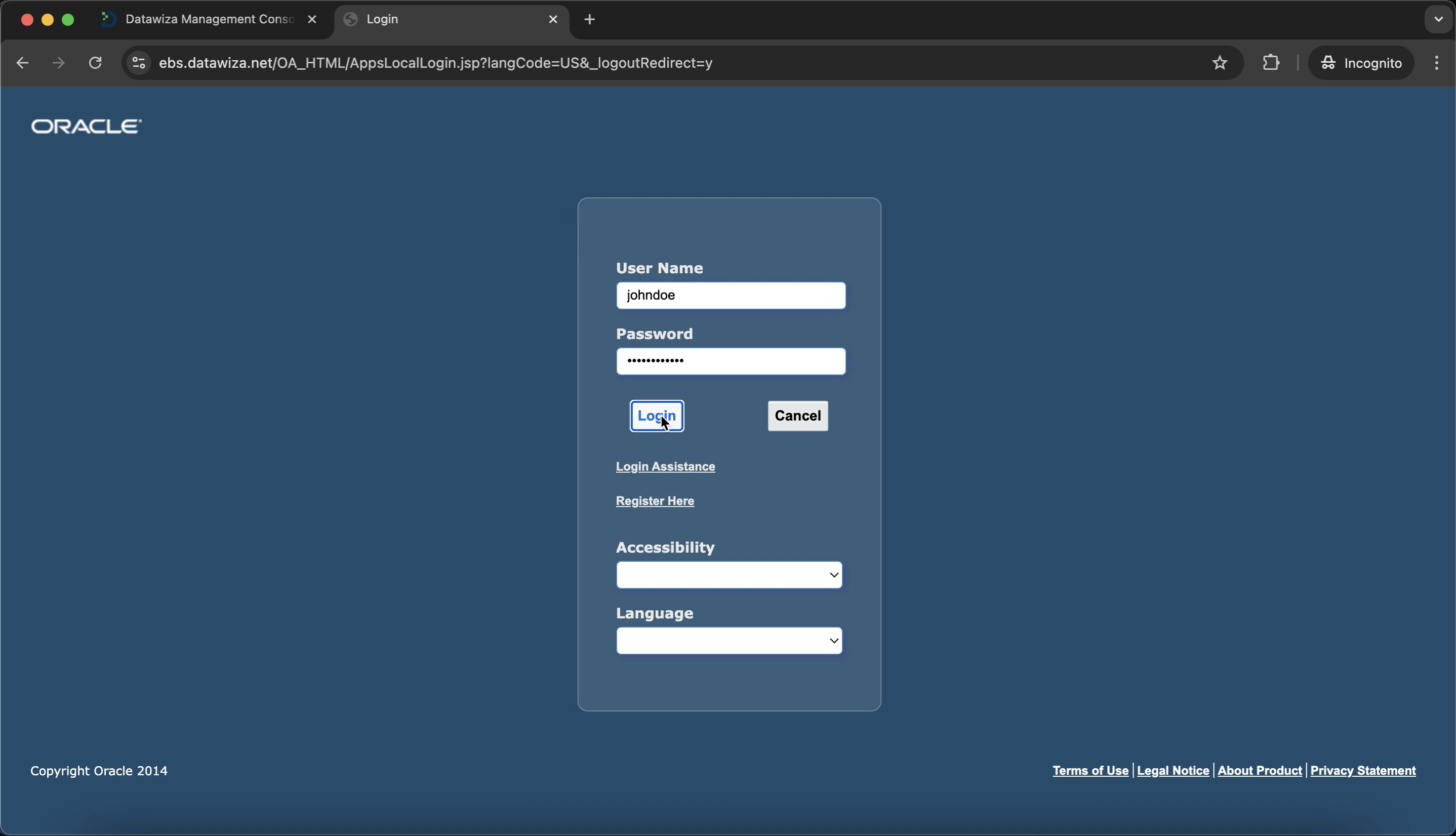
Open a browser and visit: https://ebs.datawiza.net/
You'll be redirected to the EBS login page.
After successful login, If the user already has an MFA method configured (
AuthenticatororEmail OTP), they will be prompted with the Datawiza MFA challenge.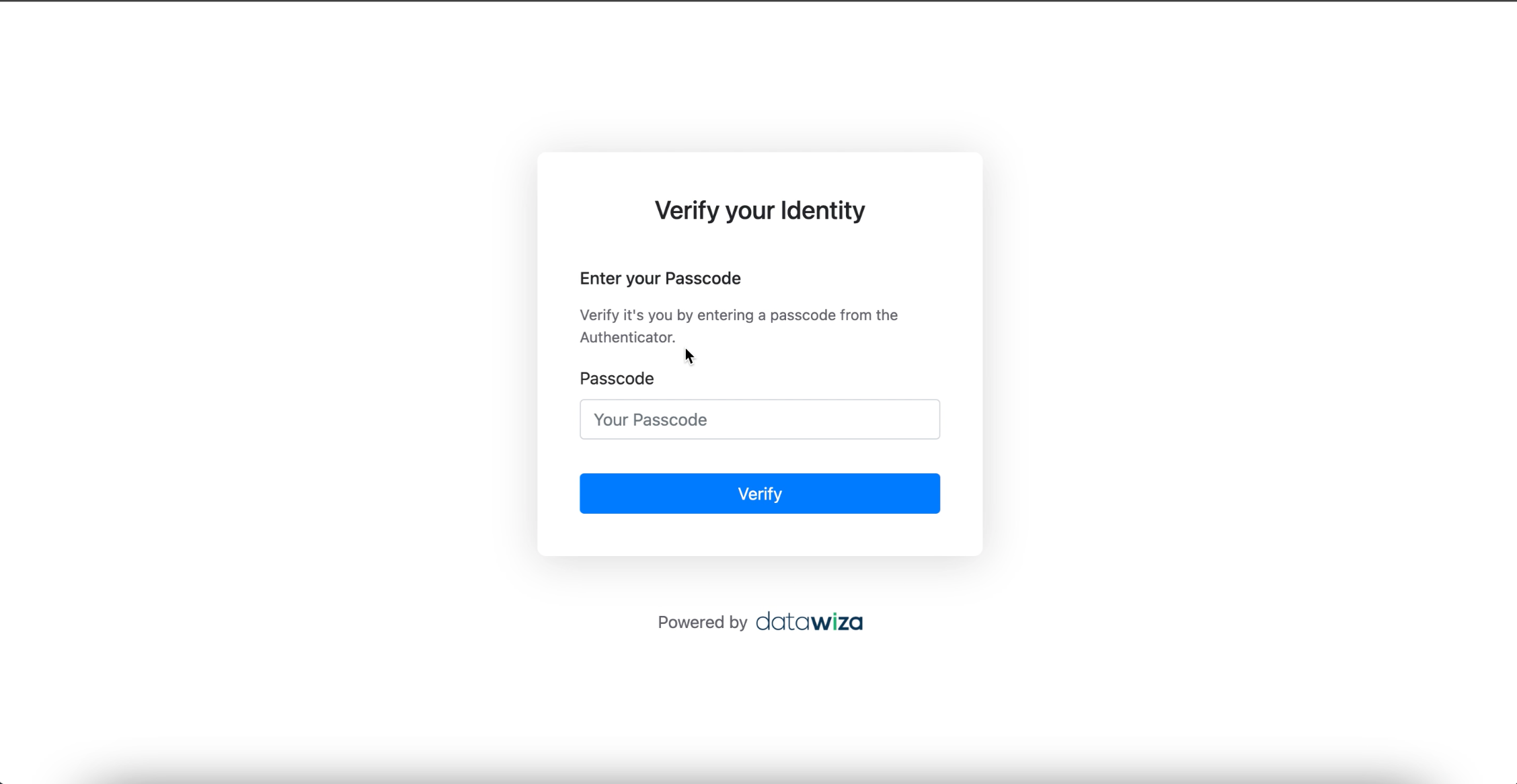
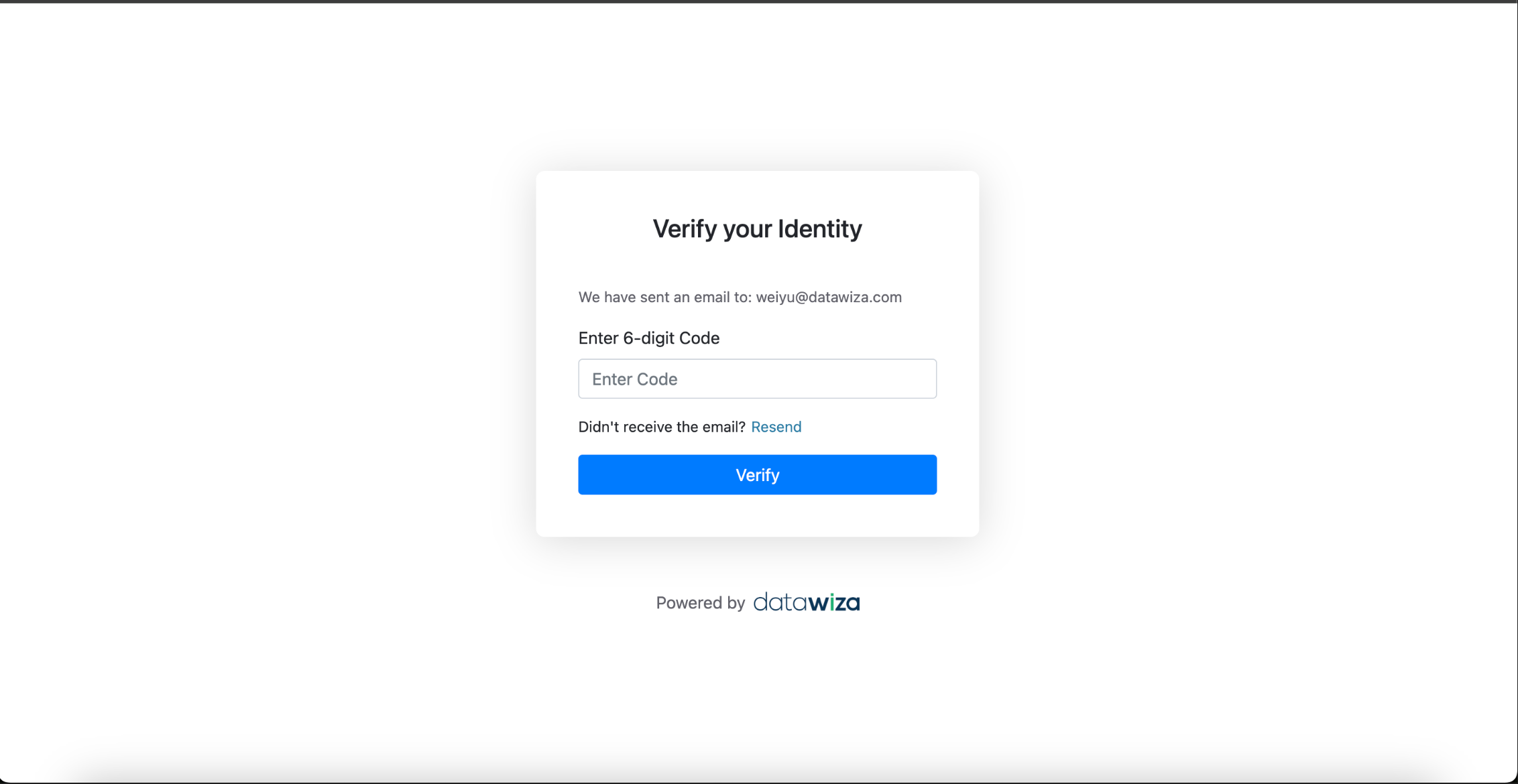
If the user has multiple MFA methods:
- They will be shown the method selection screen and can choose any method to verify.
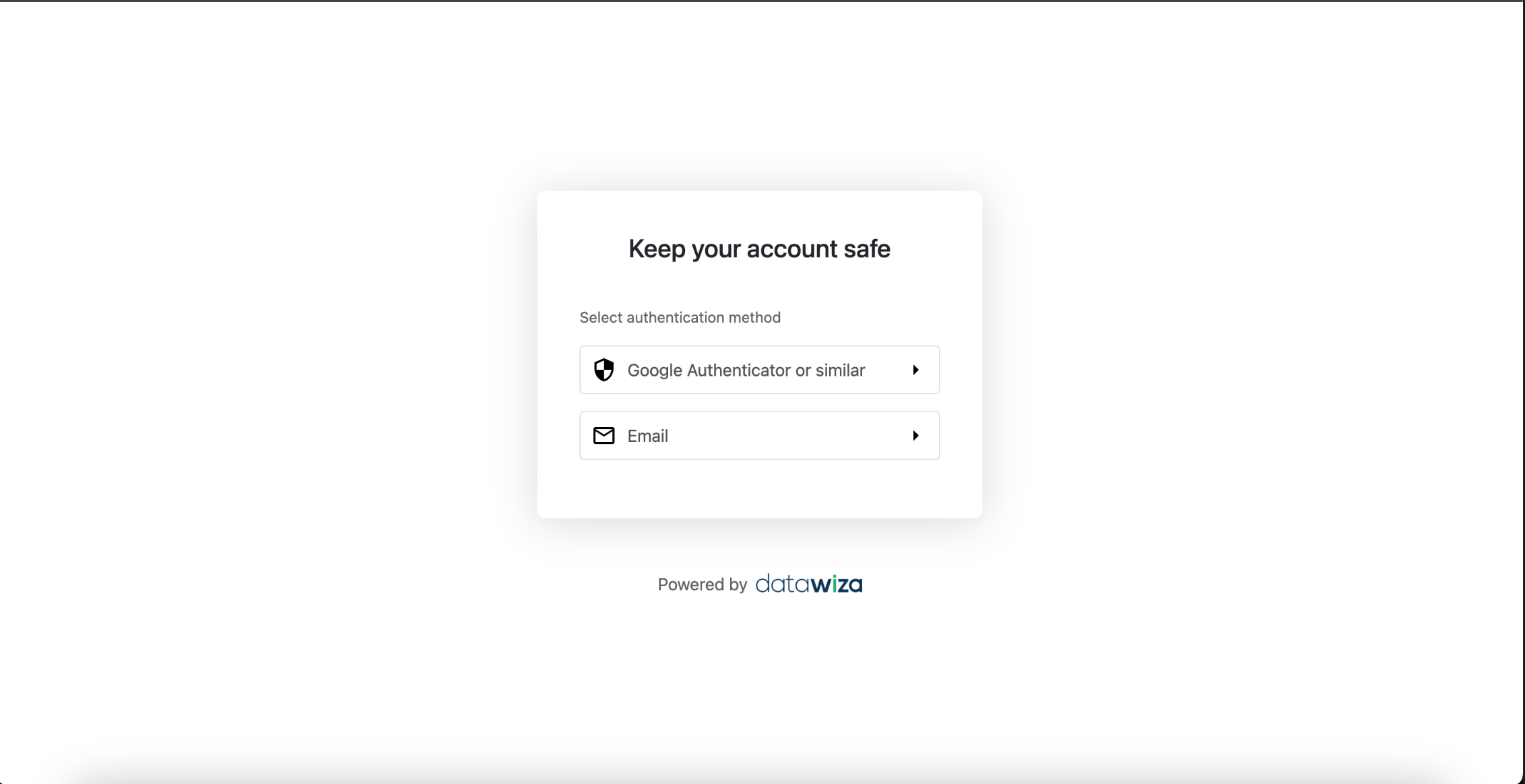
- They will be shown the method selection screen and can choose any method to verify.
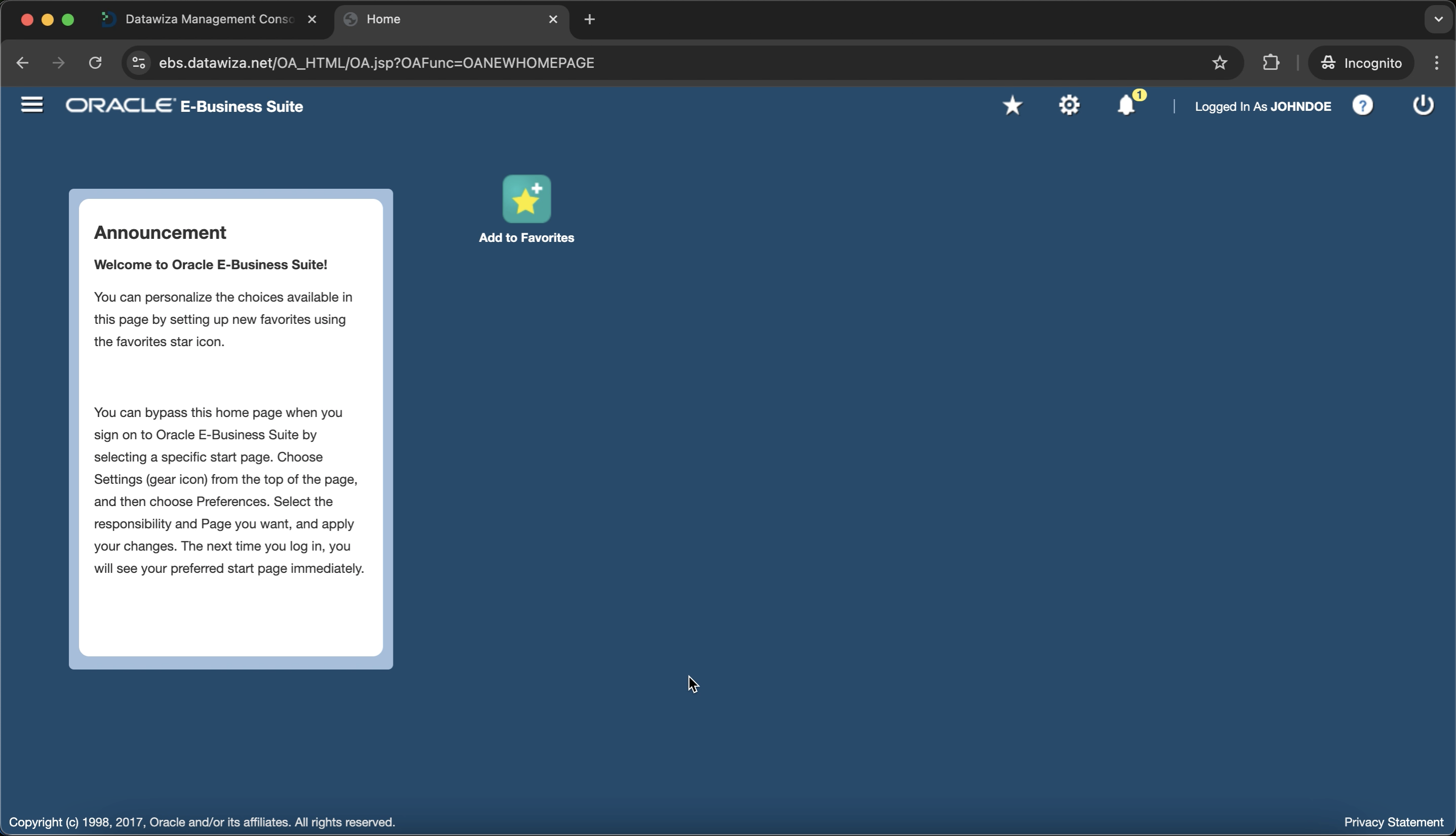
After the user successfully completes MFA, they should be able to access Oracle EBS as usual.
If you enable JIT user provisioning, newly authenticated users who do not yet have any MFA method configured will see the method selection page immediately after logging in: 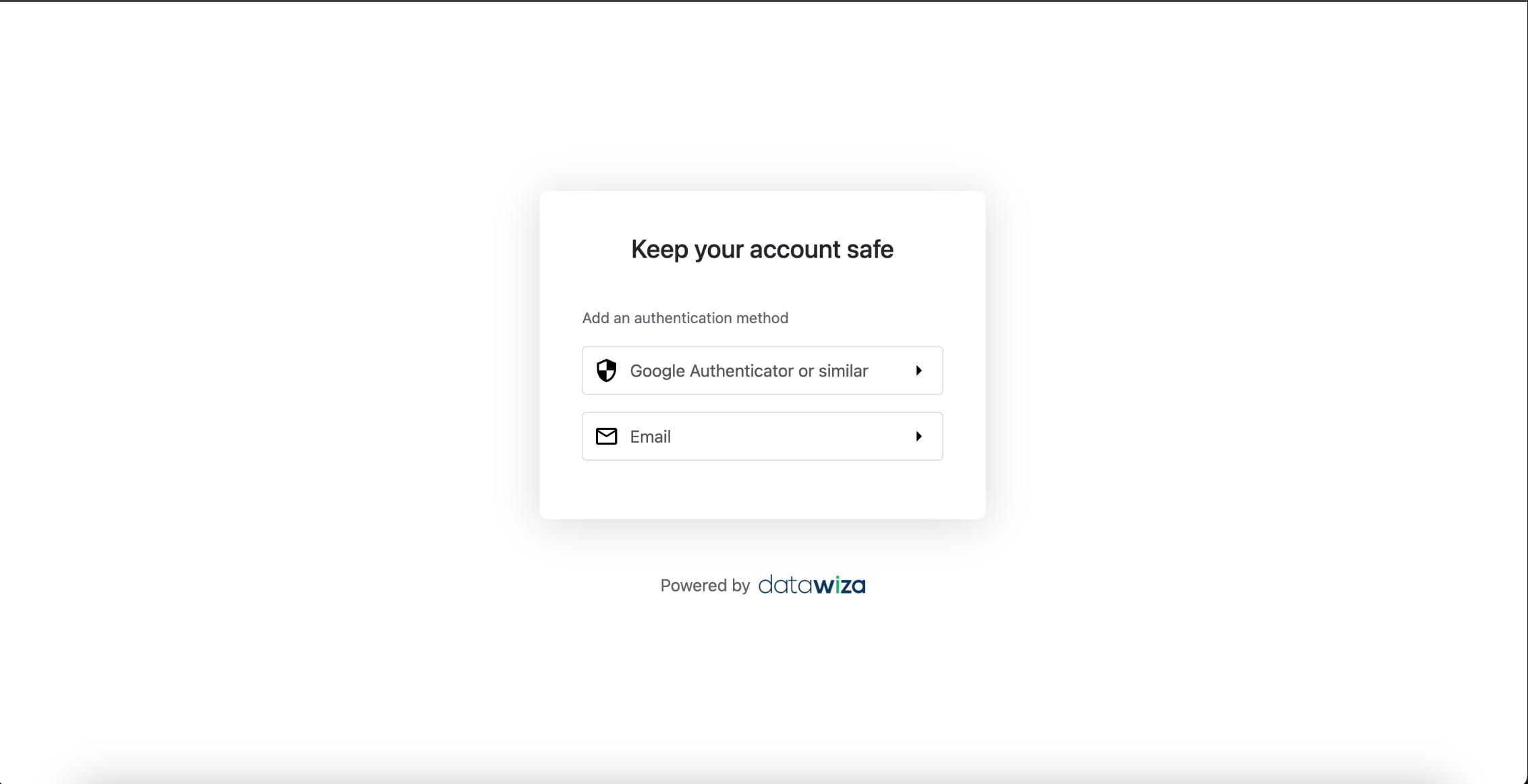 They must choose one MFA method to enroll:
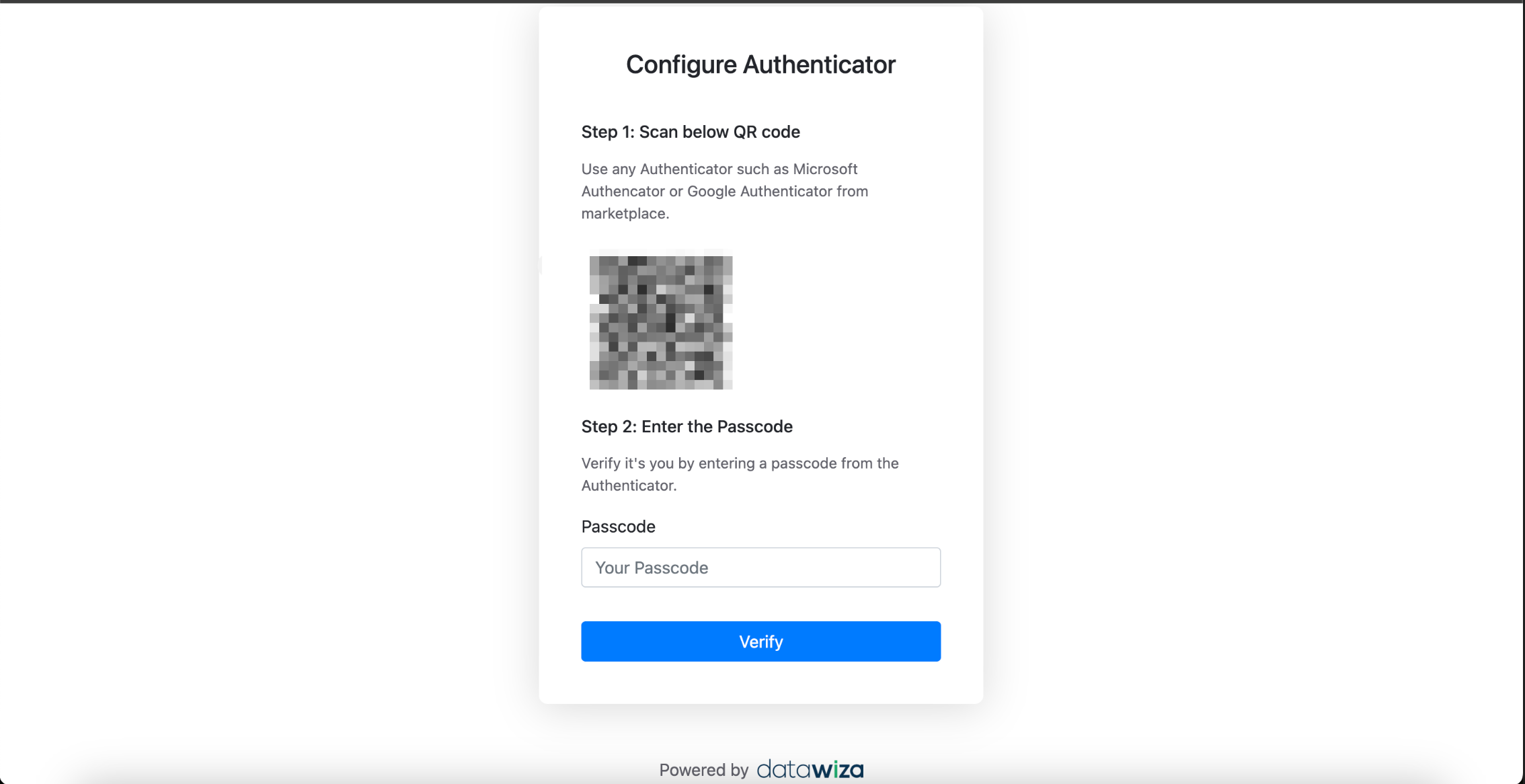
Enroll via Authenticator
- Scan the QR code with an authenticator app.
- Enter the generated verification code.
Enroll via Email OTP
- Enter an email address.
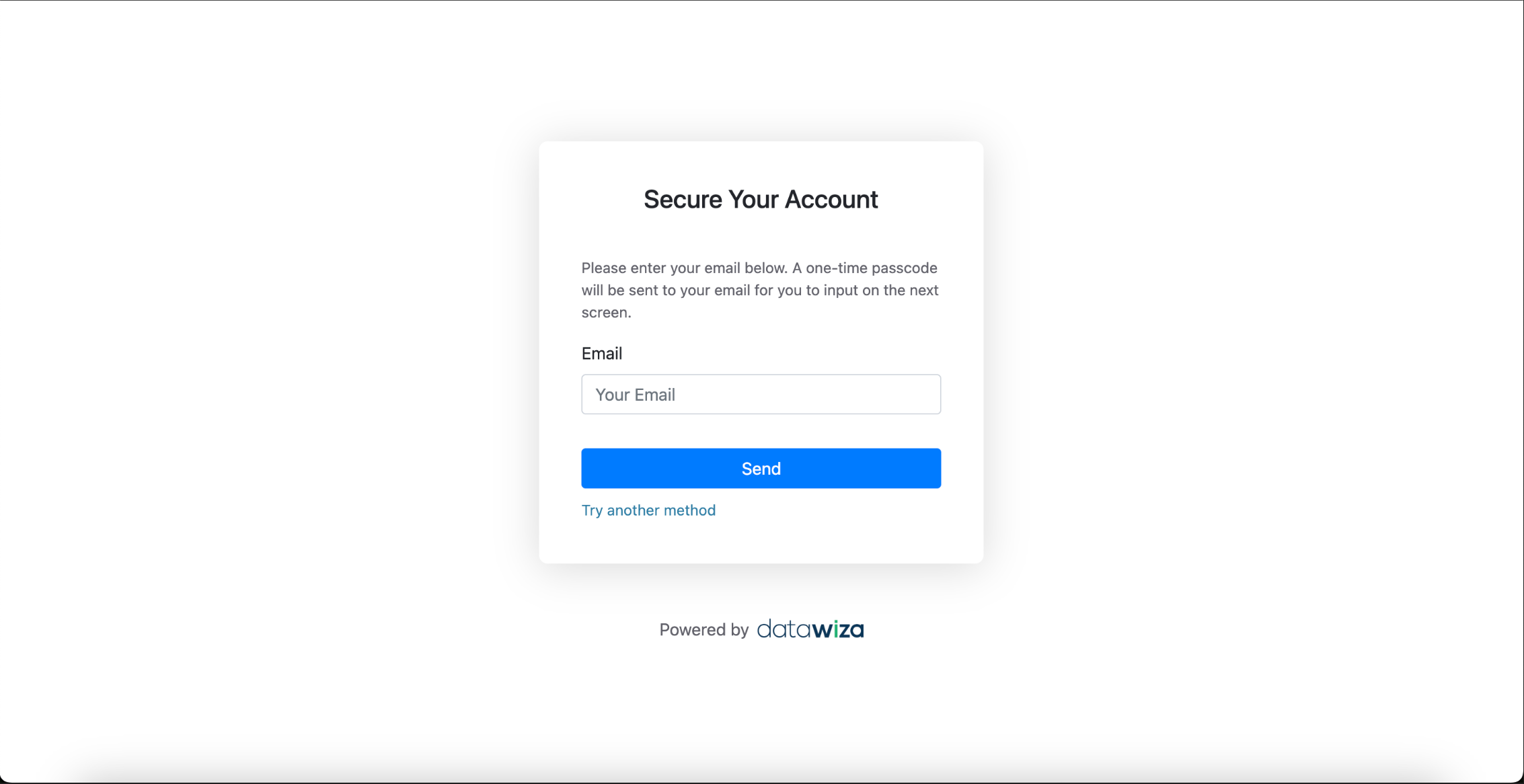
- An OTP will be sent to the entered email.
- Enter the OTP to complete enrollment.